
 LinkedIn
 X
X Gate your connector operations with tags

Ever needed to show certain operations only to specific connector instances? As a connector developer, you often need to control which operations are available — based on the connector instance a user is working with. Maybe you have standard and advanced operations in the same connector, and you want to gate the advanced ones behind a specific configuration. Or perhaps you're building a connector family where different editions expose different capabilities.
Connector tagging gives you exactly this control. By declaring tags on operations in your connector descriptor and assigning tags to connector instances via the ConnectorMetadata API, you can dynamically show or hide operations based on the tags present on a given connector.
What are connector tags
Connector tags are string labels you assign to a connector instance (a specific connector type deployed on the Platform). Operations in your connector descriptor can declare which tags they require using the <availableForTags> element. When a user configures a connector shape in a process, only operations whose required tags match the connector instance's tags are displayed.
The key principle: if a connector instance has at least one tag matching an operation's declared tags, that operation becomes available.
Operations without <availableForTags> are always visible, regardless of what tags the connector has.
Tags are supported only at the operation level.
Declaring tags in the descriptor
Here's how you wire up a gate operation in the descriptor. Add <availableForTags> inside an <operation> element in your connector-descriptor.xml. Each <value> is a tag string that the connector instance must have.
Sample connector-descriptor.xml
<GenericConnectorDescriptor requireConnectionForBrowse="true">

  <!-- Connection fields — always visible, unaffected by tags -->
  <field id="url"    label="URL"      type="string"   />
  <field id="apiKey" label="API Key"  type="password" />

  <!-- Standard operations — always available to every instance -->
  <operation types="GET"
              customTypeId="regular_get"
              customTypeLabel="Regular Operation">

  <!-- Gated: only visible when the instance has the "legacy" tag -->
  <operation types="EXECUTE"
             customTypeId="legacy_import"
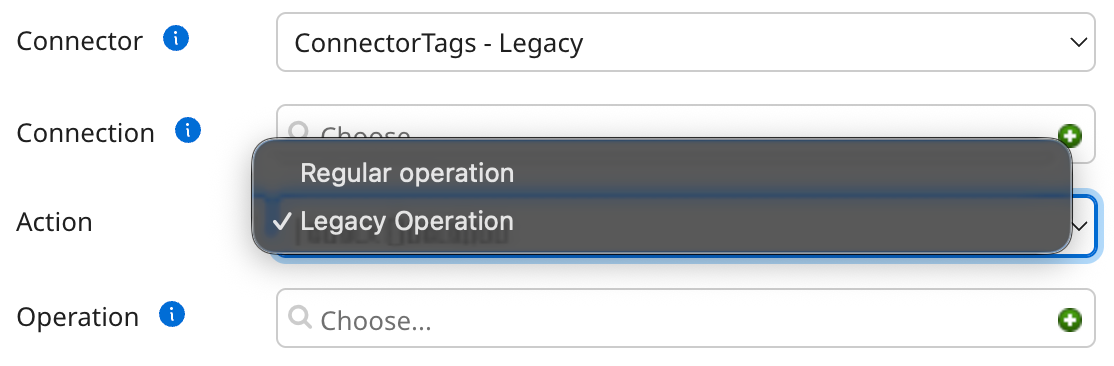
             customTypeLabel="Legacy Operation">
    <availableForTags>
      <value>legacy</value>
    </availableForTags>
  </operation>

  <!-- Gated: visible when the instance has "advanced" OR "beta" tag -->
  <operation types="EXECUTE"
             customTypeId="beta_run_report"
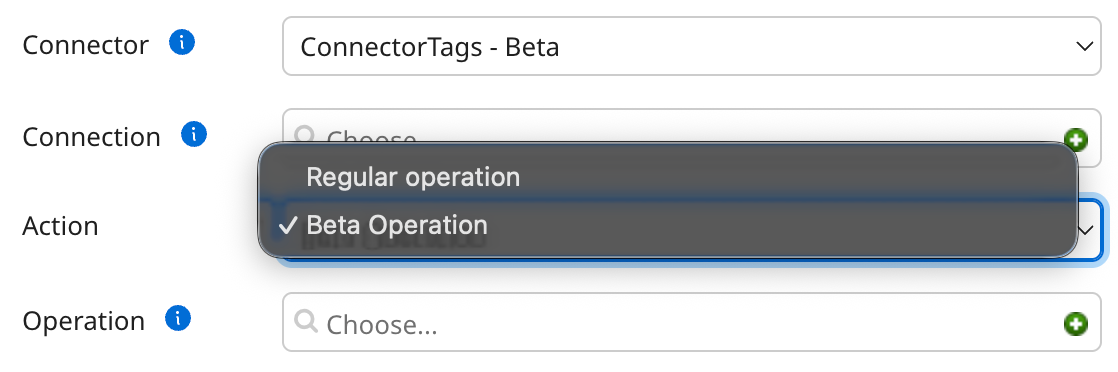
             customTypeLabel="Beta Operation">
    <availableForTags>
      <value>advanced</value>
      <value>beta</value>
    </availableForTags>
  </operation>

</GenericConnectorDescriptor>
A few rules to keep in mind:
<availableForTags>must contain at least one<value>— an empty element is invalid.- Tag values are plain strings. Lowercase hyphenated names (
beta,legacy,advanced,enterprise-tier) keep descriptors readable.
Assigning tags via the Connector Metadata API
Once you have an operation with <availableForTags> declared within it, assign the corresponding tag to your connector instance via the ConnectorMetadata API.
-
Before you make any calls, check the Prerequisites in the ConnectorMetadata API reference.
-
HIDDENconnectors are not supported by the ConnectorMetadata API.
Assigning tags
To assign tags, POST the following to the ConnectorMetadata endpoint:
Sample POST request
POST https://api.boomi.com/connector/api/rest/v1/{accountId}/ConnectorMetadata

{
  "classificationType": "myaccount-myconnector",
  "metadata": {
    "displayName": "My Connector",
    "connectorTags": {
      "tags": [
        {
          "name":        "beta",
          "description": "Enables beta operations"
        },
        {
          "name":        "enterprise",
          "description": "Enables enterprise reporting operations"
        }
      ]
    }
  }
}
The classificationType is the unique identifier for your connector type — find it in the Developer tab under the Connectors table.
Tags are replaced entirely with each request:
- To add a tag, include all existing tags plus the new one.
- To remove all tags, send
"tags": []. - To leave existing tags unchanged, omit the
connectorTagsfield entirely.
Retrieving current tags
To check what tags are currently assigned to your connector instance, make a GET request:
Sample GET request
GET https://api.boomi.com/connector/api/rest/v1/{accountId}/ConnectorMetadata/{classificationType}

{
  "@type": "ConnectorMetadata",
  "classificationType": "myaccount-myconnector",
  "metadata": {
    "displayName": "My Connector",
    "connectorTags": {
      "tags": [
        {
          "@type":       "ConnectorTag",
          "name":        "beta",
          "description": "Enables beta operations"
        },
        {
          "@type":       "ConnectorTag",
          "name":        "enterprise",
          "description": "Enables enterprise reporting operations"
        }
      ]
    }
  }
}
Private vs. public connectors
Private connectors are visible only to your own account — typically, connectors you're developing or using internally. Tag changes on private connectors take effect immediately; the response returns reviewStatus: APPROVED.
Public connectors are published in the Boomi connector catalog and are available to all customers. Because a tag change affects the feature surface of a connector that others rely on, updates go through a review process and return reviewStatus: PENDING until approved. Only one pending request is allowed at a time. If you need to revise your request before it's reviewed, cancel it first, and then submit your updated request normally:
POST https://api.boomi.com/connector/api/rest/v1/{accountId}/ConnectorMetadata/delete
What you can build with this
Here are a few examples of what you can do with connector tagging:
Use case 1: Tiered feature sets
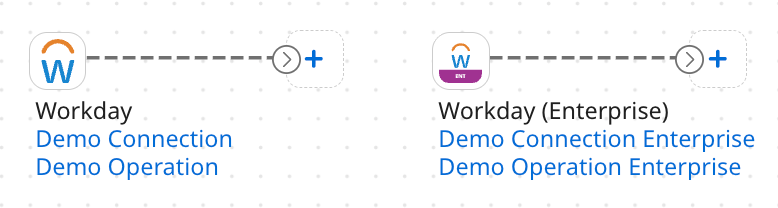
Keep separate connector editions in the same connector group. It is the pattern behind Boomi's Standard and Enterprise connector tiers: both share a single codebase, but the Enterprise connector type carries an enterprise tag that unlocks the advanced operations declared in the descriptor. Standard instances see only the baseline; Enterprise instances see everything.
Use case 2: Progressive rollout
Roll out a new operation without updating the entire connector. Say the API you're integrating with isn't fully released yet. Stage the operation behind a tag, enable it when the target system is ready, and remove it quickly if you find issues — all without touching your users' runtimes.
Use case 3: Graceful deprecation
Require a legacy tag on a connector operation you're retiring. It remains available to the existing connector editions that carry the tag, but disappears for new editions.
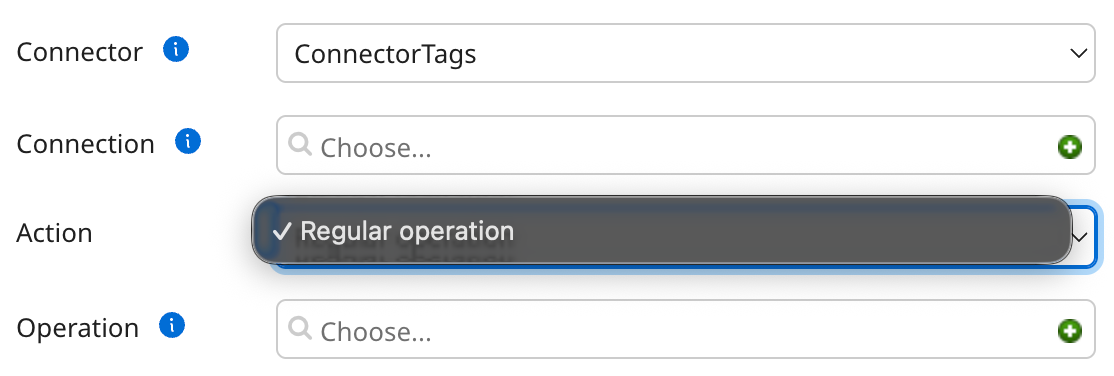
In the progressive rollout and graceful deprecation examples, the regular connector exposes only the regular operation:
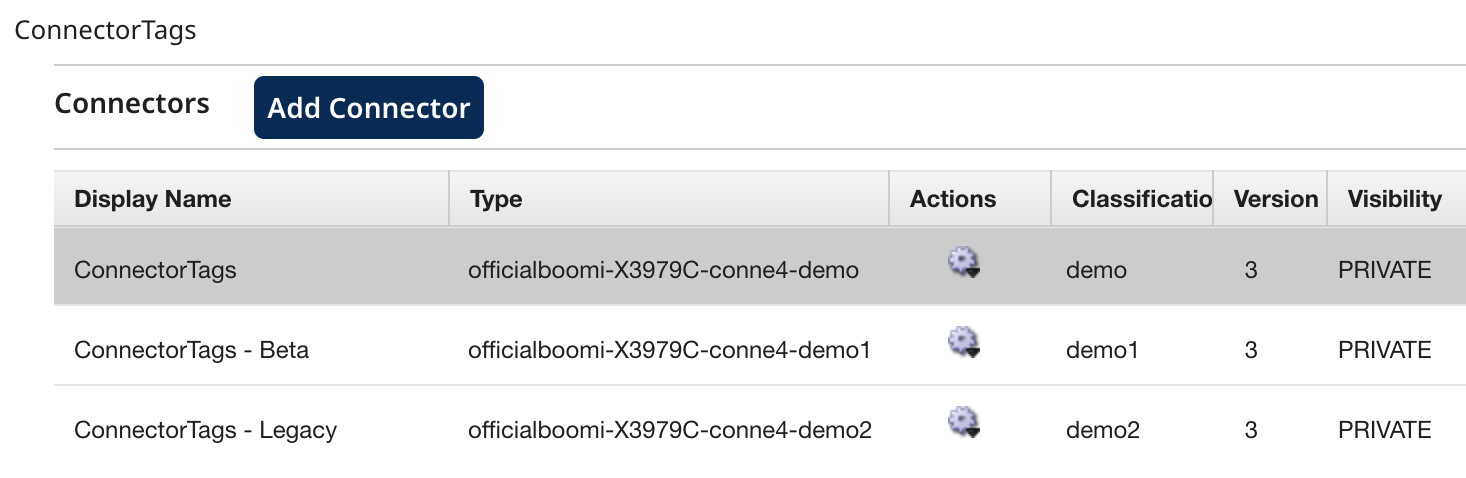
And in the connector group, all three connectors share the same version:
Compatibility with existing components
When you remove a tag from a connector instance, any operations that required it are hidden from the UI for future configuration — but existing deployed processes continue to run without interruption. The Platform marks those operations as "no longer available" to prevent new configuration while preserving existing behavior.
Ready to try it out? Add <availableForTags> to your descriptor, assign a tag via the API, and see what your connector shows — or doesn't. If you want to go deeper on connector configuration, check out:
- Connector descriptor file reference — full
<availableForTags>syntax and operation attributes - ConnectorMetadata API reference — complete specification for assigning and managing connector tags programmatically
Give tagging a try and let us know how it goes!
