LinkedIn
 X
X You wouldn't give a new hire admin on day one, so don't give it to Boomi Companion either

A customer wires Boomi Companion into their account using their own admin login, granting it complete access to every environment. Three days later, while debugging a failed run, it quietly edits a live production schedule. Nothing in its permissions had ever told it not to, or stopped it from trying.
That's not an AI problem. It's an access problem we'd never accept from a new hire. In this post, we'll walk through how to draw that boundary to properly scope Companion's access, step by step.
Two roles, not one
Boomi Companion needs real power, just not everywhere. Here's how and where you control it:
- Full access, non-production: build, test, deploy, and iterate freely. This is where mistakes are low-stakes.
- Read-only, production: watch logs and executions, nothing else. This is where mistakes actually cost you.
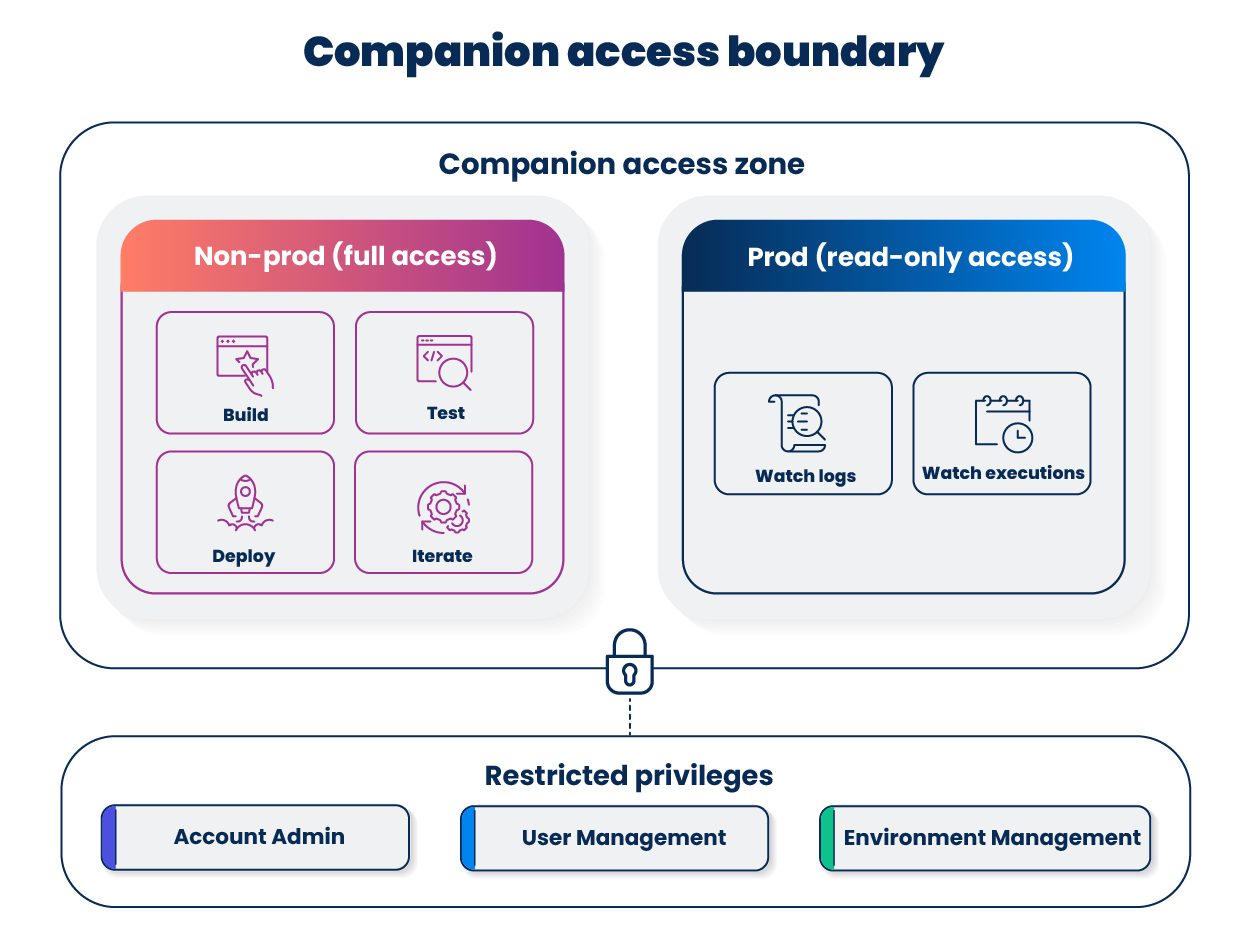
Here's how to actually put that in place.
Step 1: create the roles and give Companion its own login
Stand up the two scoped roles above instead of reusing a shared admin account. Just as important: don't let Companion log in as you. Set up a dedicated service account for Companion, so "what changed and why" never comes back to your own personal login account.
In practice, that looks like two Boomi custom roles, each with a deliberately different set of privileges:
Non-prod: full access
- Build, edit, and test processes.
- Deploy to non-prod environments.
- Manage runtime.
- View results, dashboards, and audit logs.
Prod: read-only access
- View processes and components.
- View execution results and logs.
- View dashboards only.
- Excludes build, deploy, or config access.
None of the non-prod and prod roles include Account Admin, User Management, or full Environment Management. That's on purpose. Companion should never be able to create users, change roles, or grant itself more access. Those are the privileges that would let it escalate past whatever boundary you just drew.
Step 2: enforce it at the environment level
Creating the roles is the easy part. Without environment-level access restrictions turned on, "read-only in production" is a suggestion, not a wall.
Enable Advanced Environment Access. Navigate to Account Settings > Account > Features, then toggle it on. Instant, no waiting period. If you don't see it on your account, confirm availability with your Boomi sales representative before continuing, as this is part of the Advanced Security Licensing.
Before you flip that switch: audit who currently has broad environment access through other roles, so tightening Companion's leash doesn't lock out your own team too.
Step 3: bound the one risky moment
Boomi won't let you mint an API token on someone else's behalf. Companion's service account has to log in once, itself, to generate its own.
The point
Boomi Companion is going to be a permanent fixture, not a demo. It's already proven itself. The access model you give it on day one is the one it keeps, because let's be honest, nobody circles back to tighten permissions once it's working.
So, how is your team scoping Companion's access today? If the honest answer is 'we haven't thought about it yet,' you're not alone; that's exactly the moment to fix it, before an incident makes the decision for you. Drop a comment and tell us how you're drawing the line.
Resources to keep building
Everything covered here has more depth in Boomi's documentation:
- Boomi Companion overview: What Boomi Companion is, product-level
- Boomi Companion developer docs: Technical documentation and setup
- Installing Boomi Companion on Claude Code: Step-by-step setup guide
- User roles and privileges reference: Full privilege breakdown by role
- Custom role scenarios: Environment-scoped access examples