
 LinkedIn
 X
X Custom properties enhancements in Boomi Integration Connector SDK

Every connector developer has bumped into the limitations of the default Custom Properties table at some point. Fixed labels, generic fields, and features like encryption don’t always reflect what your users actually need. The good news? The latest SDK (2.28.3) enhancements finally give you the freedom to shape this table the way you want, and it’s much simpler than you might expect.
Here’s how you can transform the default table into something that truly fits your connector and why these changes matter.
Why the default table feels limiting
When building connectors for Boomi Integration using the Connector SDK, you might notice that the table generated by customProperties fields in connection and operation configurations can be too generic for certain use cases.
By default, it displays simple Key and Value columns along with an Encrypted toggle, a Remove icon, and a generic Add Property button, which works for many scenarios but not all.
Here’s how the default Custom Properties table looked before these enhancements:

This setup works for simple key/value inputs, but it isn’t enough for all connectors. For example, the label “Value” might not make sense for your users, encryption might not be needed, and the field names may need to better match a specific use case.
With the latest SDK improvements, you now have the ability to customize the Custom Properties table UI more effectively.
What improvements can you use now
The latest SDK (2.28.3) enhancements make customizing the Custom Properties table simple and flexible, all with just a few XML attributes.
With these updates, you can:
- Rename column headers to align UI labels with your connector’s domain language, no more generic “Key/Value” labels if they don’t fit.
- Change the Add Property button label to make the action more intuitive for your users.
- Hide the Encrypted column entirely if your connector doesn’t support or require encryption, you can remove the clutter entirely.
Implementation example in action
Configuring customProperties
To enhance the default UI, add a <customPropertiesConfiguration> block inside any field defined with type="customProperties" in your connector-descriptor.xml.
Here’s a sample configuration:
<field id="customPrompts" label="Prompts" type="customProperties">
  <customPropertiesConfiguration
      keyLabel="Name"
      valueLabel="Prompt"
      addButtonLabel="Add Prompt"
      allowValueEncryption="false"/>
</field>
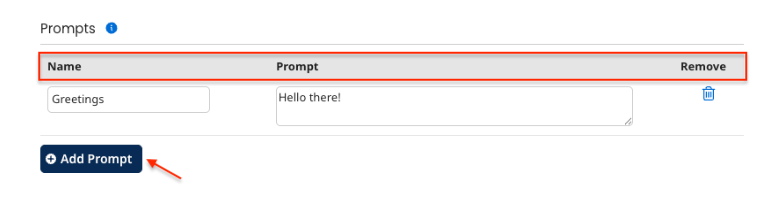
With these enhancements, the table now presents clear, purpose-specific labels and a cleaner layout that matches your connector’s intended use.
Customization options
Here’s a quick break down of the attributes you can modify to customize the customProperties table as per your needs:
keyLabel: Change the Key column label to something that actually makes sense for your users, like “Header” or “Name".valueLabel: Rename the Value column so it matches your use case better. Options like “Prompt” or “Parameter” usually work well.addButtonLabel: Customize the Add Property button text to make it more intuitive for your users.allowValueEncryption: Set this tofalseif you want to hide the Encrypted column completely.
All of these attributes are optional. If you leave one out, the default behavior stays the same.
Best practices for using these attributes
A few things to keep in mind when customizing your custom properties table:
- These attributes only work on fields with
type="customProperties". - Encryption settings apply to the entire table, not individual rows.
- If you skip any attributes, default values are used automatically.
- You can still access the table entries programmatically in the same way as before.
- Ensure your attribute labels remain within the allowed character limits.
How this customization benefits your UI
Even small UI customizations can make a big impact. They make inputs easier for users to understand, remove unnecessary complexity from the interface, and help ensure the UI stays consistent with your connector’s business domain.
Ready to give your connectors a polished UI? Dive into the SDK and start customizing your Custom Properties table today!
