
 LinkedIn
 X
X Optimizing AI Agent Development and Testing in Boomi Agentstudio


Building an AI agent that works in a demo is one thing. Getting it to behave consistently, respond correctly to unexpected inputs, and perform well under production load is a different challenge. The gap between those two states is where most agent development time actually lives.
This blog covers how to test agents effectively, write instructions that work, address performance bottlenecks, configure tools properly, and set up guardrails that protect without blocking.
Testing agents before you ship
Where to test
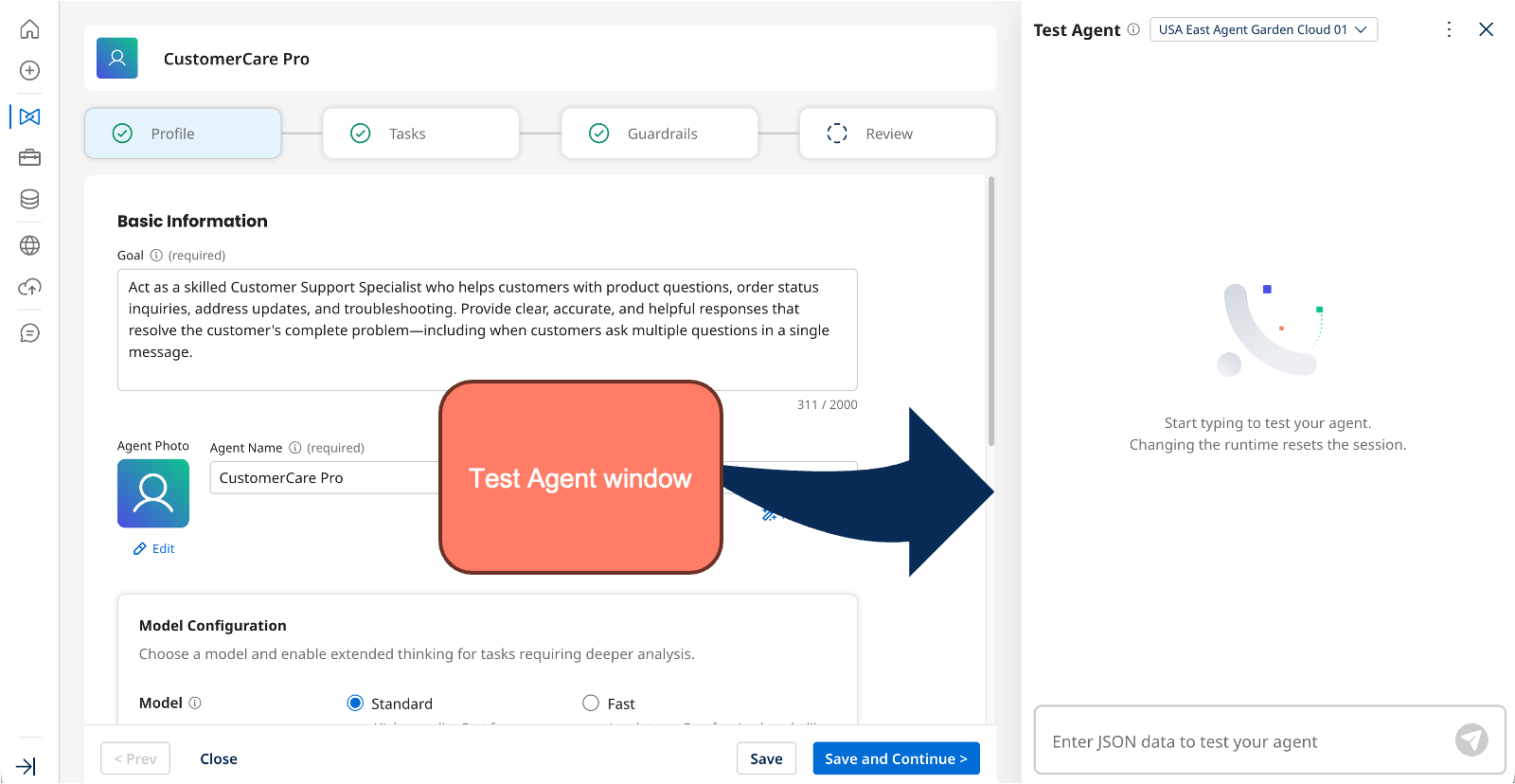
The place to start is the Test Agent window in Agent Designer. Before you package and deploy an agent, test it directly in the designer. You can select the test runtime cloud from a drop-down at the top of the Test Agent window and run your agent against real inputs in a controlled environment.
Test repeatedly and with variations
Agents are non-deterministic. The same input will produce slightly different responses each time, because that is how Large Language Models (LLM) work. You want to run the same input at least five times to build confidence that the responses are consistently valid, even if they are not identical.
Beyond repeated testing, vary your phrasing. Users will not phrase requests the same way you do. An agent that handles "what's the status of my order" might stumble on "can you pull up my order info." Test the variations you would realistically expect to see.
It is worth maintaining a set of test inputs with expected outputs. Think of it as a lightweight test suite you can run after any configuration change to confirm you have not broken existing behavior.
Reading the agent trace
The agent trace is your primary diagnostic tool. It shows the LLM's reasoning steps, every tool call and its response, performance data, guardrail triggers, and token counts. High response times in the trace signal latency issues, and the data helps you pinpoint where the slowdown is occurring.
There are two types of steps in the trace: Thinking and Action steps. Thinking steps show the LLM's reasoning. These appear when Extended Thinking is enabled, so turn it on while testing. Action steps show what happens when the agent calls a tool: the request, the response, and all associated data.
Metrics and default guardrails
The trace also surfaces invocation metrics: performance and usage data for the full run. Definitions for each metric are available in the testing and troubleshooting article on Help Docs.
Every agent in Agentstudio includes default guardrails for profanity and harmful content. These are always active regardless of what you configure. If either triggers during testing, it will appear in the trace alongside any custom guardrails you have set up.
Using the trace to triage
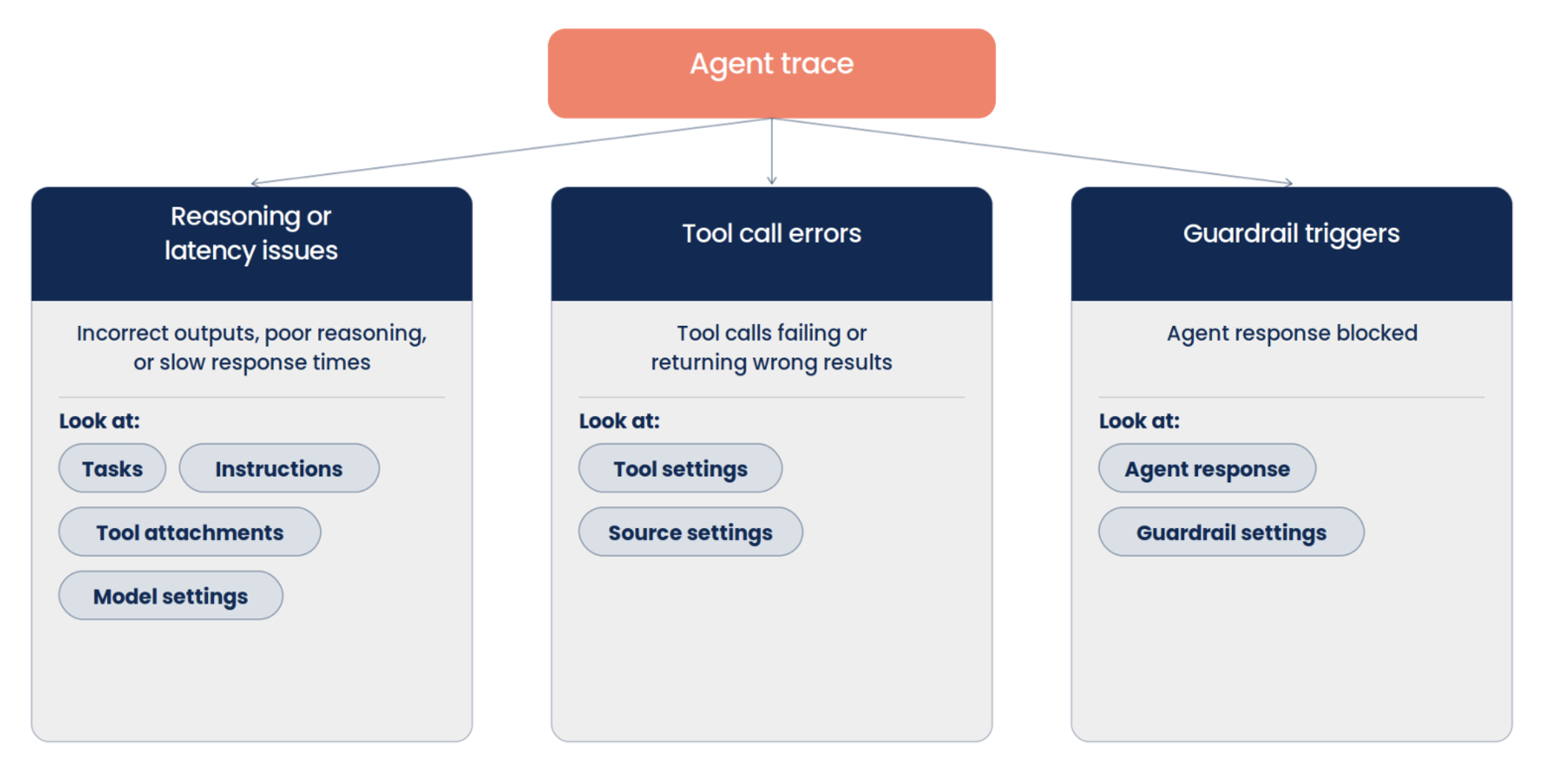
When something looks off in the trace, use it to narrow down the problem. Reasoning or latency issues point to your tasks, instructions, or model settings. Tool call failures point to your tool configuration or, for MCP tools, the associated source connection. Guardrail triggers point to your agent response or guardrail policies.
Writing tasks and instructions that work
How task structure works
Agent Designer gives each task a name, a description, and a set of instructions. The LLM reads this structure to decide which task applies to a given user request and how to execute it. Instructions do not need to be in a specific order. The LLM reasons through them and applies them logically. What matters is that they are clear and specific.
Write for a new colleague
A useful mental model: write your instructions as if you are explaining the task to someone new to the job. If a new colleague would be confused by "Handle orders" as a task name, so will your agent. Task names like "Cancel order" and "Check order status" describe the exact action being performed, which gives the agent a clearer signal when selecting the right task for a given request.
Specificity reduces the work the LLM has to do to interpret your intent. That improves both accuracy and performance. The more specific the task name and description, the better the agent can match the right task to the right request.
Key instruction patterns
When writing instructions, think through the scenarios your users will actually encounter. A few patterns make a significant difference:
-
Break the goal into small, specific tasks. If your agent handles orders, that is not one task. It is several. Each task should represent a specific, actionable operation.
-
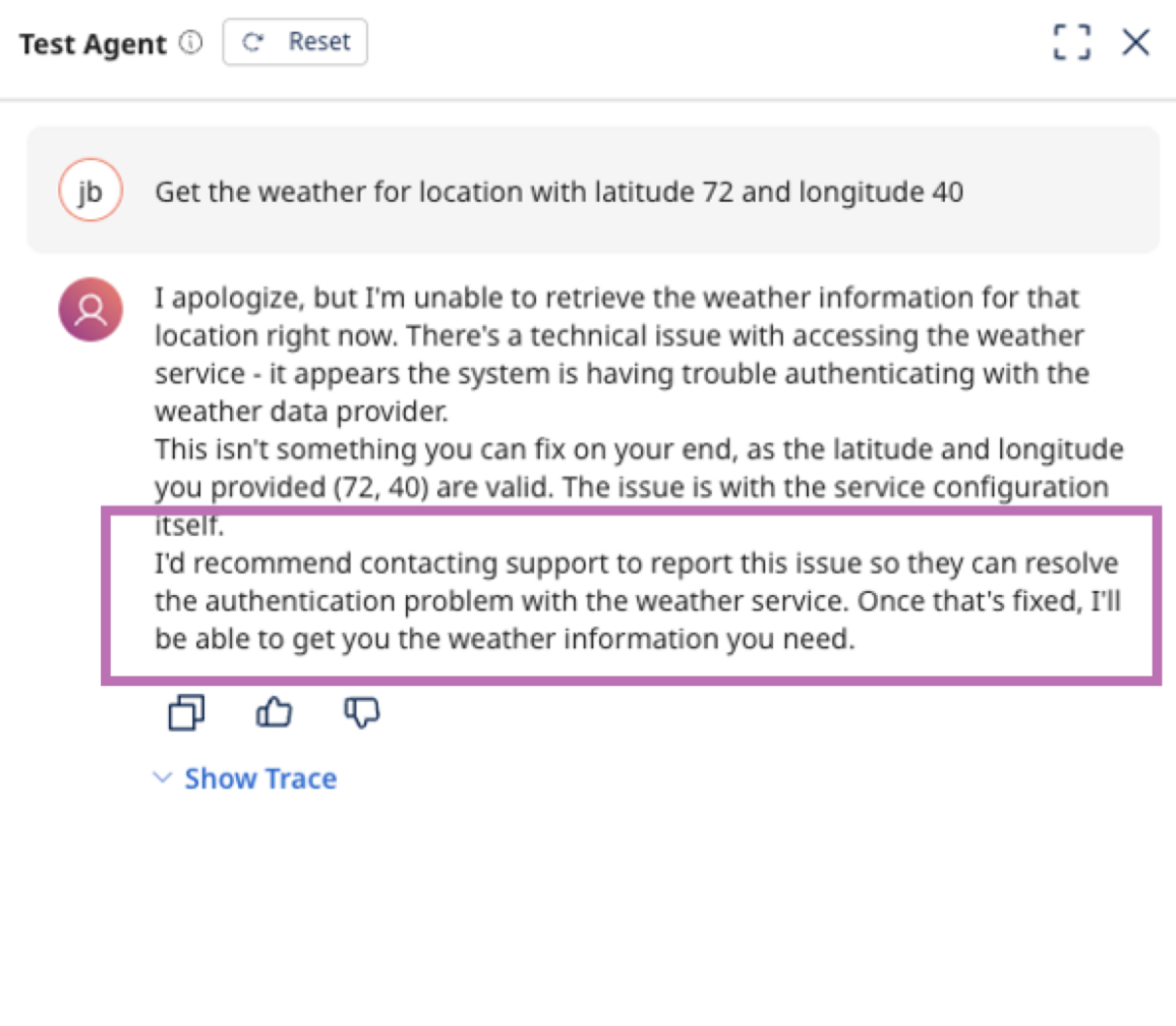
Include error handling. Tell the agent what to do when things go wrong. An instruction like "If the tool returns an error, apologize and suggest contacting support" gives the agent a defined path when tool calls fail.
-
Provide output examples. When you need the agent to produce a specific format, include an example directly in the instructions. For a data transformation task, an example of the expected output lets the agent match the pattern consistently.
-
Use action trigger language. Words like "before," "after," and "if" give the agent clear sequencing signals. For example: "Before calling the API, confirm the account name with the user." Or: "If the user provides a city but not coordinates, retrieve the coordinates first, then call the weather API."
-
Guide intent recognition. Explicitly map user intents to tasks: "If the user asks about their order status, use the Check Order Status task." This reduces ambiguity when a request could map to multiple tasks.
-
Specify response format. If you want the agent to respond with a table or use specific report headings, include that in the instructions. The agent will not infer formatting preferences.
Refer to Best practices for writing agent tasks and instructions for more information.
Structured mode and output format
Agentstudio offers a structured mode for agents when the output needs to be machine-readable rather than conversational. If your use case has consistent, predictable input and output schemas, structured mode eliminates overhead. The LLM does not have to figure out how to format its output when you have already defined it.
The prompt tool and response modes give you additional ways to provide examples and constrain output format. Whichever approach you use, keep examples real-world and varied so the agent is prepared for edge cases. Refer to Using Structured agent mode for more information.
Addressing performance and latency
Even when an agent is configured correctly, it can be slow or fail on large inputs. Three factors drive most performance issues: oversized context, model configuration, and agent mode.
Context size
Agents have a limit on how much information they can process in a single interaction. In Agentstudio, that limit is currently 200,000 input tokens. Instructions, tool responses, conversation history, and input data all contribute to the number of input tokens. Refer to Agentstudio token limits for more information.
You can see exactly how many tokens a run consumed in the agent trace. If you are regularly hitting limits, audit what data you are passing to the agent and cut anything that is not needed.
Model configuration
Agentstudio gives you two model variants. Standard is the default and handles complex agents well. Fast is optimized for lower latency and works best for simpler, more predictable tasks.
Extended Thinking increases both latency and token usage, but enables deeper reasoning. Use it for agents that make many decisions across multiple tools. Turn it off for straightforward tasks. One side effect: disabling Extended Thinking removes the reasoning section from the agent trace, which makes debugging harder. Refer to Choosing an LLM model setting for more information.
Agent mode and data passthrough
Conversational mode is the default, built for back-and-forth dialogue. Structured mode is for agents with consistent input and output schemas. With structured mode, the LLM does not have to parse or format data on the fly, which reduces processing time.
Data passthrough is a per-tool setting that lets tool responses flow directly to the next step without LLM processing. If a tool returns data that just needs to be passed along without interpretation, enabling passthrough removes that overhead.
To put numbers on it: in one internal example, switching an agent from conversational to structured mode and enabling the Fast model reduced response time by about ten seconds on the same task, with the same output quality.
For a side by side visual comparison of the agent response with and without data passthrough, refer to Data passthrough setting.

Configuring tools properly
Tool configuration problems are behind a significant share of agent failures. The reason is not that developers do not understand their tools. Since the LLM reads tool configurations to decide how to use them, ambiguous configuration leads to poor agent decisions.
Every tool has three foundational fields: name, description, and input parameters. The name tells the agent which tool to select. The description tells what the tool does. The input parameters tells which data to extract from the user's message or another tool's response. All three need to be precise. Vague fields get filled in with guesses.
Prompt tools
Prompt tools let you define how the agent should respond based on example inputs and outputs. Quality and diversity are what matter most. Examples should be accurate and well-formed, and they should cover the range of inputs and outputs the agent will actually encounter, including edge cases.
A common mistake is to provide examples that cover only one outcome. If your prompt tool categorizes email types and every example except one is labeled "unknown," the agent will learn to label most emails as unknown to cover the full range of expected outputs.
Data Hub tools
Data Hub tools retrieve data from Boomi Data Hub. The temptation is to return all available fields, since it is easier to configure. Resist it. Sending the agent more data than it needs adds noise and slows processing. Select only the fields the agent actually uses and apply filters to limit the query scope. Refer to Creating a Data Hub Query tool for step-by-step instructions.
MCP tools
MCP tools connect to external MCP servers. Three things can go wrong that have nothing to do with your agent configuration: the server goes down, authentication changes, or the tool schema gets updated. Before debugging your agent, verify that the MCP server is accessible, that your tool is not marked as Stale, and that the schema you are sending and receiving still matches what the server expects.
API tools
API tools are the most commonly used tool type and have the most opportunities for configuration errors.
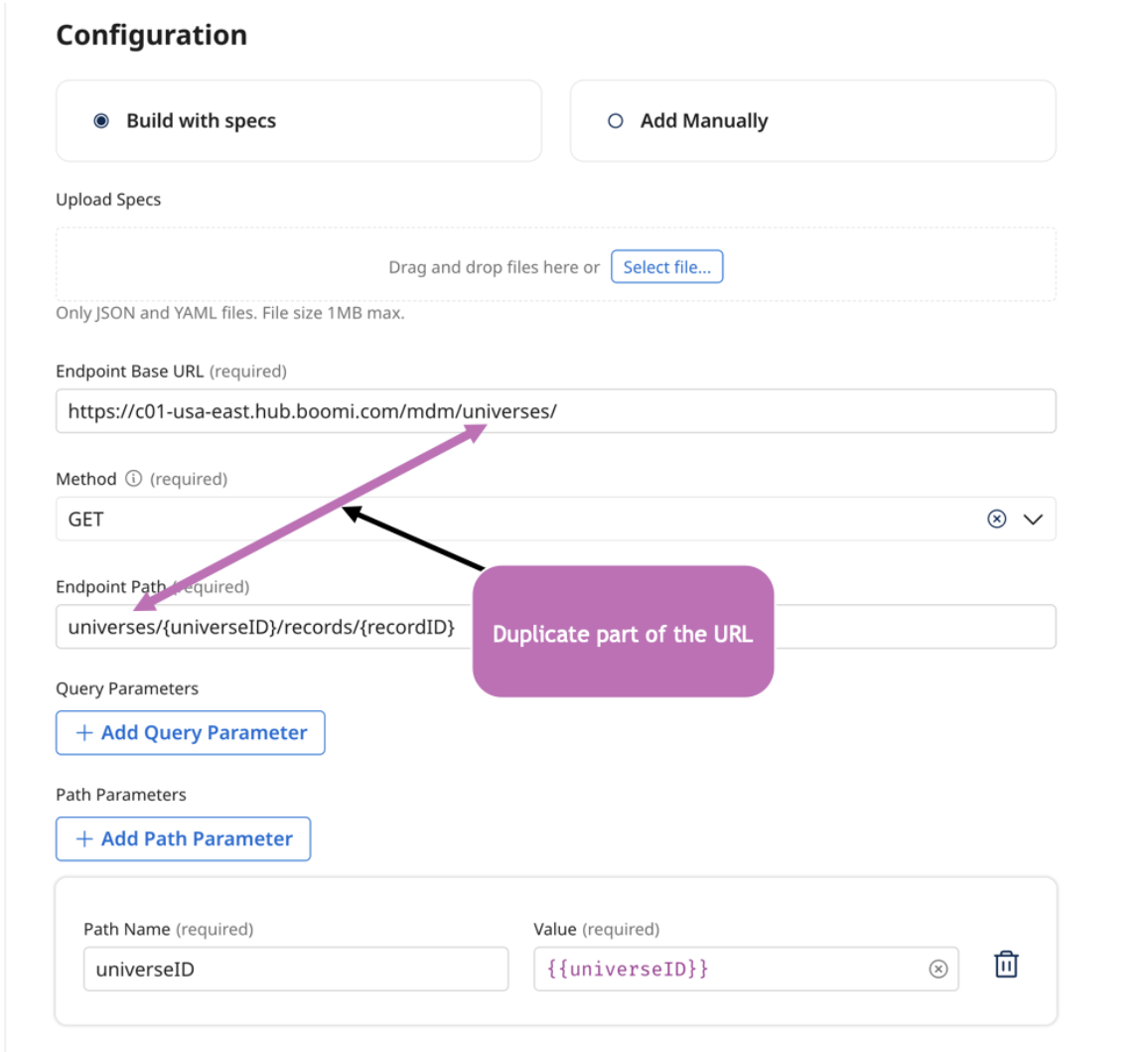
The endpoint URL is constructed from a base URL and a path. It is easy to accidentally duplicate part of the path and end up with a broken URL. Headers are another common issue. Some endpoints require a Content-Type header specifying the format of the data you are sending, and some require an Accept header specifying what you expect in return. Missing either will cause the call to fail.
Credentials are worth double-checking regularly. Whether you are using basic auth or a token, confirm that values are current and correct. Also, watch for whitespace. Copy-pasted values often carry invisible whitespace characters that cause authentication failures or malformed request bodies.
Refer to Creating an API tool for more details on configuring API tools and authentication options.
| Tool type | Common pitfalls | What to check |
|---|---|---|
| Prompt | Insufficient or unvaried examples | Add diverse examples covering edge cases |
| Hub | Returning too many fields or records | Apply filters; select only needed fields |
| MCP | Stale tools, changed schemas, inaccessible server | Verify server connection and schema accuracy |
| API | Duplicate URL paths, missing headers, whitespace in values | Verify URL, headers, credentials, and formatting |
Getting guardrails right
Common issues
Guardrails block specific inputs and outputs, preventing users from prompting the agent to perform actions it should not, and preventing the agent from returning sensitive or inappropriate content. They are a critical governance layer, but easy to misconfigure.
The three most common issues are false positives, incomplete coverage, and overly broad patterns.
False positives happen when a valid user prompt matches a rule that was not intended to catch it. The rule is usually too broad. Refine it to cover specifically what you want to block.
Coverage is a common blind spot. Most developers think of guardrails as filtering user input. However, guardrails also prevent agent outputs that violate its rules, such as sending sensitive data or responding to restricted topics. When assessing why a guardrail triggered, consider filtering out sensitive data before the agent can access it or adjust guardrail rules.
Pattern scope is the issue with regular expressions and keyword lists. A keyword like "shot" intended to block violent content will also catch "troubleshoot" and "snapshot." Narrow your patterns and test them against real examples before deploying.
Diagnosing and fixing guardrail issues
When a guardrail triggers unexpectedly, the agent trace shows which rule was fired and what action was taken. Use that information to determine whether the input or output was blocked. That tells you which guardrail to adjust.
Fix and test guardrails one at a time. Adding multiple guardrails at once and then running the agent makes it hard to identify which one is causing the problem. Work through them individually, verify the behavior after each change, and then move on to the next.
Refer to Creating guardrails to learn more about best practices and how to build guardrails.
Resources to keep building
Everything covered here has more depth in Boomi's documentation and community resources:
-
help.boomi.com - How-to guides, troubleshooting articles, and agent examples for Agentstudio
-
developer.boomi.com - Technical deep-dives, API reference guides, and SDK documentation
-
community.boomi.com - Training courses, agentic labs, the AI forum, and community-contributed articles
-
Agentstudio and marketplace.boomi.com - Agent templates to use as starting points or reference implementations
-
Boomi Documentation Video Library on YouTube - Visual walkthroughs of Agentstudio features and workflows
-
Platform search AI summary - From anywhere in the Boomi Platform, click the search icon in the top toolbar and ask a question. Boomi Answers surfaces relevant documentation without leaving your workspace.
