
 LinkedIn
 X
X Pipelines-as-code for Data Integration: CI/CD with REST & GitHub Actions

Data Integration makes it easy to build Data Flows in the UI. You can drag, drop, and connect things faster. But relying solely on the UI can run into problems, especially when you need to move a pipeline between environments without breaking anything and ensuring repeatable deployments, reviews, and traceability. Suddenly, that “clicky” workflow starts showing cracks.
This is where treating your integrations like code comes in! By leveraging REST APIs and treating your configuration as an artifact, you can automatically version, test, and deploy, giving your Boomi projects the same DevOps treatment your apps already enjoy.
Workflow overview: pipelines-as-code implementation
This is specifically about Data Integration and not Boomi Integration (iPaaS). The assets, concepts, and APIs here are for Data Integration Data Flows.
This blog includes a working pipelines-as-code reference implementation: a GitHub Actions–driven workflow where a single YAML file serves as the source of truth for the Data Integration pipeline. Automation can create, update, activate, run, and discover schemas and tables using the Data Integration APIs. The YAML file (in the repository, under the configs directory) is selected for its configurability and demonstrates how to retrieve the pipeline configuration as JSON. Check out the Operation section to see the example in action and understand how everything fits together.
If you want to dig into the API details, all endpoints are documented here.
Why pipelines-as-code for a low-code data pipeline platform?
At first, pipelines-as-code on a low-code platform might sound unnecessary. Isn’t the UI the whole point?
DevOps isn’t “just deployments.” It’s really about getting things done faster without breaking stuff, reducing lead time, deploying more often, lowering failure rates, and recovering quickly when something goes wrong.
This tension becomes most visible at scale. As pipelines, environments, and teams grow, UI-driven changes stop scaling: safe promotion from dev → prod becomes risky, rollbacks turn manual, audits rely on screenshots and institutional knowledge, and reproducing environments becomes guesswork.
The Boomi Low-Code DevOps White Paper highlights this challenge directly: while low-code accelerates delivery, teams still need DevOps-grade controls for promotion, rollback, traceability, and compliance in large environments.
In pro-code systems, Git is the obvious hero because your deliverable is already text. Low-code platforms are a bit trickier. There, the “deliverable” usually lives inside the platform as a structured configuration, so the reliable path to CI/CD is to externalize your intent, basically define what the pipeline should do, and then let the platform’s API-first design reconcile that intent with what’s actually running.
The accompanying repo is built around that idea: YAML becomes the contract, and the APIs becomes the deployment mechanism. Think of it like telling the system “here’s what I want,” and letting it do the heavy lifting for you.
GitHub Actions is used here as a concrete example of an orchestration layer. The same pipelines-as-code approach works with any CI/CD or orchestration system that can call REST APIs (for example, GitLab CI, Jenkins, Azure DevOps, or internal schedulers).
Prerequisites
Before running any workflows, configure credentials and environment settings in GitHub.
GitHub secrets
In your repo, create the following GitHub secrets:
-
ACCOUNT_ID
-
ENV_ID
-
TOKEN (Data Integration API token)
Check out the Creating a token Help Docs for more details.
importantEach Data Integration environment requires its own API token. So if you have Dev, Staging, and Prod, create and store a separate
TOKENfor each environment you plan to run workflows against.
Base URL (region-specific)
Data Integration uses region-specific API base URLs. Ensure your scripts and workflows point to the correct one:
- US:
https://api.rivery.io - EU:
https://api.eu-west-1.rivery.io - IL:
https://api.il-central-1.rivery.io - AU:
https://api.ap-southeast-2.rivery.io
Expose this as an API_BASE environment variable in your workflows (or set it in GitHub Environments). That way, the same YAML works across different regions without any edits.
Environment and connection assumptions
This CI/CD workflow assumes your Data Integration environments and connection assets are already set up and managed outside the pipeline YAML.
In practice, teams typically:
- Set up one or more Data Integration environments (Dev, Staging, Prod, etc.)
- Provision the required source/target connections in each environment (credentials, network access, connector configuration)
- Reference those pre-existing connections by ID inside the pipeline YAML
This separation is intentional. Think of it like keeping what you run separate from how it connects:
- The pipeline YAML stays focused on deployable pipeline intent: what to run, what to load, schedules, schemas, and tables.
- Connection lifecycle stuff (credentials, rotation, network policies) remains governed by your platform and security processes.
- Automation can still read metadata (schemas and tables) and deploy or update Data Flows consistently without trying to create, edit, or rotate connection details during pipeline deployment.
Repository layout
This is how the repo is organized and what each folder is responsible for:
.github/workflows/: CI/CD entry points, triggered via manual workflow_dispatch runs.configs/pipelines/: YAML source of truth configs, templates, and exported configs.connections/: Exported inventory of connections per environment.exports/: Exported Data Flow JSON and schema, and table inventories.scripts/: Python helper scripts that call the Data Integration REST API.
Operation
The following are the operation included in this repository, along with what they do and the API endpoints they call.
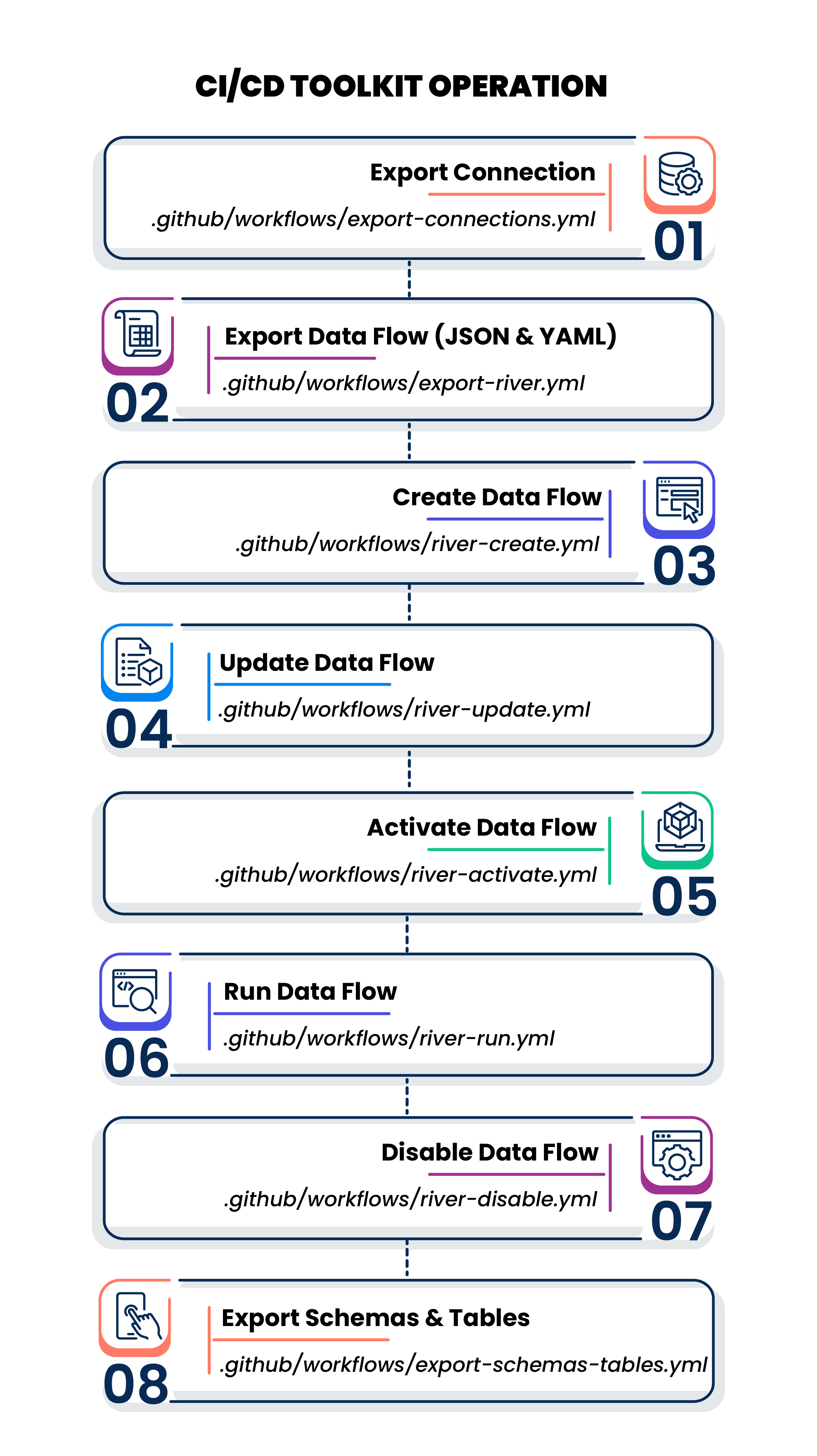
Operation 1: Export Connection
- Operation:
.github/workflows/export-connections.yml - Why: Keep a versioned inventory of available connections so your team can reference IDs safely.
- Endpoint used: Get Connections:
GET /v1/accounts/{account_id}/environments/{environment_id}/connections
Operation 2: Export Data Flow (JSON + YAML)
-
Operation:
.github/workflows/export-river.yml -
Why: Pull the deployed Data Flow definition from the environment, store the raw JSON, and generate an update-ready YAML.
-
Endpoint used: Get Data Flow:
GET /v1/accounts/{account_id}/environments/{environment_id}/rivers/{river_cross_id}This operation provides you the configuration details of existing pipelines.
noteThe JSON configuration can also be exported from the UI.
Operation 3: Create Data Flow (YAML → new Data Flow)
-
Operation:
.github/workflows/river-create.yml -
Why: Create a new Data Flow from a YAML template.
-
Endpoint used: Add Data Flow:
POST /v1/accounts/{account_id}/environments/{environment_id}/riversThis step prints the created Data Flows
cross_id, which you can use in other workflows.
Operation 4: Update Data Flow (Updated YAML = desired state)
-
Operation:
.github/workflows/river-update.yml -
Why: Use the updated YAML to update the Data Flow configuration.
-
Endpoint used: Edit Data Flow:
PUT /v1/accounts/{account_id}/environments/{environment_id}/rivers/{river_cross_id}This is the core “pipelines-as-code” move: update is not a patch, it’s a controlled replacements of the configuration based on what’s reviewed in Git.
Operation 5: Activate Data Flow
-
Operation:
.github/workflows/river-activate.yml -
Why: Move a Data Flow from “deployed but gated” to “allowed to run.”
-
Endpoint used: Activate Data Flow:
POST /v1/accounts/{account_id}/environments/{environment_id}/rivers/{river_cross_id}/activate_rivernoteOnce a Data Flow has been created, it must be activated before it can run.
Operation 6: Run Data Flow (on-demand execution)
-
Operation:
.github/workflows/river-run.yml -
Why: Trigger a run as a smoke test or manual execution.
-
Endpoint used: Run Data Flow:
POST /v1/accounts/{account_id}/environments/{environment_id}/rivers/{river_cross_id}/runThis runs the Data Flow once. Scheduling is handled in the pipeline configuration.
Operation 7: Disable Data Flow
-
Operation:
.github/workflows/river-disable.yml -
Why: Disable a Data Flow when it’s no longer active.
-
Endpoint used: Disable Data Flow:
POST /v1/accounts/{account_id}/environments/{environment_id}/rivers/{river_cross_id}/disable_rivernoteYou should disable a Data Flow before making changes, then re-enable it before running again.
Operation 8: Export Schemas and Tables
- Operation:
.github/workflows/export-schemas-tables.yml - Why: Get a JSON inventory of schemas and tables for a given connection. This step is useful when defining multi-table pipelines and deciding what to include in YAML.
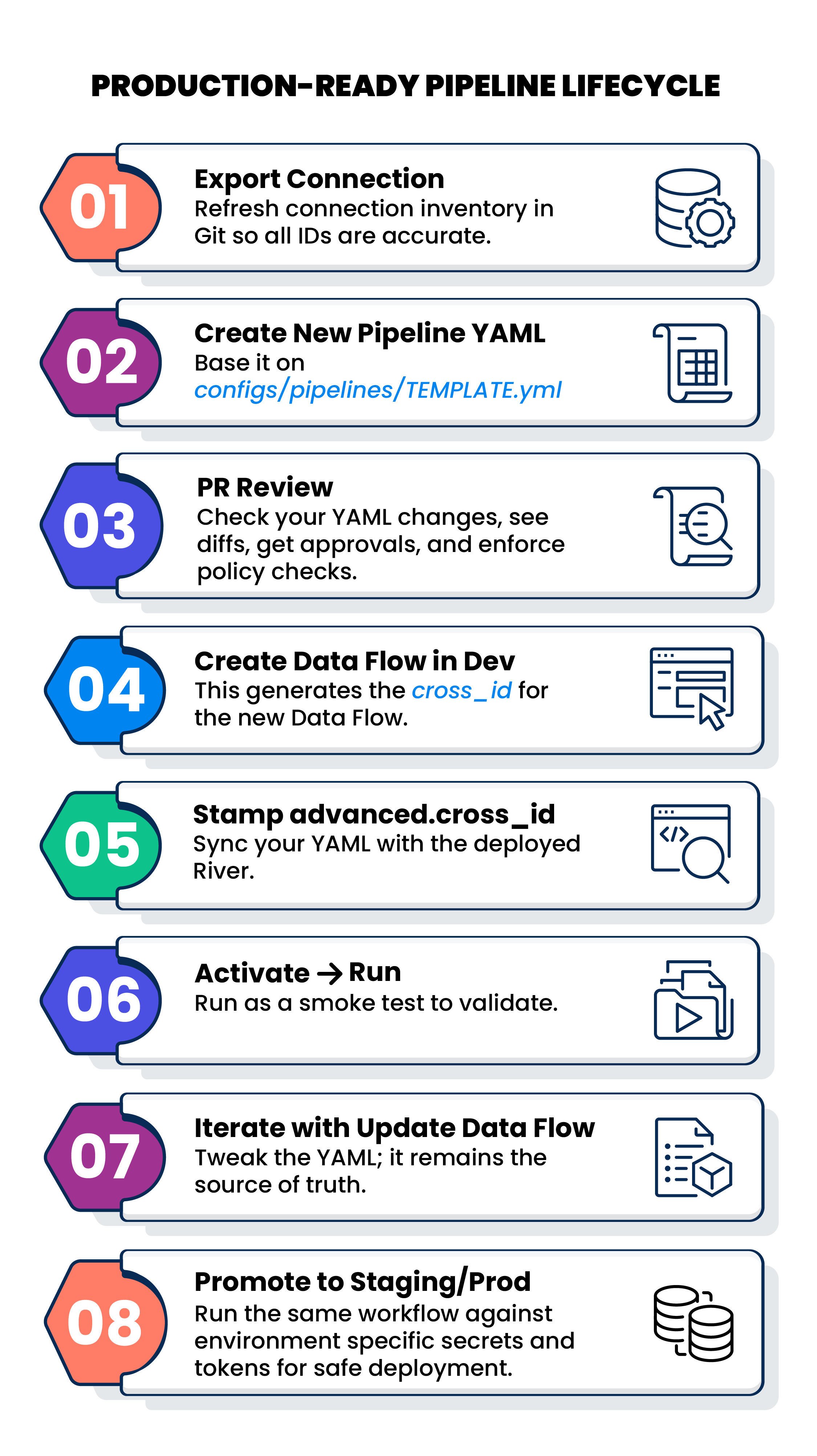
Typical Dev → Prod lifecycle workflow example
A practical, production-friendly lifecycle workflow might look like this:
Pipeline YAML: the fields you can tweak
The pipeline template is designed with one goal in mind: let engineers focus on intent, not platform internals. You can safely tweak the following in the pipeline YAML:
- Source connector:
typeandconnection_id - Target connector:
typeandconnection_id - Target database/schema fields: Define where your data lands.
- Run settings: Run type, schemas list, notifications, schedules
- Advanced:
advanced.cross_idonce the Data Flow has been created.
Example (illustrative)
name: mysql_to_snowflake_demo
description: "Ingest MySQL tables into Snowflake"
river_status: disabled

source:
type: mysql
connection_id: "6784f4ffe3d56a8e86ae2xxx"

target:
type: snowflake
connection_id: "67162612774a3ad04dxxx"
database_name: "ANALYTICS"
schema_name: "RAW"
loading_method: merge
merge_method: merge

schedule:
cron: "0 2 * * *"
enabled: false

advanced:
cross_id: "24_hex_cross_id_here"
Once pipelines live in code, UI clicks become optional and everything in your pipeline becomes reviewable, repeatable, and team-ready. Tweak your YAML, hit run, and let automation do the heavy lifting.
