Sharing connectors with an account group
Account groups help you manage resources between your primary Boomi Enterprise Platform account and multiple sub-accounts. For example, you may be a Boomi partner with multiple customer sub-accounts in your account groups. You can share connectors with your customer accounts so they can use it as a template. Refer to Account Group settings and Account groups example for information on the use case for account groups.
Prerequisites
- Administrator privileges
- Enable the Account Groups feature by navigating to Settings > Account Information and Setup > Restricted Features. For more information, contact your account representative.
- Deployed connectors to the Boomi Enterprise Platform.
Before you begin
You can share connectors from your primary Boomi account with your connected sub-accounts. If you want to share with only specific accounts, create an account group and add accounts to it. Otherwise, add the account to the All Accounts group. To learn more, refer to:
Procedure
-
Sign into the Boomi Enterprise Platform and select Settings > Account Information and Setup > Account Groups.
-
Do one of the following:
a. Select an account group that contains specific accounts. b. Select All Accounts.
-
If accounts exist in a group, proceed to step 4.
To add accounts, click the plus icon and search for the account you want to add.
-
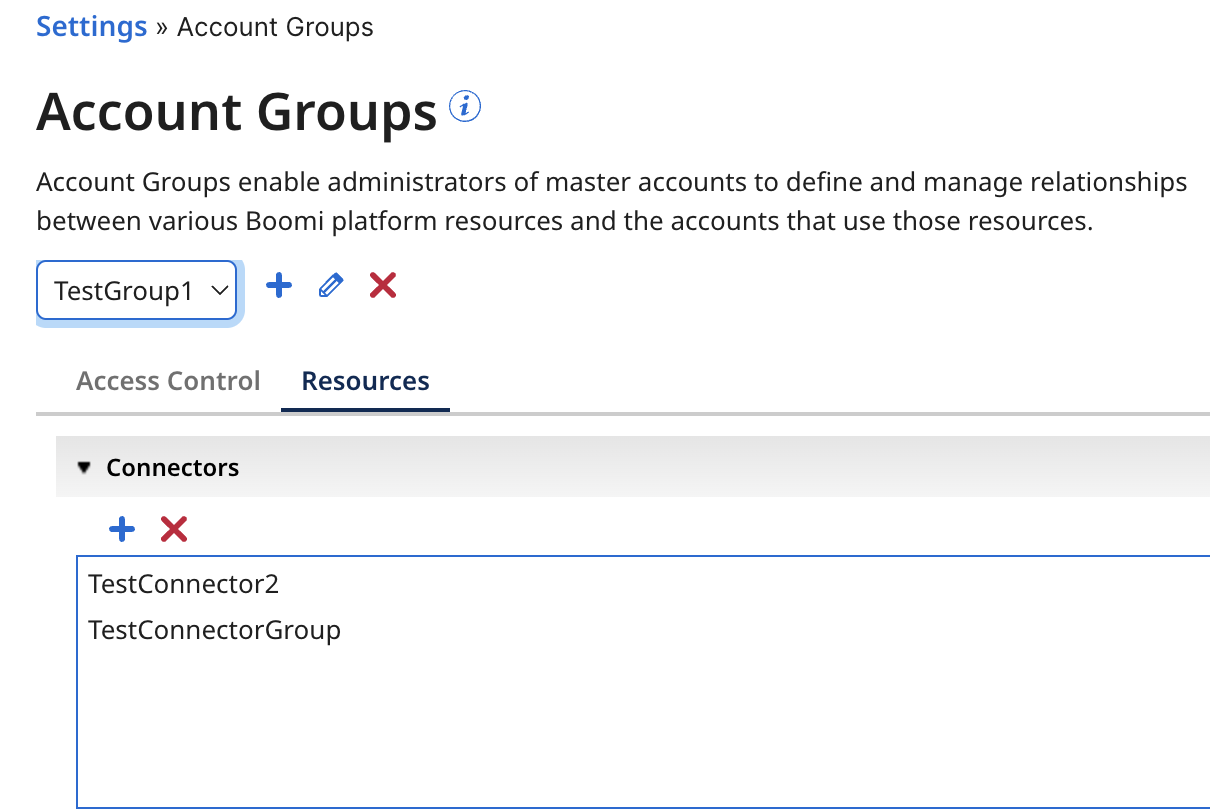
Select the Resources tab.
-
Go to the Connectors section and select the plus icon to choose the connectors you want to share.
-
Click OK.
To upload more connector groups and connectors, go to the Developer tab.
