Adding a connector to a connector group
By adding a connector to a connector group, you provide the display name, classification (Dev, UAT, or Prod), and version. For example, you can add separate connectors for dev, UAT, or production classifications and assign them to different versions so that you can work in parallel with multiple versions.
The connector is private until you share it to be visible to managed accounts.
API reference
To add a connector to the connector group using the connector deployment API, refer to the Connector Classification API reference topic.
Procedure
-
Sign into the Boomi Enterprise Platform.
-
Go to Settings > Account Information and Setup and select the Developer tab.
-
From the Connector Groups list, select the connector group.
-
Click Add Connector.
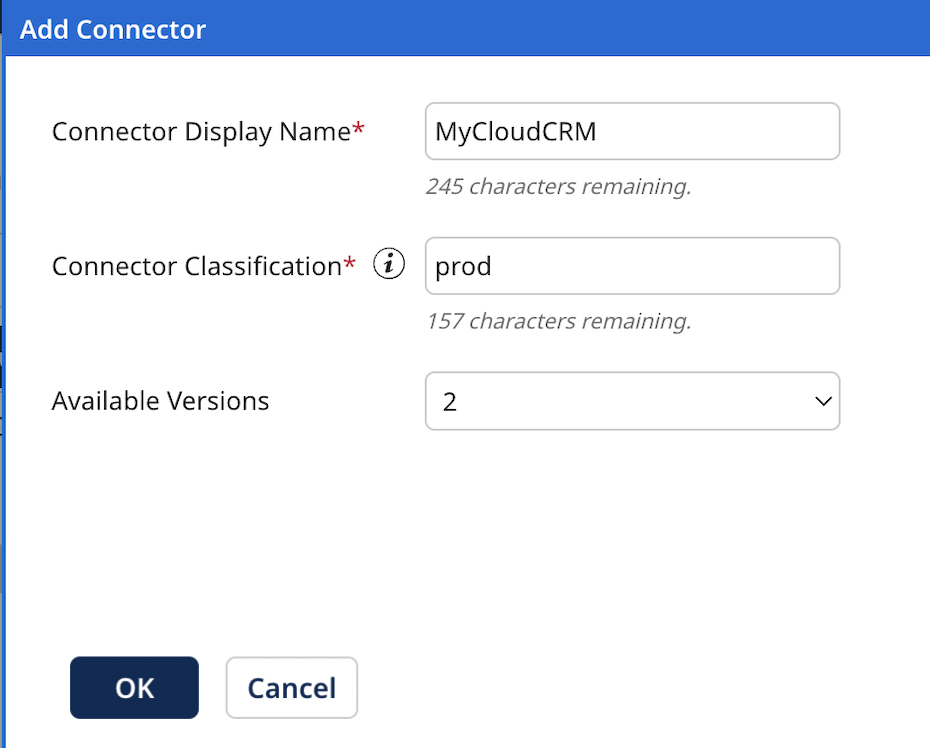
The Add Connector dialog opens.
-
In the Connector Display Name field, enter the name of the connector.
-
In the Connector Classification field, enter the classification of the connector (Dev, QA, Production).
This classification must be unique for the connector in the selected connector group.
-
In the Available Versions list, select the version for the new connector.
-
Click OK.
The connector has been added, and its initial visibility is Private.
Next steps
Though a connector is private, you must share it to be visible to managed accounts. Sharing means adding the connector as a resource to account groups of which managed accounts are members. Do this in the Setup page on the Account Groups tab. For more details, refer to Sharing connectors with account groups.
