Adding a connector group
Adding a connector group creates a collection of versioned connectors you can submit and release for approval.
API reference
To add a new connector group using the connector deployment API, refer to Connector Group API reference.
Before you begin
Before you add a connector group, create a set of connector files consisting of the connector descriptor file and the connector archive (.zip) file. To learn more, refer to the Connector packaging topic.
About this task
A connector group is a collection of versioned connectors, all enabling the connection of processes with a particular application. Because you can assign the same versions to multiple connectors within a connector group, you can simultaneously maintain Development, QA, and Production connectors and release them separately.
Procedure
-
Sign into the Boomi Enterprise Platform.
-
Select Settings > Account Information and Setup and select the Developer tab.
-
In the Connector Groups section, click Add Connector Group.
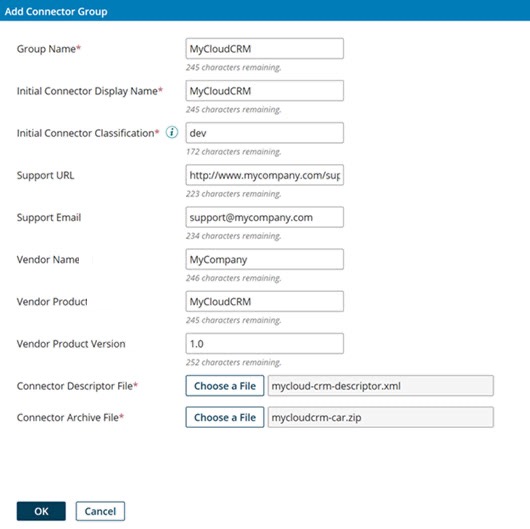
The Add Connector Group dialog opens.
-
In the Group Name field, enter the name of the connector group. This name must be unique within your account.
-
In the Initial Connector Display Name field, enter the initial connector name that displays for users when the connector is released. Later in the connector deployment process, you can provide a new name that users can view.
-
In the Initial Connector Classification field, enter the initial connector classification(Dev, QA, or Production).
-
In the Support URL field, enter the URL of the website that contains support information for connectors that are part of the connector group.
-
In the Support Email field, enter the support email address for the connectors part of the connector group.
-
In the Vendor Name field, enter the name of the organization that publishes the application for which connectors that are part of the connector group will enable connections with processes.
-
In the Vendor Product field, enter the name of the application.
-
In the Vendor Product Version field, enter the application version with which the connectors part of the connector group will connect.
-
Click Choose a File next to the Connector Descriptor File field.
The system file upload dialog appears.
-
Select the connector descriptor file to upload and click the OK button or equivalent.
The path to the selected file appears in the Connector Descriptor File field.
-
Click Choose a File next to the Connector Archive File field.
The system file upload dialog reopens.
-
Select the connector archive file and click the OK button or equivalent.
The path to the selected file appears in the Connector Archive File field.
-
Click OK.
The selected files are uploaded. The created connector group is added and selected in the Connector Group list. The new connector group contains the initial connector and version (#1) of the connector files. The connector’s visibility is Private, and the assigned version is 1.
Next steps
Though a connector is private, you must share it to be visible to managed accounts. Sharing means adding the connector as a resource to account groups of which managed accounts are members. Do this in the Setup page on the Account Groups tab.
References
To know more about deploying connectors to the Boomi Enterprise Platform, refer to the Deploying Integration Connectors video tutorial.
