Changing the display name of a connector
By changing the display name of a connector, you provide a new name that Integration users can view.
API reference
To change the display name for your connector, refer to the connectorMetadataAPI topic.
Procedure
-
Sign into the Boomi Enterprise Platform.
-
Select Settings > Account Information and Setup and select the Developer tab.
-
In the Connector Groups list, select the connector group containing the connector for which you want to change the display name.
-
In the Connectors list, click
 Actions and select Edit Display Name in the menu.
note
You can only change the display name of a Private connector.
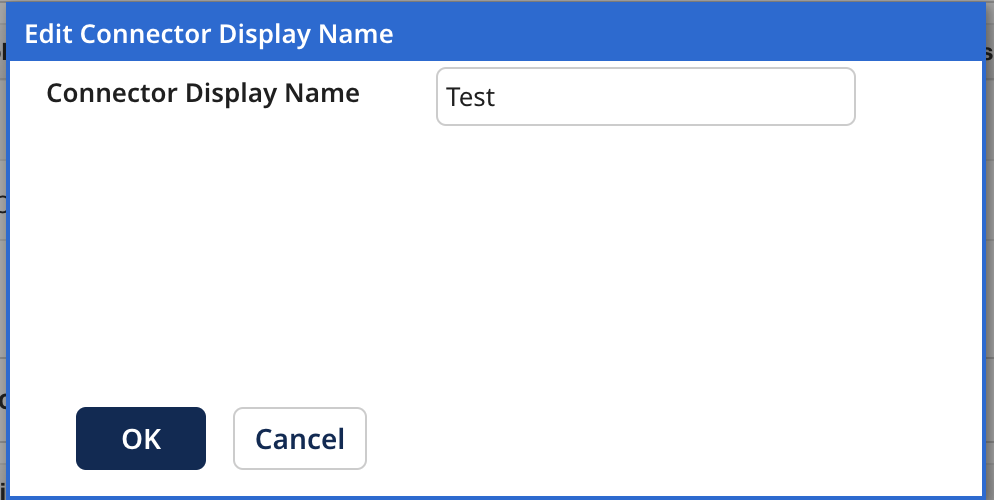
The Edit Connector Display Name dialog opens.
-
In the Connector Display Name field, enter the new display name.
-
Click OK.
Was this topic helpful?
