Changing the version or releasing a connector
By changing the version or releasing the connector, you specify the specific version of a connector and when it is released.
Procedure
-
Sign into the Boomi Enterprise Platform.
-
Select Setting > Account Information and Setup, and select the Developer link.
-
In the Connector Groups list, select the connector group containing the connector with the version you want to change.
-
In the Connectors list, click
 Actions and select Choose Version in the menu.
For a connector with a pending release scheduled, the Choose Version action is not available.
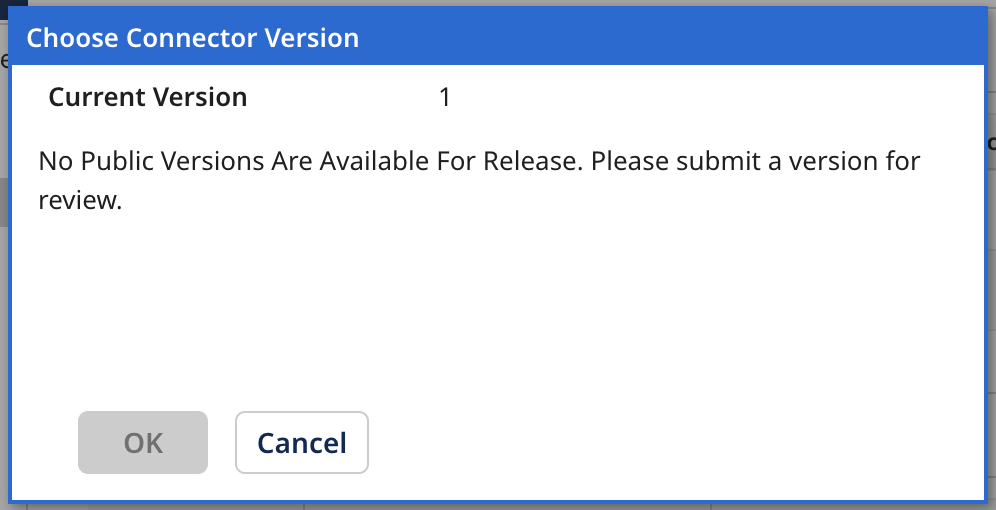
The Choose Connector Version dialog opens.
-
For a private connector, there is an immediate version change.
-
In the case of hidden connectors, if the connector was Public before changing it to Hidden, then having a public version of the connector group is mandatory.
-
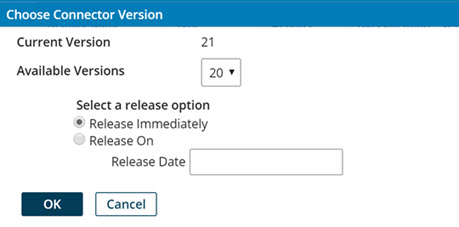
For a public connector, the following appears:
-
In the Available Versions list, select the version to assign to the connector.
-
Optional: If the connector is a public connector, you can determine when it's released if you have the CONNECTOR_SUBMISSION privilege. Select one of the following options:
- To release it immediately, select Release Immediate.
The selected version of the public connector is available to all users.
- To specify a future release date, select Release On. Click the Release Date field and select the desired release date in the drop-down calendar.
The selected release date appears in the Release Date column.
The selected version of the public connector is available to all users on the selected release date. Users can apply this pending version from now until its public release date.
- If you selected a future release date and no longer want to release the connector on that date, click Clear Pending Version. The connector reverts to the currently released public version.
- Click OK.
