Testing and debugging agents
After you create an agent in the Agent Designer, you can test it in the Test Agent interface before packaging and deploying it to a production environment. Since the test interface is in the same place where you build agents, you can iteratively test your agent as you make configuration changes.
When you start using the chat interface, Agent Designer automatically deploys the agent to your default test environment and runtime cloud. You can select a different environment in the drop-down at the top of the testing window. For details on managing packages, deploying to multiple environments, and working with regional runtime clouds, refer Deploying agents The agent’s responses include a Show Trace section where you can see details on the agent’s response, reasoning, and the tools it uses. These details can help you fine-tune your agent and troubleshoot issues with responses and behavior.
The agent trace is only available in the Test Agent window.
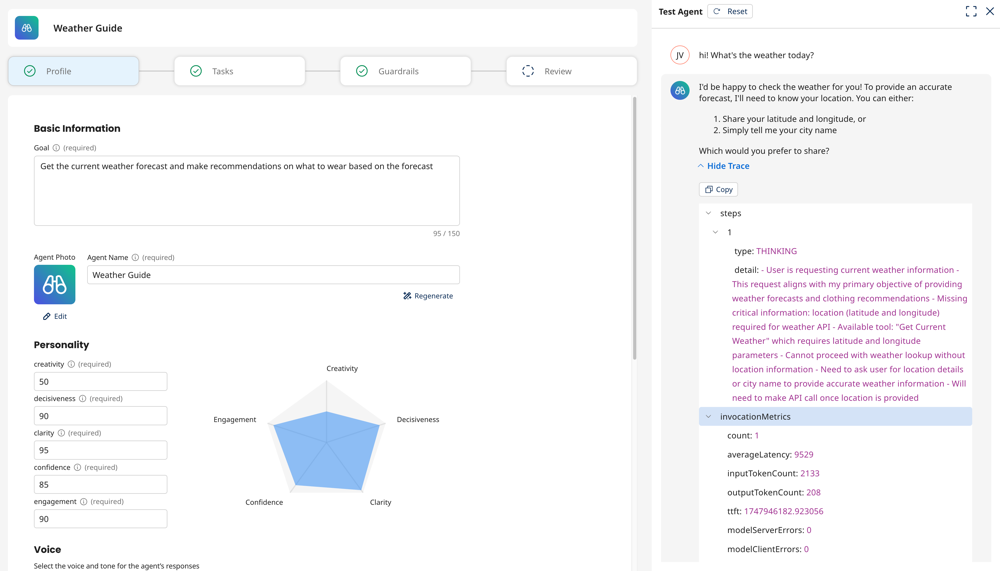
For deployed agents, you can view session logs containing details of the agents behavior, performance, and troubleshooting issues. Read Tracing sessions of Boomi Agent Garden agents to learn more.
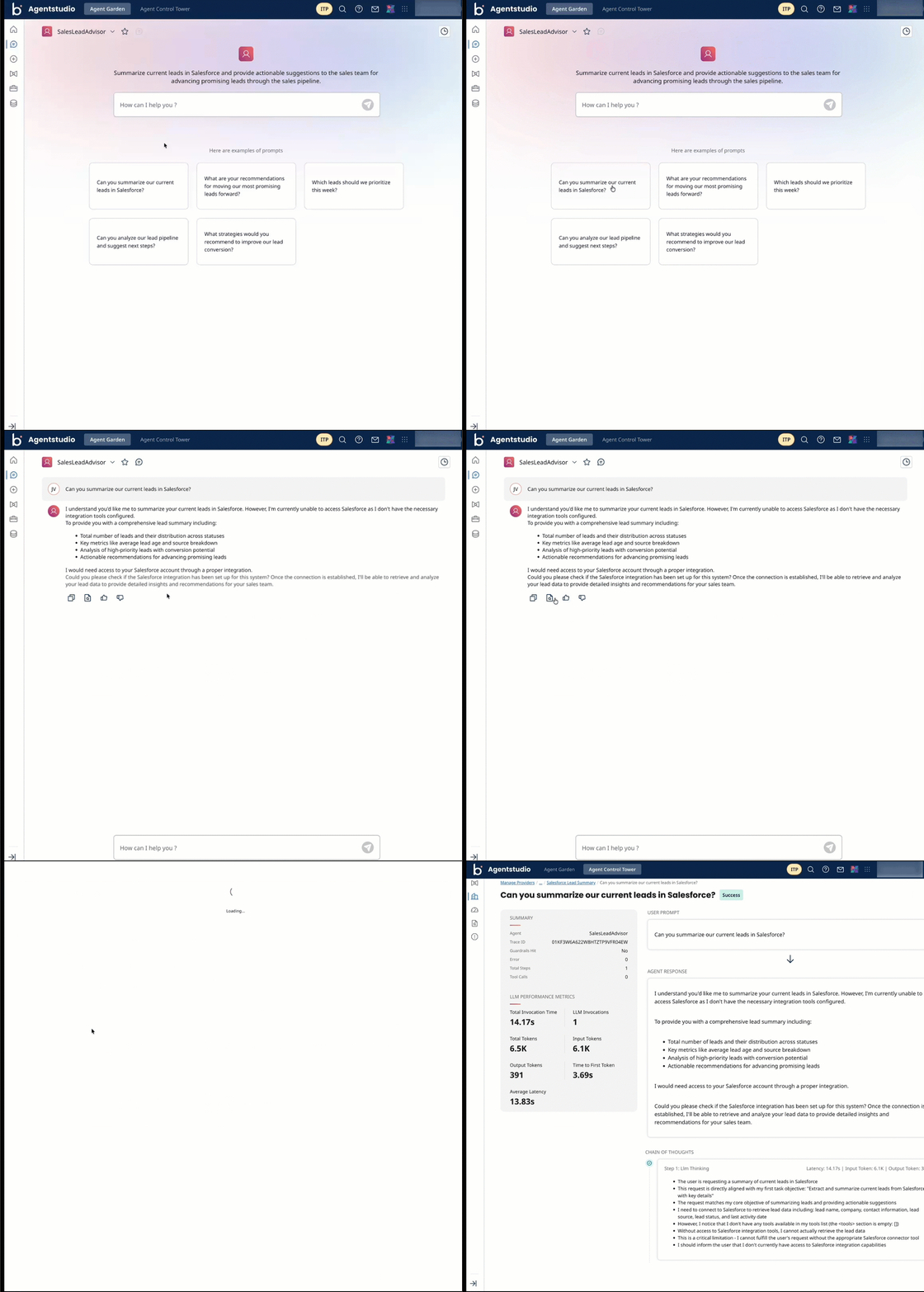
Testing your agent
Test your agent iteratively. Test your agent before and after you add tasks and guardrails. Testing iteratively helps you easily identify which configuration is causing an issue and which configurations are working correctly.
-
In Agent Garden > Agents, open your agent and converse with it in the Test Agent window.
noteTesting your agent may count against any usage limits.
-
Select Show Trace to view details about the agent's reasoning, tool responses, latency, and more to troubleshoot and adjust agent behavior. You can copy tool response code from Action steps.
Testing best practices
-
Test the same input multiple times: AI agents are non-deterministic, meaning the same input can produce slightly different responses each time. Run the same input at least five times to build confidence that responses are consistently valid, even if they are not identical.
-
Test phrasing variations: Users will not phrase requests the same way you do. Test variations of the same request to ensure the agent handles them correctly. For example, an agent that handles "what is the status of my order" should also be tested with "can you pull up my order info."
-
Maintain a test input set: Keep a set of test inputs with expected outputs. Use this set to quickly verify agent behavior after any configuration change and confirm you have not broken existing functionality.
-
Enable Extended Thinking during testing: Turn on Extended Thinking in the agent's model configuration while testing to see the agent's reasoning in the trace. Note that Extended Thinking increases latency. Disabling Extended Thinking removes the reasoning section from the trace, potentially making it harder to diagnose reasoning issues.
-
Watch for live plan streaming: With Extended Thinking on and no guardrails set, the chat interface streams the agent's plan as it generates it, instead of showing a static "Thinking..." message. You see the agent's reasoning unfold in real time in the Test Agent window. If you set guardrails, there is no plan streaming and you'll see the standard "Thinking..." indicator instead. Agentstudio deactivates plan streaming since the agent must validate the full response before returning it.
Agent trace field reference
Thinking step fields
Thinking steps show the agent's reasoning.
| Field | Description |
|---|---|
| rationale | Describes agent reasoning during the step |
| latencyMs | Total time taken by the LLM to generate and complete its response (in milliseconds) |
| inputTokens | Number of tokens sent to the LLM as input for a reasoning step |
| outputTokens | Number of tokens generated by the LLM in a reasoning step |
| ttft | Time elapsed from the LLM request submission until the first set of tokens are received (in milliseconds) |
Action step fields
Action steps show tool usage and response data.
| Field | Description |
|---|---|
| toolName | Name of the tool you created in Agent Designer that was invoked |
| toolId | Unique identifier for the tool |
| toolType | Category of tool used. Valid values: MCP, API, Application, Integration, Data HubQuery, Prompt |
| requiresApproval | Boolean indicating whether user approval is required before tool execution |
| input | Parameters passed to the tool (for example, latitude, longitude) |
| response | Raw response data returned by the tool after execution |
| latencyMs | Time taken by the tool to run the tool call (in milliseconds) |
| success | Boolean indicating whether the tool execution completed successfully |
Retrieval step fields
A retrieval step shows when the agent fetches content from an attached asset, such as a Meta Hub business glossary or a Knowledge Hub knowledge base. The step triggers during agent execution. The agent uses the asset's name and purpose to determine when retrieval is relevant.
| Field | Description |
|---|---|
| assetType | Type of asset retrieved. Valid values: GLOSSARY, KNOWLEDGE_BASE |
| assetName | Name of the retrieved glossary or knowledge base |
| assetId | Unique identifier of the retrieved asset |
| input | Parameters sent for the retrieval request. For a knowledge base, this includes the fields listed in Knowledge base input fields |
| response | Content retrieved from the asset. For a knowledge base, this includes the fields listed in Knowledge base response fields |
| latencyMs | Time taken to complete the retrieval (in milliseconds) |
| success | Boolean indicating whether the retrieval completed successfully |
Knowledge base input fields
When assetType is KNOWLEDGE_BASE, the input object includes the following fields:
| Field | Description |
|---|---|
| query | The query text sent to the knowledge base |
| retrievalMode | The retrieval mode used for the query. Valid values: lexical, semantic, hybrid |
| topK | The result limit applied to the query. The number of chunks requested from the knowledge base |
| filters | Metadata filters applied to the query, if any |
| repositoryId | Unique identifier of the repository the knowledge base belongs to |
Knowledge base response fields
When assetType is KNOWLEDGE_BASE, the response object includes the following fields:
| Field | Description |
|---|---|
| content | The chunks of content returned by the knowledge base |
| chunksReturned | Number of chunks returned by the knowledge base |
| chunksUsed | Number of returned chunks the agent used to generate its response |
| topScore | Relevance score of the highest-ranked chunk returned |
| khActivityId | Unique identifier for the retrieval activity, logged in Knowledge Hub |
| khLatencyMs | Time taken by Knowledge Hub to execute the retrieval (in milliseconds) |
| errorType | Type of error returned if the retrieval failed (for example, unavailable) |
| errorCode | HTTP error code returned if the retrieval failed (for example, 503) |
| errorLogs | Detailed error messages logged for a failed retrieval |
Invocation metrics fields
| Field | Description |
|---|---|
| count | Number of times the LLM has been called |
| inputTokenCount | Number of tokens in the input |
| outputTokenCount | Number of tokens in the output |
| averageLatency | Average time in milliseconds to process the LLM request |
| ttft | Time elapsed from the LLM request submission until the first set of tokens are received (in milliseconds) |
| durationMs | Total time to complete the agent invocation, from start to finish (in milliseconds) |
Guardrail fields
Topic policy
| Field | Description |
|---|---|
| topicPolicy | Describes how the LLM applied topic-based filtering |
| name | The name of the policy from the Guardrails tab |
| type | Type of restriction (for example, DENY) |
| Action | Action taken (for example, BLOCKED) |
Word policy
| Field | Description |
|---|---|
| wordPolicy | Describes word-based filtering that causes a user's words to block the agent from responding |
| customWords | Displays the number and list of blocked words configured by the user in the guardrail. Match is the blocked word and Action describes the action the agent took ("BLOCKED") |
| managedWordLists | Displays the number and list of blocked words that are applied by default for all agents. Match is the blocked word, Action is the action agent took ("BLOCKED"), and the Type is the category of the word (for example, PROFANITY, INSULTS) |
Sensitive information policy
| Field | Description |
|---|---|
| sensitiveInformationPolicy | Displays the number and list of RegEx matches that are configured by the user to prevent the agent from processing and producing sensitive information that matches a RegEx pattern |
| Name | The name of the Policy in the Guardrails tab |
| Match | The word or phrase that matched |
| regex | The pattern it matched to |
| Action | The action that Agent took ("BLOCKED") |
Content policy
| Field | Description |
|---|---|
| contentPolicy | Default content filters applicable to all agents for the following categories: HATE, SEXUAL, VIOLENCE, INSULTS, MISCONDUCT, PROMPT_ATTACK. These filters prevent agents from behaving inappropriately and in an unsafe manner |
| Type | The category of filter that was triggered |
| Confidence | A numerical score between 1-100 useful in determining how provoking a given prompt was |
| Filter Strength | The strength at which filter is configured (the only value is "HIGH") |
| Action | The action that the agent took ("BLOCKED") |
Troubleshooting tips
Troubleshooting agent performance
-
Be aware of context window limitations: The user prompt, agent goal, tasks, and instructions combined cannot exceed 200K input tokens.
-
Adjust model settings to address latency issues: If your agent performs only simple tasks, such as sentiment analysis, summarization, and data formatting, select Fast in the Model Configuration section to improve the AI processing speed in the agent's Profile configuration.
-
Consider instruction clarity: Evaluate instructions and ensure that they do not cause conflicting actions that may conflict with LLM reason and logic or cause unnecessary action resulting in high latency.
Instructions
-
Be specific and detailed: You may need to adjust your instructions or add additional tasks so that the Large Language Model (LLM) understands how to behave in certain situations. It may not have enough information or context to act appropriately. This can cause incorrect reasoning to show in the trace.
-
Include timelines and action triggers: Tell the agent when to do an action. This can correct issues where the agent is not following instructions in the way you want it to. For example, "After you get information from the database about X, confirm with the user that they want to do X." "Before you do X, ask the user for the X parameter to make the API call using the X tool."
Read Guidelines for building effective AI agents for instruction best practices.
Tools
-
Make changes to tool configuration: Your tool configuration may need adjustment to work correctly. The trace can indicate if the agent is having trouble using a specific tool during a tool step. Review Building an agent for more information.
-
Ensure your tool is linked to the correct task: Your tool needs to be attached to the same task where it is relevant. You can attach a tool to multiple tasks. You may need to add additional instructions in the task that tell the agent when to use the tool for that particular outcome. For example, "Use the X tool to query the database and get information about X."
API tools
-
Remove any extra spaces surrounding parameters: Extra spaces can cause an error when the agent calls the API.
-
Test API authentication: Test the API endpoint using Postman or a similar tool. Ensure the API call is successful and that you have entered the correct credentials.
-
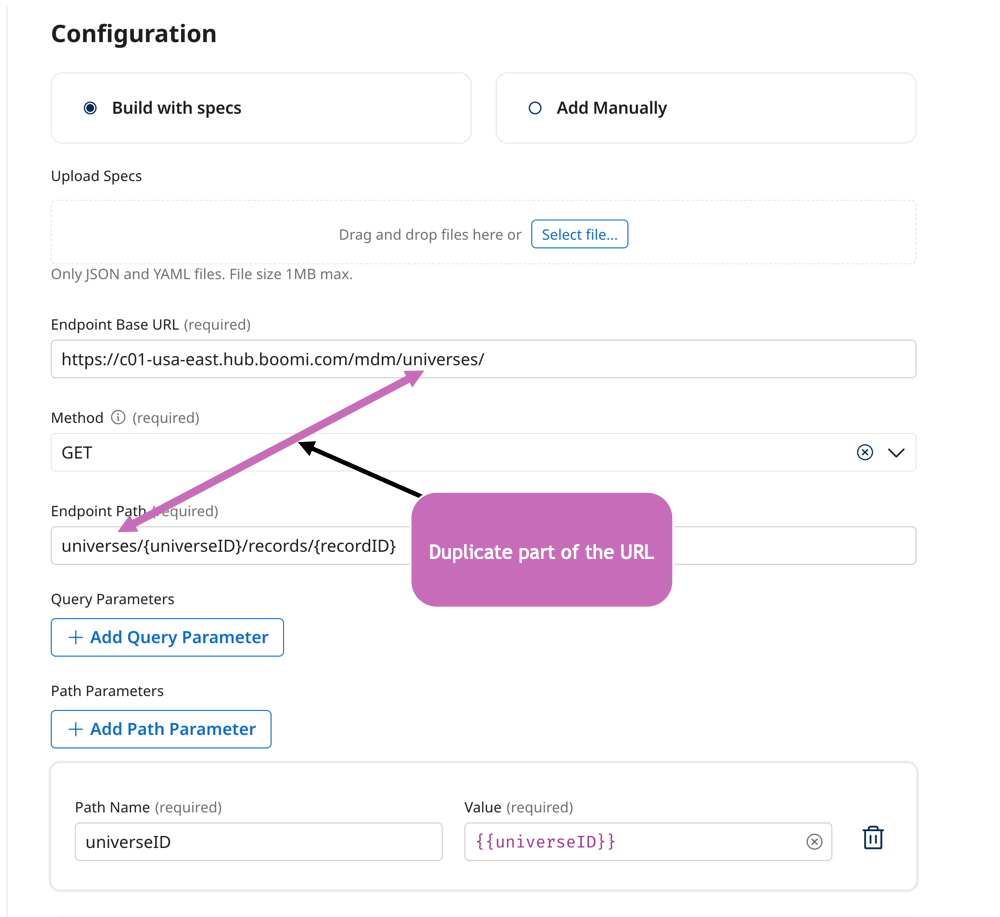
Check for duplication: Do not duplicate the URL in the API tool for the endpoint path. The API tool adds the base URL and the endpoint path to create the API call. For example, entering the base URL and then the base URL + endpoint path would duplicate the base URL and cause the tool to call the baseURLbaseURL+endpoint path, causing an error.
Guardrails
- Adjust guardrails: Evaluate and adjust guardrails so they do not limit the agent from accomplishing the task. Guardrails cause the agent to respond with the blocked message you configured (for example, "I'm sorry but I'm only able to provide an order status and customer support contact information."). The trace can indicate when and how the LLM triggered the guardrail while following instructions.
