Uploading multiple Files
In this scenario, the client application will upload a set of small files together with a file directory.
Since it is an internal upload scenario, the app has connected to the server and been provided a Session ID (SessionID_NNN).
Also, the ID of target folder in the server is already known (RootFolderID_NNN).
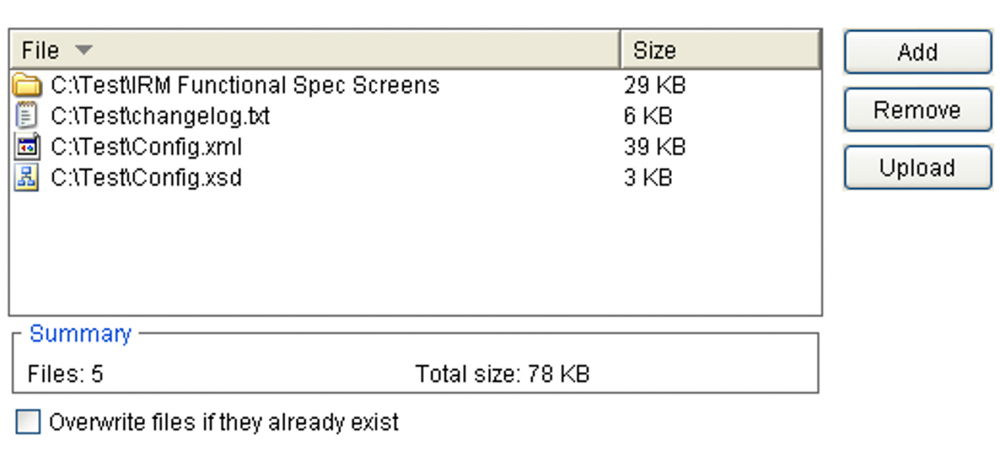
Because the total size of the files (78 KB) is within the web server limits (less than 2GB),
the client app could potentially send a single upload request with all files.
However, due to the way the protocol is designed, such upload request is not possible.
That is because the protocol dictates that each upload request can target only one folder in the server
(which is identified by the ImmediateParentFolderID form field).
As a result, the upload operation has to be broken in the following three different requests:
Request 1
| Form Fields | Example |
|---|---|
| Upload operation | Internal upload |
| Upload action | Upload file |
| InternalUpload_AppletUID or InternalUpload_SessionID | SessionID_NNN |
| ImmediateParentFolderID | RootFolderID_NNN |
| RootFolderID | RootFolderID_NNN |
| DeletePartiallyUploadedFile | 0 |
| File Fields | Example |
| name | File1 |
| filename | changelog.txt |
| [content] | |
| name | File2 |
| filename | Config.xml |
| [content] | |
| name | File3 |
| filename | Config.xsd |
| [content] |
As a result of a successful request, the server creates a new file system log operation entry (LogOpID_NNN) that will be associated with the upload operation and saves the uploaded files.
The ID (FileID_NNN) of the last uploaded file of the set (Config.xsd) is returned in the headers.
Response 1
| X-FileSystemLogOpID | LogOpID_NNN |
| X-FileID | FileID_NNN |
| X-FolderID | RootFolderID_NNN |
Upon successful completion of the first request, the client app needs now to guarantee that the folder “IRM Functional Spec Screen” exists in the server under the target folder.
For that, it sends a request with the “Create folder” action. Note that request now contains the ID of the file system log entry that was created by the first request.
Request 2
| Form Fields | Example |
|---|---|
| Upload operation | Internal upload |
| Upload action | Create folder |
| InternalUpload_AppletUID or InternalUpload_SessionID | SessionID_NNN |
| ImmediateParentFolderID | RootFolderID_NNN |
| RootFolderID | RootFolderID_NNN |
| FileSystemLogOpID | LogOpID_NNN |
| FolderName | IRM Functional Spec Screen |
| DeletePartiallyUploadedFile | 0 |
As a result of a successful request, the server creates a new folder in the server, if it does not exist yet in the target folder.
In any case, it returns its ID (FolderID_NNN) in the response headers.
Response 2
| X-FileSystemLogOpID | LogOpID_NNN |
| X-FolderID | FolderID_NNN |
Upon successful completion of the request to create the folder, the client app can now upload the files of the “IRM Functional Spec Screen” folders.
We will assume this folder has two files, Admin 1.jpg and Admin2.jpg.
Note that now the root folder (original target folder) and immediate parent folder (“IRM Functional Spec Screen” folder) are no longer the same folder.
Request 3
| Form Fields | Example |
|---|---|
| Upload operation | Internal upload |
| Upload action | Upload file |
| InternalUpload_AppletUID or InternalUpload_SessionID | SessionID_NNN |
| ImmediateParentFolderID | FolderID_NNN |
| RootFolderID | RootFolderID_NNN |
| FileSystemLogOpID | LogOpID_NNN |
| DeletePartiallyUploadedFile | 0 |
| File Fields | Example |
| name | File1 |
| filename | Admin1.jpg |
| [content] | |
| name | File2 |
| filename | Admin2.jpg |
| [content] |
Response 3
| X-FileSystemLogOpID | LogOpID_NNN |
| X-FileID | FileID_NNN |
| X-FolderID | RootFolderID_NNN |
