Configuring conditional fields
You can use conditional fields while building a connector. This allows you to manage sets of dependencies for fields appearing in connection fields, operation fields, and when browsing (Import Wizard). When a field is dependent, it only appears and is available for entry by users when it matches the right condition.
Conditional fields
To improve the user’s experience when setting up a connection, operation, and when browsing (Import Wizard), you can use the configure conditional fields in the connector descriptor xml file. The connector descriptor file is the primary component of any connector built using the Connector SDK.
You can determine whether or not a field appears, based on the value of another field. This results in an improved user experience with streamlined and intuitive Connector, Operation, and Import Wizard panels where the user can easily see what fields need to be completed to achieve a successful connection, operation, and when importing object types.
Implementation considerations
Consider the following when using the connector descriptor file to implement conditional fields for connection fields, operation fields, and Import Wizard fields:
The examples provided here illustrate how to implement conditional fields in the Connector descriptor file.
-
Boolean, string, and integer field types (
@typein the connector descriptor file) can determine the visibility of other fields. For string and integer field types, the@displayTypemust be set to "list" or "radio" and there must be at least oneallowedValuedefined for the field. -
The ability to make a field visible, or invisible, is limited to the fields appearing on the same panel.
-
You can define multiple values for a field that determines the visibility of other fields.
-
The visibility for a field having the
@typeof "oauth" in the connector descriptor file (to enable OAuth 2.0 support for a connection) cannot be determined by another field. -
Fields where their visibility is determined by another field:
- Cannot determine the visibility of other fields.
- Can be extended (both the field and value), regardless of whether they are visible or invisible, to appear in the Environment Extensions dialog (Connection Settings tab).
-
Values for fields that are invisible and do not appear in are not saved when the connection or operation is saved. For example:
- A connection or operation has two or more fields (non-conditional), and the values are saved.
- The connector descriptor file is configured to make one of the non-conditional fields conditional, and the field's visibility is determined by another field's value. After making the field conditional, the connector is updated and saved.
- A user opens the connection or operation, and because the visibility condition defined in the descriptor (
visibilityCondition) has not been met, the field is not available (invisible). - The user makes the conditional field visible on the panel, and the value appears in .
- However, if the user does not make the conditional field visible, and saves the connection or operation, the value is not saved and does not appear.
Connector descriptor examples
Example 1: @displayType = radio
Configure conditions based on a radio field
<field id="connectionStringRadioParentField1" label="connectionStringRadioParentField1" type="string" displayType="radio">
        <allowedValue>
            <value>Value 1</value>
        </allowedValue>
        <allowedValue>
            <value>Value 2</value>
        </allowedValue>
        <allowedValue>
            <value>Value 3</value>
        </allowedValue>
    </field>
<field id="connectionStringRadioChildStringField" label="connectionStringRadioChildStringField" type="string">
        <visibilityCondition>
            <valueCondition fieldId="connectionStringRadioParentField1">
                <value>Value 2</value>
            </valueCondition>
        </visibilityCondition>
    </field>
Example 2: @displayType = list
Configure conditions based on a list field
<field id="connectionIntegerListParentField1" label="connectionIntegerListParentField1" type="integer" displayType="list">
        <allowedValue>
            <value>111</value>
        </allowedValue>
        <allowedValue>
            <value>222</value>
        </allowedValue>
        <allowedValue>
            <value>333</value>
        </allowedValue>
    </field>
<field id="connectionIntegerListChildStringField" label="connectionIntegerListChildStringField" type="string">
        <visibilityCondition>
            <valueCondition fieldId="connectionIntegerListParentField1">
                <value>222</value>
            </valueCondition>
        </visibilityCondition>
    </field>
Example 3: @type = boolean
Configure conditions based on a boolean field
<field id="conditionalCheckbox" label="Check This" type="boolean">
        <helpText>Checking this box will make a certain fields visible.</helpText>
</field>
<field id="stringChecked" label="String Checked" type="string">
    <visibilityCondition>
        <valueCondition  fieldId="conditionalCheckbox">
            <value>true</value>
        </valueCondition>
    </visibilityCondition>
</field>
<field id="stringUnchecked" label="String Unchecked" type="string">
    <visibilityCondition>
        <valueCondition  fieldId="conditionalCheckbox">
            <value>false</value>
        </valueCondition>
    </visibilityCondition>
</field>
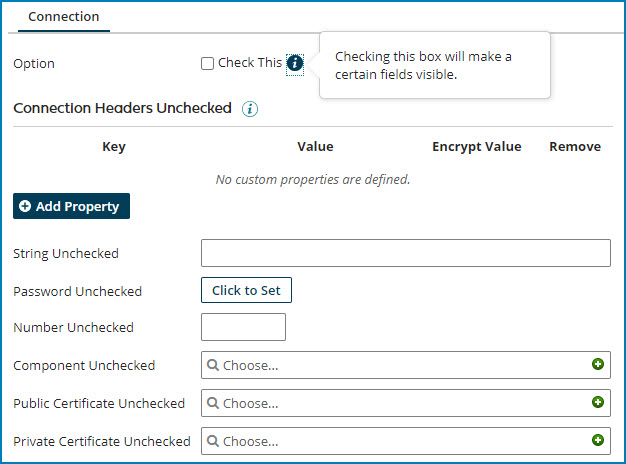
In this example, the visibility of multiple fields is conditionally dependent by the check box value. When the user selects the Check This check box, the fields (String Checked, Password Checked, Number Checked, Component Checked, Public Certificate Checked, and Private Certificate Checked) appear for entry.
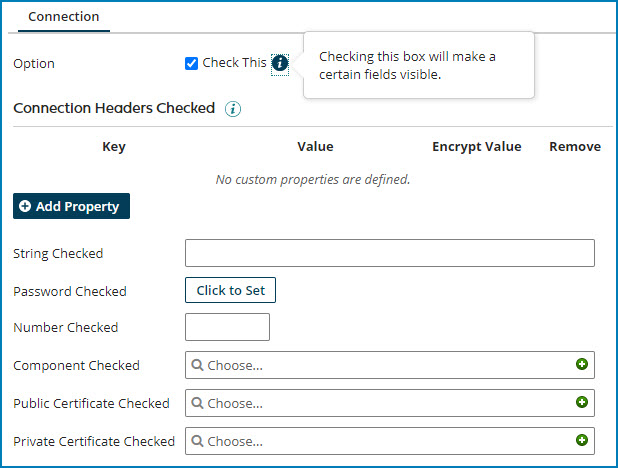
When cleared, the previous fields disappear and another set of fields (String Unchecked, Password Unchecked, Number Unchecked, Component Unchecked, Public Certificate Unchecked, and Private Certificate Unchecked) appear for entry.