Implementing Browse
(Optional implementation)
To use an Import Wizard for a connector operation, you can implement the browsing feature by implementing the com.boomi.connector.api.Browser interface (refer to the Javadoc).
When to implement Browse
Browse primarily helps to connect to a target service, gather metadata about the service, and convert the metadata into request and response profiles used by a process. The connector you build doesn't have to support browsing.
The Browser implementation:
- Should not modify data in the service
- Does not need to be thread safe
Enabling or turning off an operation for browse
Browsing is required for connector operations that generate profiles. In case you are building an operation that only works with unstructured data, you can turn off browsing for the operation by setting the @"supportsBrowse" attribute in the connector descriptor file to false.
Otherwise, your connector must have at least one Browser implementation.
Sample configuration for @supportsBrowse
Enabling browse
<GenericConnectorDescriptor requireConnectionForBrowse="true">
  <field />
  <field />
  ...
  <operation customTypeId="POST" supportsBrowse="true" types="EXECUTE" customTypeLabel="CREATE/EXECUTE">
  ...
  </operation>
</GenericConnectorDescriptor>
How it appears on the Boomi Enterprise Platform
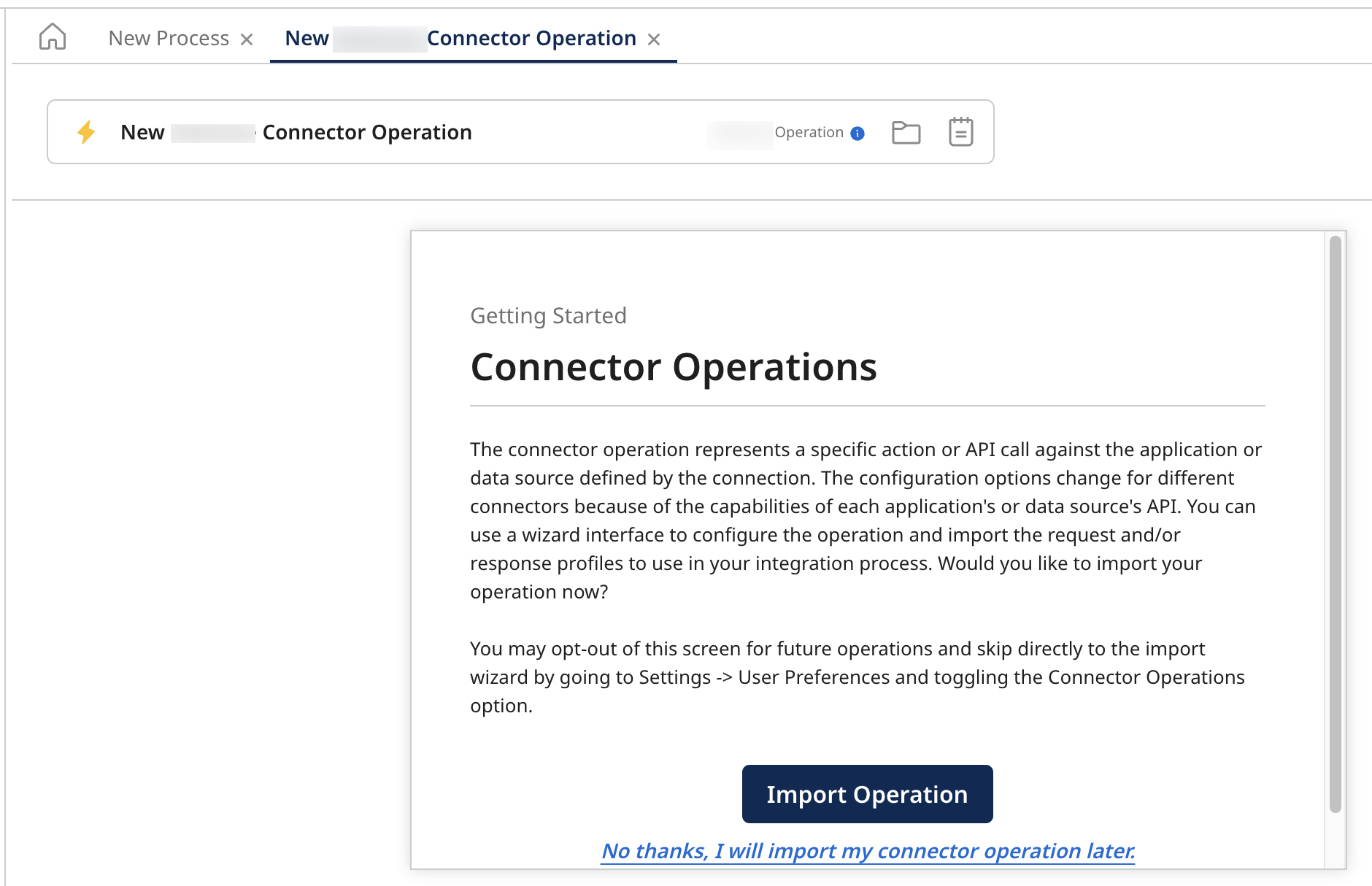
Turning off browse
<GenericConnectorDescriptor requireConnectionForBrowse="true">
  <field />
  <field />
  ...
  <operation customTypeId="POST" supportsBrowse="false" types="EXECUTE" customTypeLabel="CREATE/EXECUTE">
  ...
  </operation>
</GenericConnectorDescriptor>
How it appears on the Boomi Enterprise Platform

The Browse process
The Browse process has steps corresponding to the Browser implementation. For instance, the Browser implementation generates the list of available objects and the profiles/definitions for a specific object.
Step 1: clicking the Import Operation button to open the Import Wizard
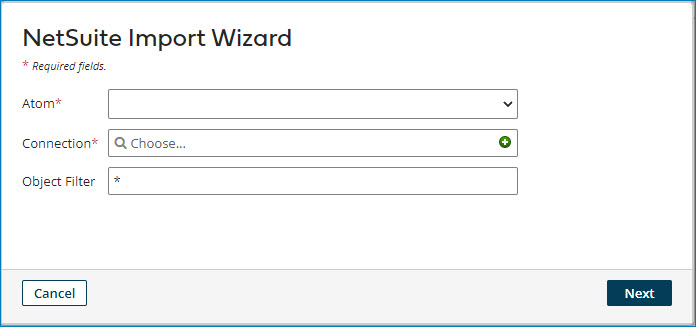
Enter the basic information necessary to perform the browse, such as the local runtime, Runtime cluster, or Runtime cloud, a connection (if required), and any fields defined in the descriptor file for the current operation, including the browseOnly and both properties under scope.
Clicking Next invokes the connector for the first time, interacting the connector with the selected container. You can perform this action against containers only associated with your account (local Runtimes, Runtime clusters, and Runtime clouds).
If the Runtime has not completed loading the connector:
- First, the Runtime instantiates the Connector implementation defined in the connector configuration file using the default constructor.
- The Runtime then invokes
createBrowser(BrowseContext context)(refer to the Javadocs) to instantiate the Browser implementation. - Finally, the Runtime uses the object types provided in the connector descriptor file or invokes
getObjectTypes()(refer to the Javadocs) on the custom Browser implementation.
If the getObjectTypes( ) invocation does not return any object types from browse, the following error displays: "We cannot find any Object Types for this action". In this situation, the connector couldn't find associated objects.
Using the Object Filter
The default Object filter in the Import Wizard limits the number of returned objects to fit within the 500 object limit. You can also import new object types by calling getObjectTypes() or searching the connector-descriptor.xml file to select existing object types.
Browsing large numbers of objects can make the system slow and appear inoperative. The system does not throw an error exception if the import reaches the limit; instead, a message indicates the import has reached the limit and the number of objects that were not retrieved (if that number is available). Set the Total Count to a value less than 0 to force the message about meeting the limit.
Object filters are enabled by default.
Disabling the Object Filter
You can disable the Object Filter and use your filter by setting the disableDefaultObjectTypeFilter property in the connector descriptor. The filter recognizes the * and ? wildcards, which can reduce the number of returns.
Sample configuration for disabling object filters
<?xml version="1.0" encoding="UTF-8"?>
<GenericConnectorDescriptor requireConnectionForBrowse="true" disableDefaultObjectTypeFilter="true">
...
...
</GenericConnectorDescriptor>
How it appears on the Boomi Enterprise Platform
As highlighted, the default Object Type field doesn't appear on the screen.
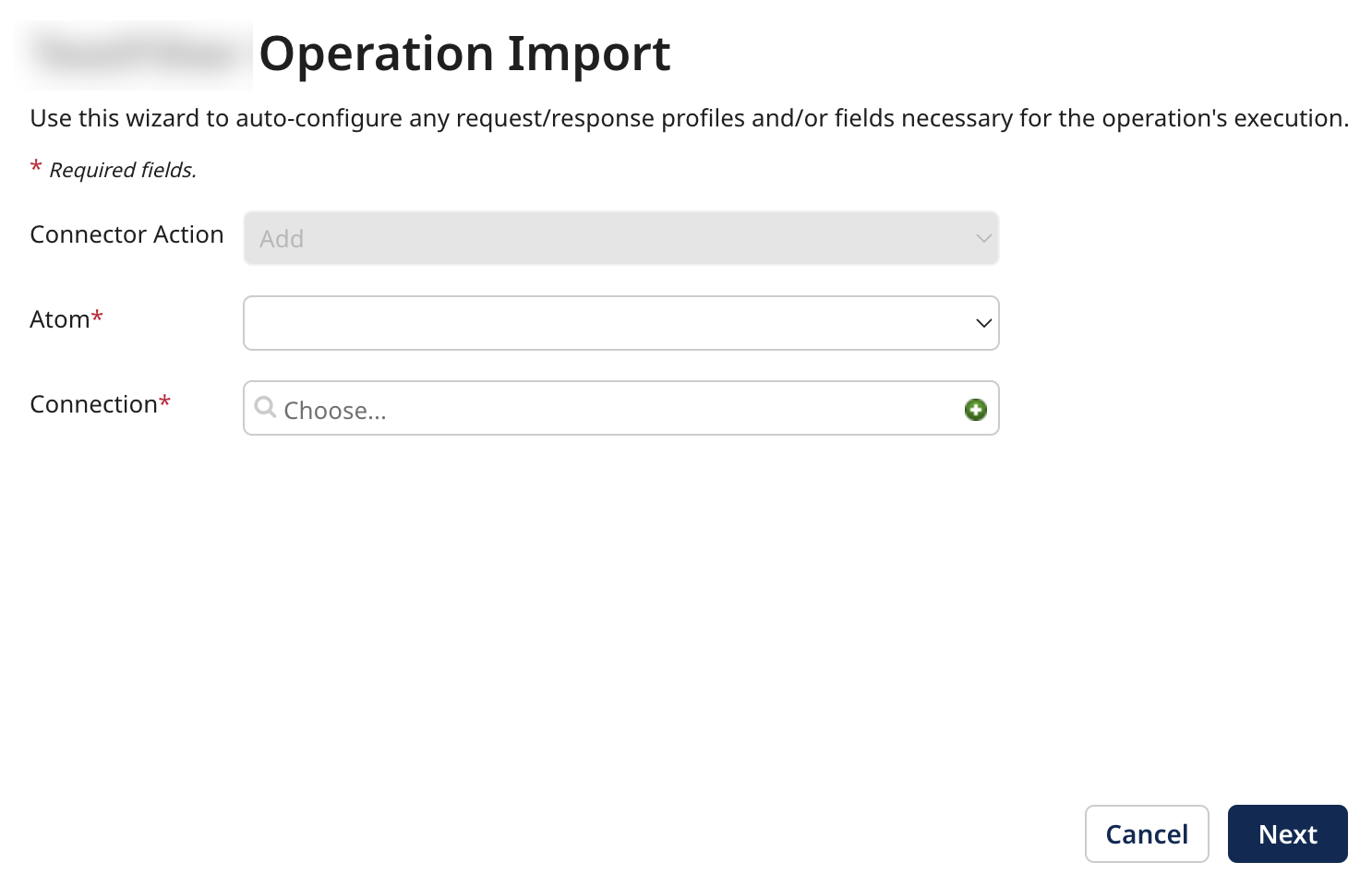
If the number of returned objects exceeds the maximum number allowed on your Runtime configuration, set a total count value by invoking the setTotalCount() method on the ObjectTypes object.
Step 2: selecting an object type to get object definitions
Objects represent the actual resources in the application. You can import these objects through the import configuration wizard. Boomi recommends that these Object names are nouns, for example, File, Records, and so on. If you know the list of objects and need not discover through service lookups, you can provide them as browsable objects through objectTypes element in the descriptor file.
You can provide your list of objects in the connector descriptor file. If no object types list is provided, on the completion of getObjectTypes() (refer to the Javadocs), you can select an object type from the provided list.
Configuring object types
Example: Configuring objectTypes in the descriptor file
<?xml version="1.0" encoding="UTF-8"?>
<GenericConnectorDescriptor requireConnectionForBrowse="true">
    <operation types="EXECUTE" supportsBrowse="true" customTypeId="POST" customTypeLabel="POST">
        <browseConfiguration>
            <objectTypes>
                <object id="/pet" label="addPet"/>
            </objectTypes>
        </browseConfiguration>
    </operation>
    <operation types="EXECUTE" supportsBrowse="true" customTypeId="GET" customTypeLabel="GET">
        <browseConfiguration>
            <objectTypes>
                <object id="/pet/findByStatus" label="findByStatus"/>
                <object id="/store/inventory" label="getInventory"/>
            </objectTypes>
        </browseConfiguration>
    </operation>
</GenericConnectorDescriptor>
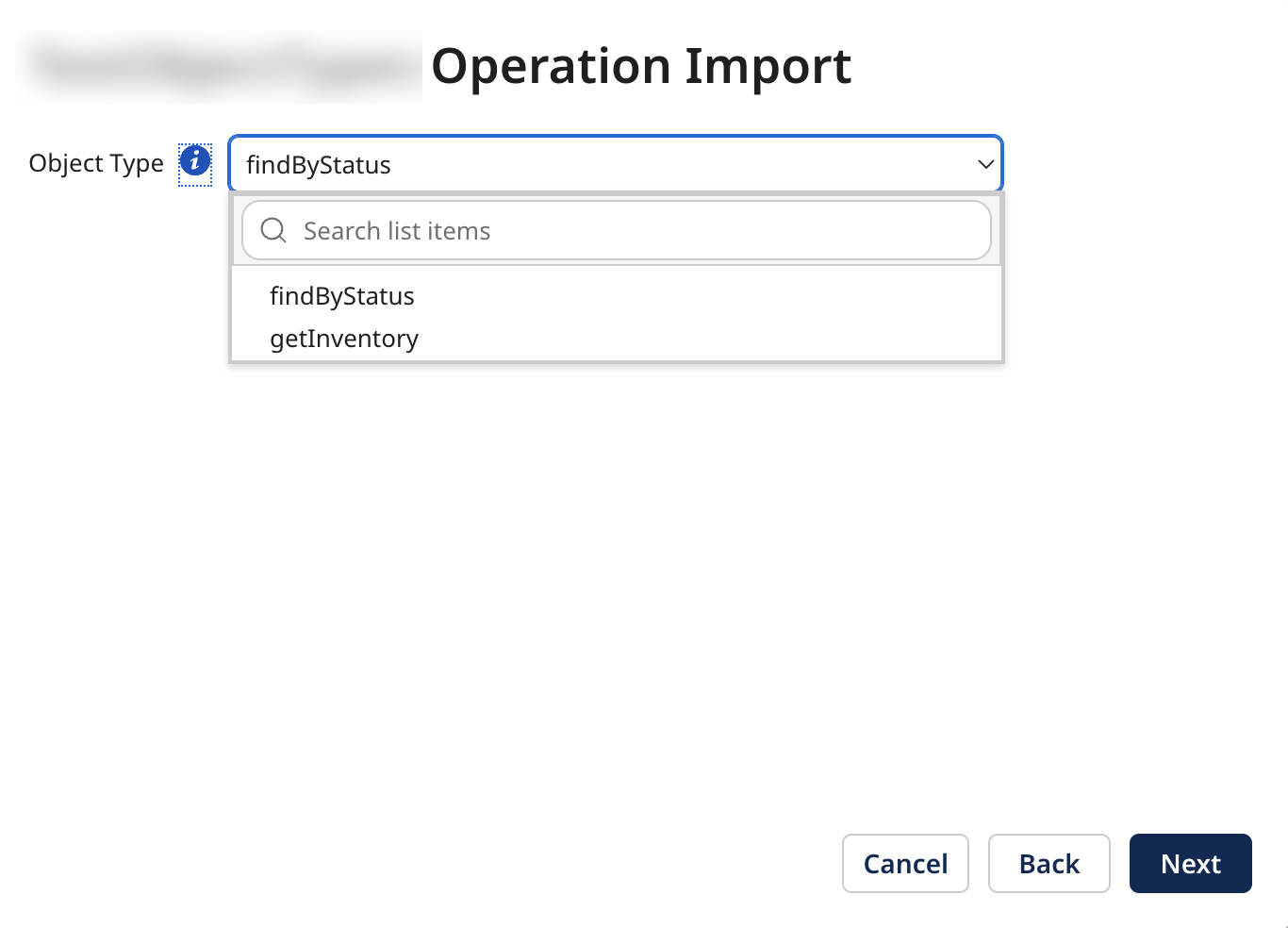
Upon selecting the object type and clicking Next, the connector is invoked again on the previously selected Runtime.
This time, the Runtime invokes getObjectDefinitions(java.lang.String objectTypeId, java.util.Collection<ObjectDefinitionRole> roles) (refer to the Javadocs). The instance is reused since the connector is loaded by the Runtime in the previous step. During this process, a new browser instance is created by re-invoking createBrowser(BrowseContext context) (refer to the Javadocs).
Step 3: loading the operation
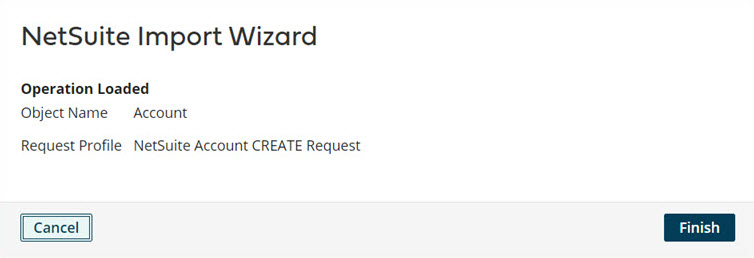
Step 4: generating the request or response profiles
After clicking Finish, the relevant request/response profiles are generated and loaded for the operation. The object type is defined and accessed for the operation by calling getObjectTypeId() (refer to the Javadocs) on the OperationContext (refer to the Javadocs).
Attempts to process an operation that requires an object type do not work without the Browse process. The connector should make the failure as meaningful as possible for the user so they know how to proceed next.
To save the data, click Save in the component. The newly generated profiles within the operation are unavailable until you deploy a process with the operation.
Generating Browse fields
Importable Browse fields only appear when you enable them.
After clicking Finish, additional Browse fields appear in the UI. To access these field values, call getOperationProperties() (refer to the Javadocs) from the OperationContext on connector execution. Your input defines the values given to these fields.
Code sample
A simple implementation of ExampleBrowser.java extending BaseBrowser:
Code sample for a basic Browse implementation
public class ExampleBrowser extends BaseBrowser
{
    public ExampleBrowser(ExampleConnection conn)
    {
        super(conn);
    }

    @Override
    public ObjectTypes getObjectTypes()
    {
        String requestUrl = "http://www.example.com/service/type";
        // ... Make GET request to requestUrl ...
        // ... parse results into list ...
        List<String> returnedTypeNames = ...;

        // process returned list of type names
        ObjectTypes types = new ObjectTypes();
        for(String typeName : returnedTypeNames) {
            ObjectType type = new ObjectType();
            type.setId(typeName);
            types.getTypes().add(type);
        }
        return types;
    }

    @Override
    public ObjectDefinitions getObjectDefinitions(String objectTypeId, Collection<ObjectDefinitionRole> roles)
    {
        String requestUrl = "http://www.example.com/service/type/" + objectTypeId + "/def";
        // ... Make GET request to requestUrl ...
        // ... parse returned stream into DOM ...
        Document schemaDoc = ...;

        // create new definition
        ObjectDefinition def = new ObjectDefinition();
        def.setSchema(schemaDoc.getDocumentElement());
        ObjectDefinitions defs = new ObjectDefinitions();
        defs.getDefinitions().add(def);
        return defs;
    }

    @Override
    public ExampleConnection getConnection()
    {
        return (ExampleConnection) super.getConnection();
    }

}
Custom fields
Many APIs let you define custom fields on objects and have API calls to discover the fields. In your Browser implementation, use these metadata API calls to add custom fields to the schema in the ObjectDefinition. When exposing the custom fields, make the schema as simple as possible so that the resulting XML profile is clean for the user. Do not expose complicated structures that the API may require. Instead, hide the details in the ObjectDefinition cookie (refer to the Javadocs) so your connector can recreate the API-specific structure behind the scenes.
Use a proper structure (for example, JSON) if you store ObjectDefinition cookies. Unstructured cookies are harder to manipulate than structured cookies. They also make it harder to preserve backwards compatibility.
Code sample: complicated structure
Here is a structure having XML exposing complications to the user:
<Account>
  <name>
  ...
  <customField1 type="string">
    <customFieldValue>...</customFieldValue>
  </customField1>
  <customField2 type="int">
    <customFieldValue>...</customFieldValue>
  </customField2>
</Account>
In the code, the structure of the custom field XML and the inclusion of the type attribute make it harder for the user to generate proper XML.
Code sample: simple structure
Here is a structure having XML hiding the complications from the user:
<Account>
  <name>
  ...
  <customFields>
    <customField1>value</customField1>
    <customField2>value</customField2>
  </customFields>
</Account>
In this code, the XML is kept simple for you. The ObjectDefinition cookie stores the custom field type information, so you do not have to worry about it. Additionally, the custom fields have been organized in a customFields element to make it easier to identify which fields are from the base object and which are custom. Based on this information in the connector, the proper XML structure for the API call is created.
Importable operation fields
Using the connector SDK, you can create importable operation fields. When you define the available fields for an object, users can see those fields once an import is complete. They can enter the necessary field values required for their operation. The field values are stored on the component when the user saves their changes. The values are sent to the connector once the process is deployed and executed.
Importable operation fields let you add additional fields to the operation component page (up to the 20-megabyte limit of the ObjectDefinition).
Implementation considerations
The following determines the fields displayed and their limitations:
-
All the descriptor fields are shown first, then the importable operation fields.
-
The importable operation field takes precedence over the descriptor field. If the importable operation and descriptor fields have the same ID, then the importable operation field replaces the descriptor field. In this event, the importable operation field appears exactly where the descriptor field was.
-
When re-importing, the operation component UI resets by restoring the descriptor field and then follows the previously described steps.
noteIf the component's descriptor field ID and importable operation field ID are the same before an import, then the descriptor's value does not persist. Instead, the field uses the default value.
-
Fields can have the same label as long as they have different IDs.
Implementation details
As a developer, to declare importable operation fields, you need to:
-
Enable
supportsBrowsein the connector descriptor file -
Have a Browse implementation
-
Understand the
browseField.xsdmodel -
Attach the BrowseField(s) (refer to the Javadocs) to the
ObjectDefinitions(refer to the Javadocs) by:getOperationFields().add();
The following are the supported field types for importable operations fields:
-
Custom Properties
noteYou can customize the Custom Properties table by creating a
CustomPropertiesConfiguration. -
Integer
-
Password
-
String
-
Boolean
The following are the supported list types for importable operation fields:
This only applies to Integer and String field types and is only usable if AllowedValues are associated with the BrowseField.
-
Radio
-
List (default)
Code sample
Refer to the following code sample of an example implementation:
Code sample for importable operation fields
@Override
public ObjectDefinitions getObjectDefinitions(String objectTypeId, Collection<ObjectDefinitionRole> roles) {
   ObjectDefinitions defs = new ObjectDefinitions();

   // No need for input
   ObjectDefinition blankInputDef = new ObjectDefinition();
   blankInputDef.setInputType(ContentType.NONE);
   defs.getDefinitions().add(blankInputDef);

   // Unstructured Data
   ObjectDefinition def = new ObjectDefinition();
   def.setOutputType(ContentType.BINARY);
   defs.getDefinitions().add(def);

 // The order displayed on the UI is as follows:
   // Descriptor fields show first, then browse fields in the order of insertion
   // Replacement fields will replace the location of the descriptor field.
   defs.getOperationFields().add(createSimpleField());
   defs.getOperationFields().add(createListField());
   defs.getOperationFields().add(createReplacementField());
   defs.getOperationFields().add(createCustomPropertiesField());
   return defs;
}

/**
* Creates a simple field input for the Operation.
* @return BrowseField
*/
public BrowseField createSimpleField(){
   BrowseField simpleField = new BrowseField();
   // Mandatory to set an ID
   simpleField.setId("simpleField");
   // User Friendly Label, defaults to ID if not given.
   simpleField.setLabel("Simple Field");
   // Mandatory to set a DataType. This Data Type can also be String, Boolean, Integer, Password
   simpleField.setType(DataType.STRING);
   // Optional Help Text for the String Field
   simpleField.setHelpText("Simple String Field");
   // Optional Default Value for String Field
   simpleField.setDefaultValue("Default Value");
   return simpleField;
}

/**
* Creates a selectable field input for the Operation.
* @return BrowseField
*/
public BrowseField createListField(){
   BrowseField listField = new BrowseField();
   // Mandatory to set an ID
   listField.setId("listField");
   // User Friendly Label, defaults to ID if not given.
   listField.setLabel("List Field");
   // Mandatory to set a DataType. This Data Type can also be String, Integer for Lists
   listField.setType(DataType.STRING);

   for(int i = 0; i< 4; i++){
       AllowedValue allowedValue = new AllowedValue();
       allowedValue.setLabel(String.valueOf(i));
       allowedValue.setValue(String.valueOf(i));
       listField.getAllowedValues().add(allowedValue);
   }

   // Optional Help Text for the String Field
   listField.setHelpText("List of String Fields");
   // Optional Default Value for String Field, the default field must match one of the selectable fields. In this case the default will be 2.
   listField.setDefaultValue("2");
   // The display type can be of Radio Button or List, if not given, the default will be list.
   listField.setDisplayType(DisplayType.LIST);
   return listField;
}

/**
* Replaces the original string field "replacementField" defined in the descriptor with a type specific field
* @return BrowseField
*/
public BrowseField createReplacementField(){
   BrowseField replacementField = new BrowseField();
   // This will be the ID that is associated with the ID of the field in the descriptor
   replacementField.setId("replacementField");
   // User Friendly Label, defaults to ID if not given.
   replacementField.setLabel("Integer Only Replacement Field");
   // This will force the String based field defined on the descriptor to take only Integer values.
   replacementField.setType(DataType.INTEGER);
   // Optional Help Text for the Replacement Field, this will not use the descriptor value if not set.
   replacementField.setHelpText("Replacement Field with Integer Values only");
   // Optional Default Value for the Replacement Field, this will not use the descriptor value if not set.
   replacementField.setDefaultValue("0");
   return replacementField;
}

/**
* Creates a Custom Properties field which stores Key Value Pair data for this component.
* @return
*/
public BrowseField createCustomPropertiesField(){
   BrowseField customProperties = new BrowseField();
   // Mandatory to set an ID
   customProperties.setId("customPropertiesField");
   // User Friendly Label, defaults to ID if not given.
   customProperties.setLabel("Custom Properties Table");
   // Mandatory to set a DataType
   customProperties.setType(DataType.CUSTOM_PROPERTIES);
   // Optional Help Text for the Custom Properties Table
   customProperties.setHelpText("Fill in the Key Value Pairs To send, the ID restrictedkey is not allowed.");
   // Optional Additional Custom Configuration for Custom Properties
   CustomPropertiesFieldConfig config = new CustomPropertiesFieldConfig();
   // Restricted Keys for Custom Properties, this is case insensitive.
   config.getrestrictedKeys().add("restrictedkey");
   customProperties.setCustomPropertiesConfiguration(config);
   return customProperties;
}
