Using Boomi Companion to build an integration with Claude
This topic walks you through building a Boomi integration using Boomi Companion - from your initial prompt to a deployed, tested process.
Explore the full workflow in action.
Before you start, make sure you have your API documentation available and any required API credentials configured on the Boomi Platform.
Install the bc-integration plugin
-
In Claude Code, run:
/plugin marketplace add OfficialBoomi/boomi-companion/plugin install bc-integration@boomi-companionFor more information, refer to Installing the plugin on Claude Code.
-
For Claude Cowork, refer to Installing the plugin on Claude Cowork.
Prerequisites
- Access to the Boomi Enterprise Platform with permission to create and deploy integration processes
- A Boomi Runtime available as a deployment target
- Any required third-party API credentials configured as Boomi environment extensions or connection components on the platform
- (Optional) Existing connections listed in your project's
preferred_connections.mdfile if you want Boomi Companion to reuse them instead of creating new ones
Core workflow
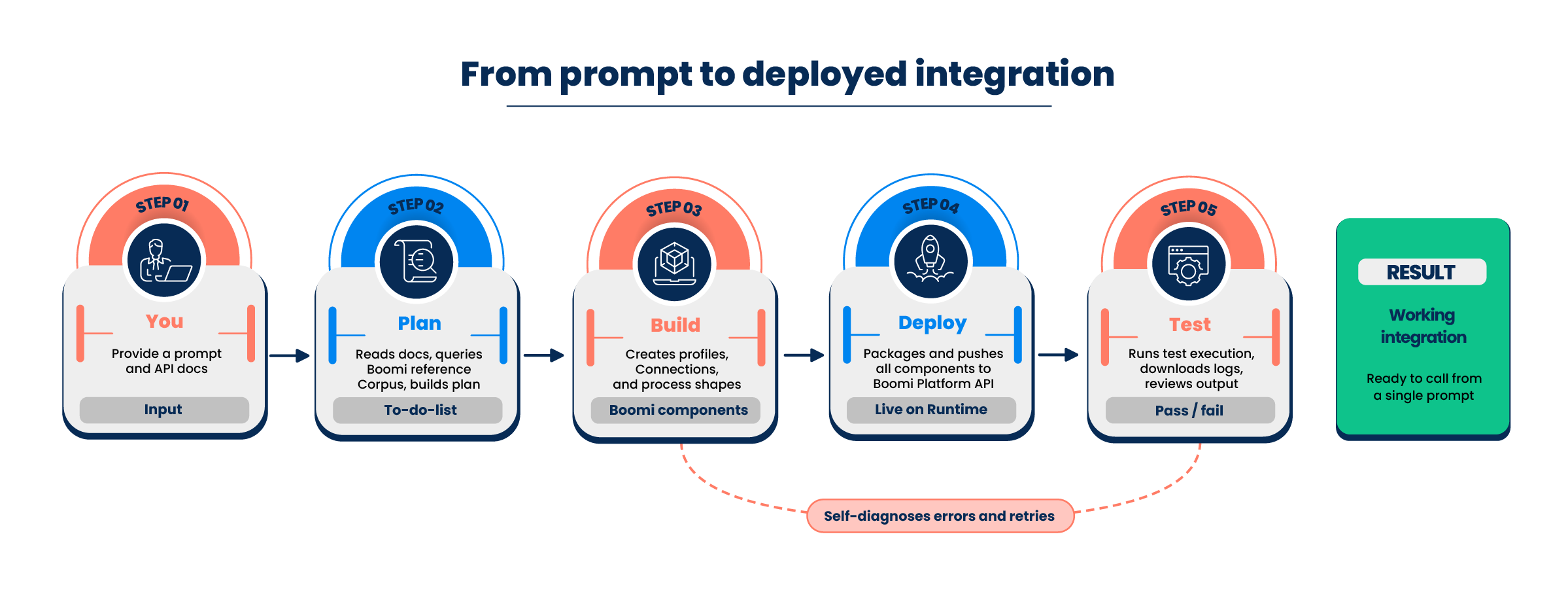
Step 1: Provide your API documentation and a prompt
Open your AI agent with Boomi Companion installed and enter a prompt describing the integration you want to build. Paste or attach the API documentation for the target service.
A minimal prompt is sufficient. Such as:
Here are some docs. Build a process to call this API.
You should already have an API key configured on Boomi Platform.
Boomi Companion reads the documentation, cross-references it against its Boomi reference corpus, and generates a plan listing the components it needs to create.
Step 2: Review the plan (recommended)
For complex builds, enter Plan mode (Shift+Tab twice) before prompting, so that Boomi Companion thinks through its approach before building. In Plan mode, Boomi Companion displays its plan before creating components — including the folder structure it intends to create, the components it will build (profiles, connections, operations, process shapes), and the deployment target.
Review the plan to confirm it matches your intent before proceeding. For simpler integrations, you can skip this step and let Boomi Companion build directly.
Step 3: Let Boomi Companion build and deploy
Boomi Companion creates each component in sequence and pushes them to the platform using the Boomi Platform API. It then packages the process and deploys it to your Runtime.
During this phase, Boomi Companion:
- Creates a dedicated folder to keep components organized
- Builds JSON profiles from the API response schema
- Checks
preferred_connections.mdfor an existing connection that matches the integration target — if you have listed one, Boomi Companion pulls it from the platform and reuses it rather than creating a new connection - If no preferred connection is found, it configures a new REST Connection with dynamic process properties for runtime parameters
- Configures the REST Connector Operation with the correct HTTP method, URL, and headers
- Assembles and deploys the complete process
If the platform returns a validation error during any push, Boomi Companion reviews the error, consults its reference documentation, applies a fix, and retries automatically.
Step 4: Review the deployed process
Navigate to the Boomi Integration canvas to see the completed process. Boomi Companion will have created all components in an organized folder, with connections and operations configured and ready to run.
Step 5: Run a test execution
Boomi Companion executes a test run of the deployed process and downloads the execution log. It reviews the log output to confirm the process is returning the expected data.
If the test execution fails, Boomi Companion diagnoses the root cause from the log, applies a fix, redeploys, and retests — without requiring manual intervention.
Step 6: Extend the integration (optional)
After the base integration is working, you can extend it with a follow-up prompt. For example, to expose the integration as a callable API:
Wrap that in an API. Test it to make sure it works. Let me know how to call it.
Boomi Companion adds an API Service component and listener, runs an end-to-end test, and returns the endpoint URL and the request format.
Support
For feature requests or bug reports related to bc-integration, email developer-offerings@boomi.com with a description of the issue and any relevant error messages.
