Working with Boomi APIs on Postman
Postman is a widely used API client that helps you explore, test, and troubleshoot APIs. This article explains how to get started with Boomi REST APIs using Postman.
Postman is a third-party tool. Boomi does not provide support for Postman itself. For tool-specific guidance, refer to the Postman documentation.
Prerequisites
Before you begin, make sure you have:
- Access to a Boomi account with the required API permissions
- A valid Boomi API token, OAuth access token, or relevant access
- A Postman account (web or desktop)
Postman collections
Postman organizes API requests into collections, which are stored in workspaces. You can add Boomi APIs to Postman by importing an OpenAPI specification or by forking a shared collection.
Using a local copy of a collection allows you to:
- Send API requests to Boomi endpoints
- Configure authentication and environment values
- Customize requests without affecting the original source
Adding Boomi APIs by forking a shared collection
Boomi API collections are available through Run in Postman links on the API Overview topics and individual API reference topic in the Boomi Developer Documentation.
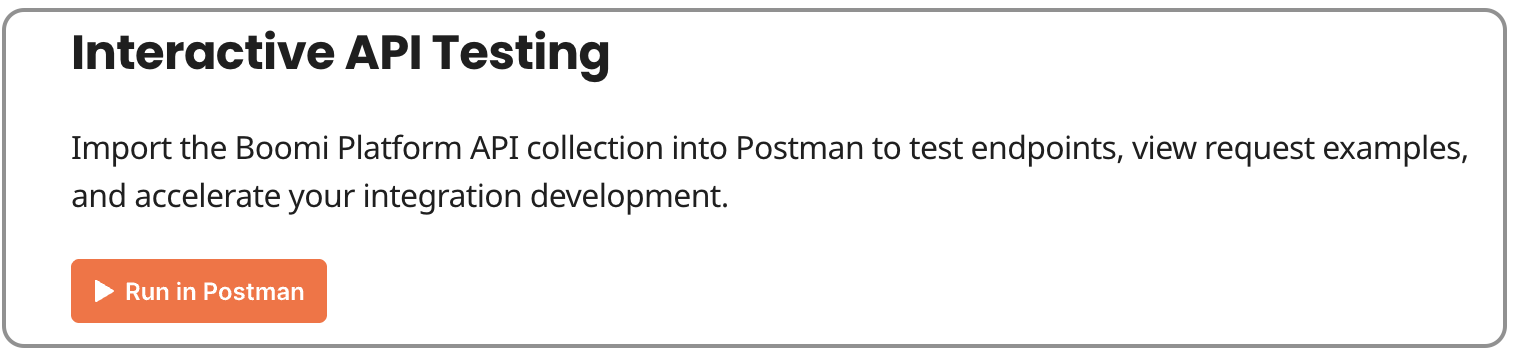
When you click Run in Postman, Postman opens the collection and prompts you to fork it into your workspace. You can review the collection structure and requests before completing the fork.
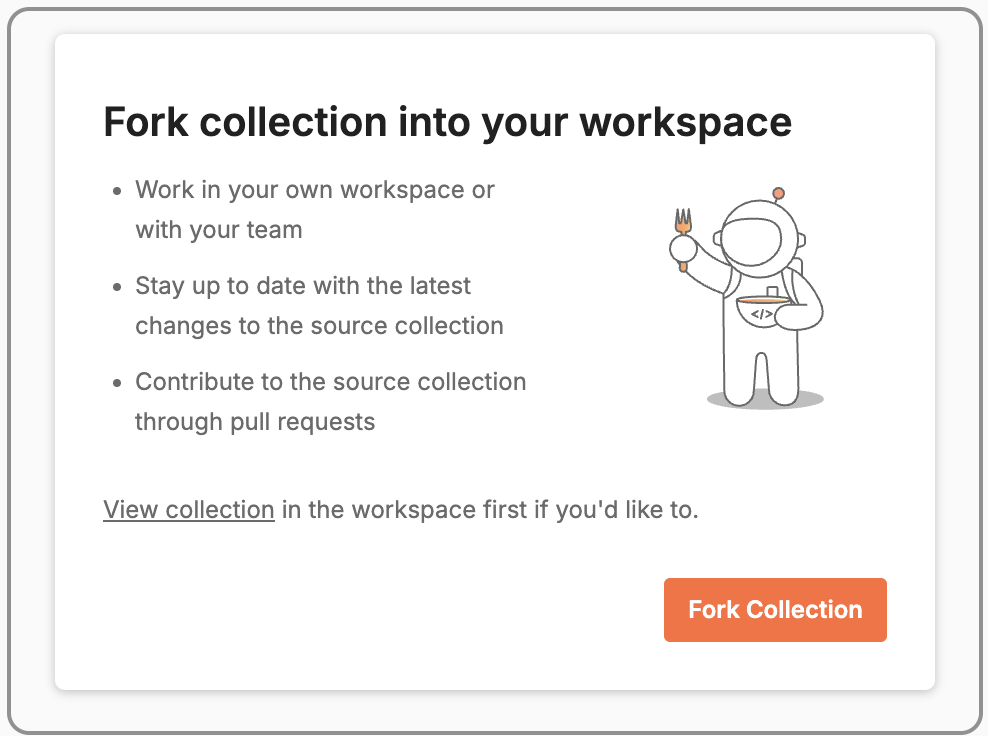
Forking creates a copy of the collection that you own. This allows you to configure authentication, update variables, and customize requests, while still being able to pull in updates when the original collection changes.
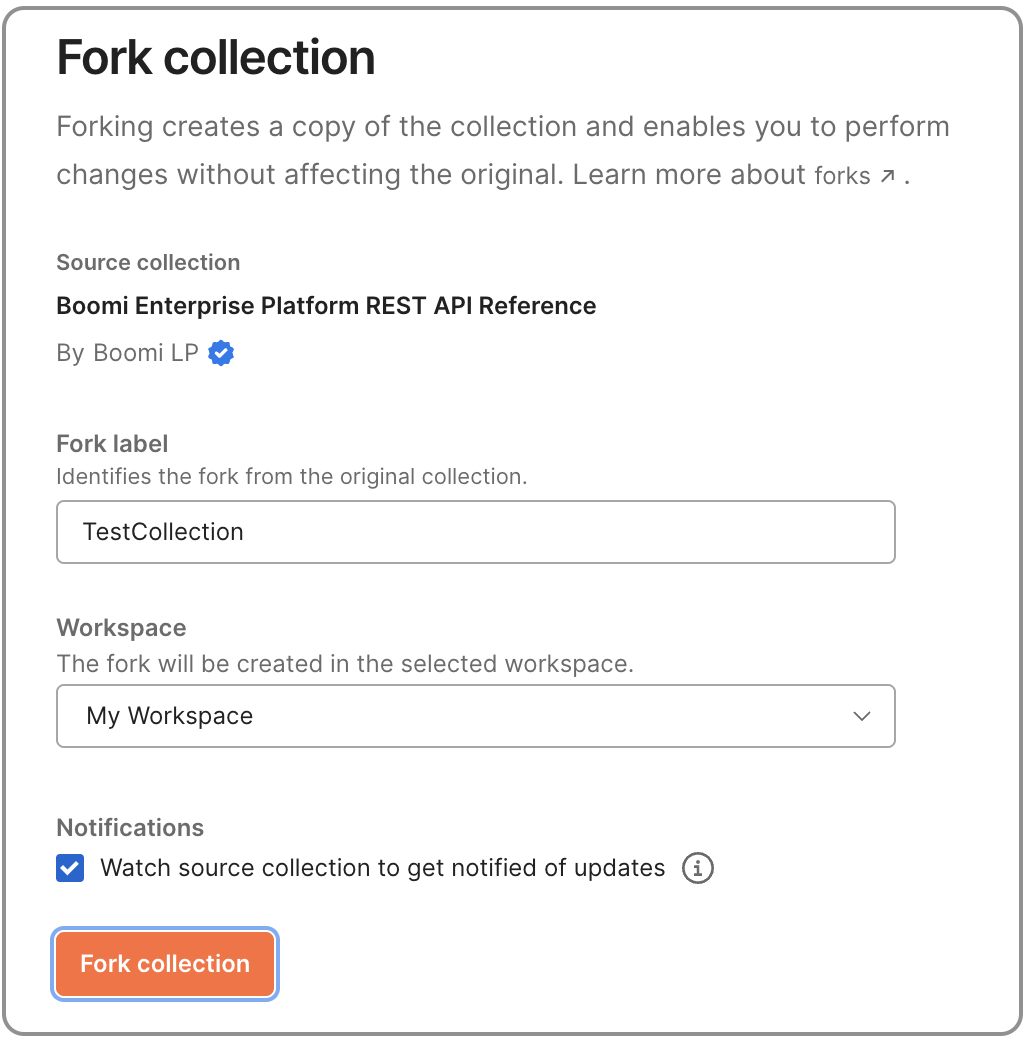
Updating a forked collection
Shared collections may be updated to reflect new endpoints, improvements, or deprecated functionality.
To pull updates into your fork:
- Select the collection’s More actions menu.
- Click Pull changes.
- Review the changes and apply them.
Configuring a collection
Before sending requests, configure authentication and any required account-specific values for the collection.
Authorization on Postman collections
Boomi APIs support multiple authentication mechanisms, depending on the API. For details on supported authentication methods and when to use them, refer to the relevant Boomi API Reference topics.
- Open the collection settings in Postman.
- Select the Authorization tab.
- Choose the appropriate authorization type for the API you are using.
- Provide the required credentials or tokens.
- Save the configuration.
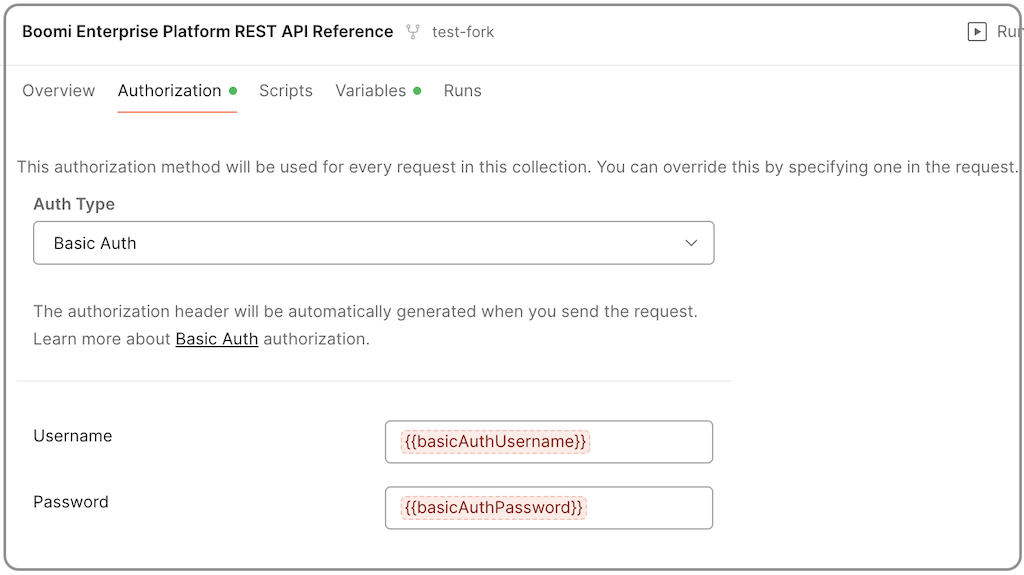
Variables
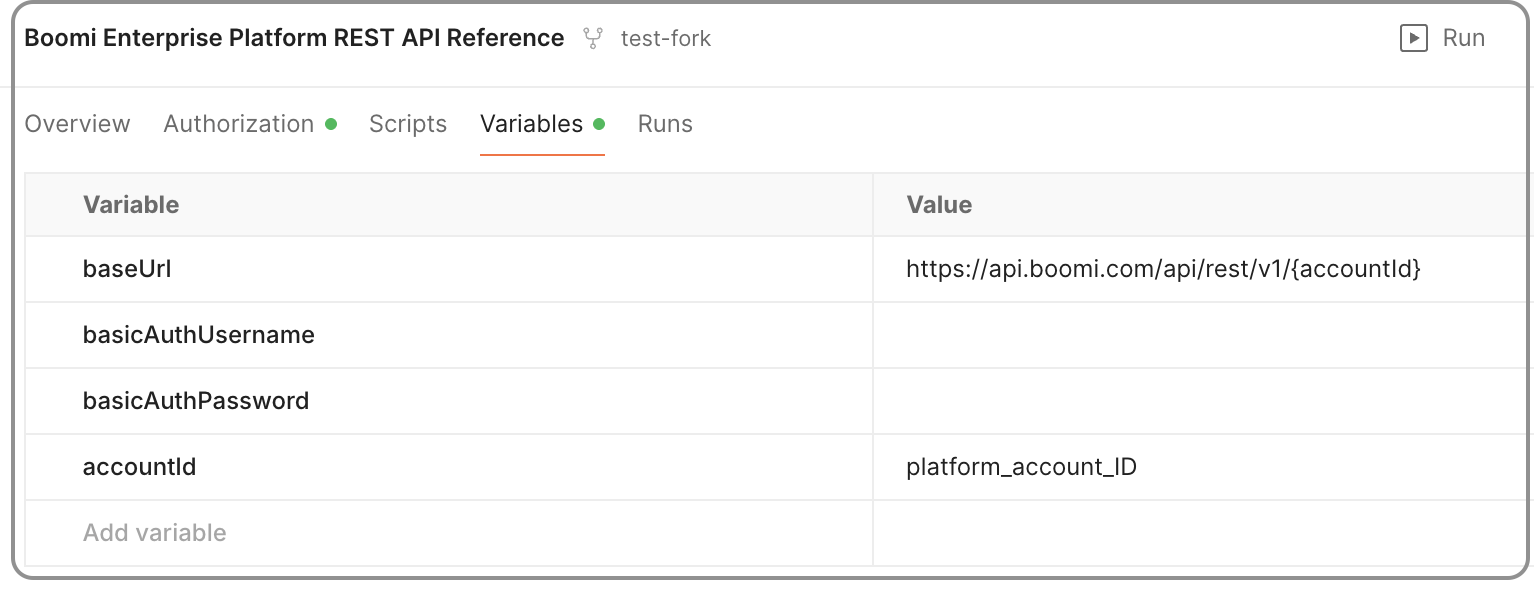
Collections use variables to define values such as the API base URL and account ID.
-
Open the collection settings.
-
Go to the Variables tab.
-
Set current values for required variables.
For example:
baseUrl,accountId,userName,password -
Persist the values and save.
Sending API requests
Once configured, you can start making API calls.
- Expand the collection and select an endpoint.
- Review the request method and URL.
- Provide any required path or query parameters.
- Add a request body if the operation requires one.
- Click Send.
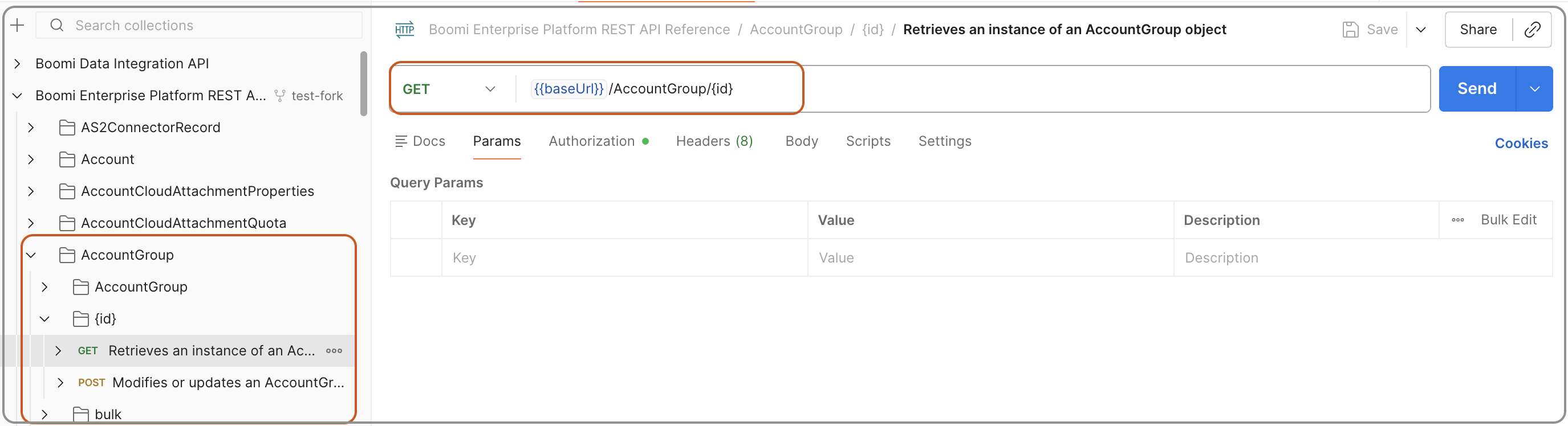
The response appears below the request, including status, headers, and body.
