Authentication for AFT REST APIs
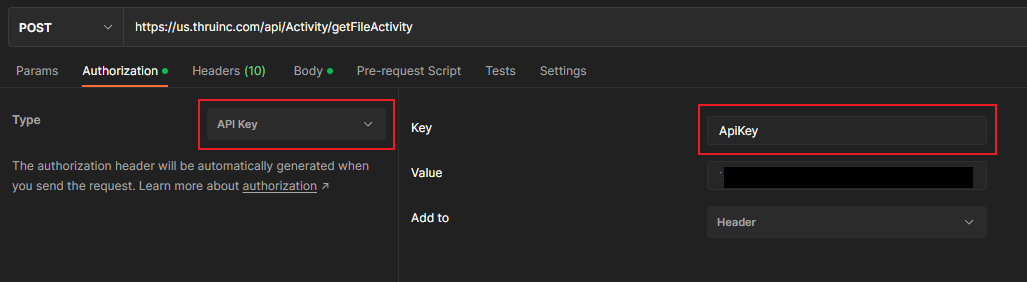
The MFT API uses either tokens generated from username and passwords or API keys to authenticate requests.
You can view and manage API keys generated per user in the MFT portal under the user profile.
Generate a user token to authenticate with the API
To generate a token for API calls, follow these steps on our Swagger page or from an external application or script.
To generate a user token to authenticate with the API:
-
To begin, you must determine the specific Swagger page that you need to connect to US, UK, EU or AU.
-
To access the appropriate Swagger page, navigate to the Users section.
-
Locate the
POST /api/Users/authenticateendpoint and click it to open the request details.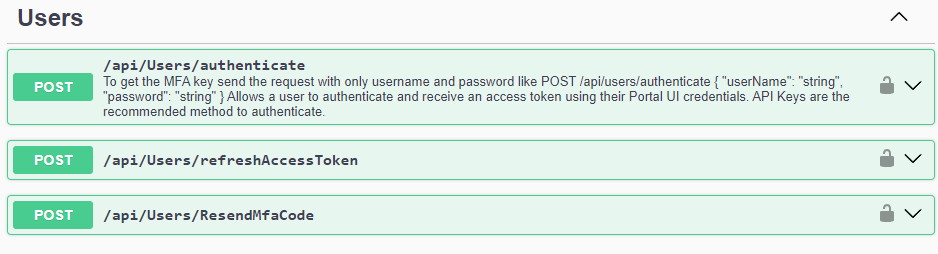
-
Click the Try it out button.
If multi-factor authentication (MFA) is enabled for your account, you must first run the ResendMfaCode call to get your one-time password.
-
The API call can be edited. Ensure you replace the username, password, and MFA code placeholders with your actual credentials.
info"userName": "your-userName",
"password": "your-password",
"oneTimePasscode": "your-oneTimePasscode"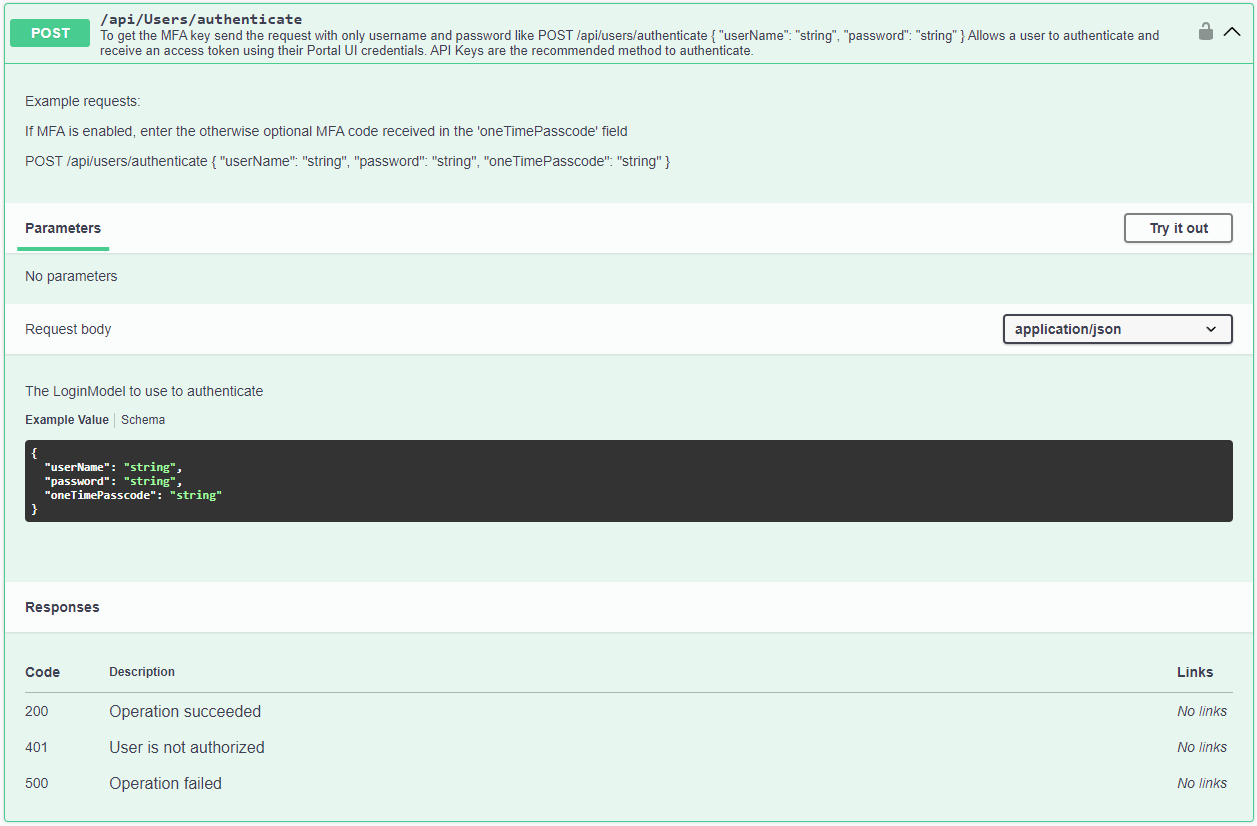
-
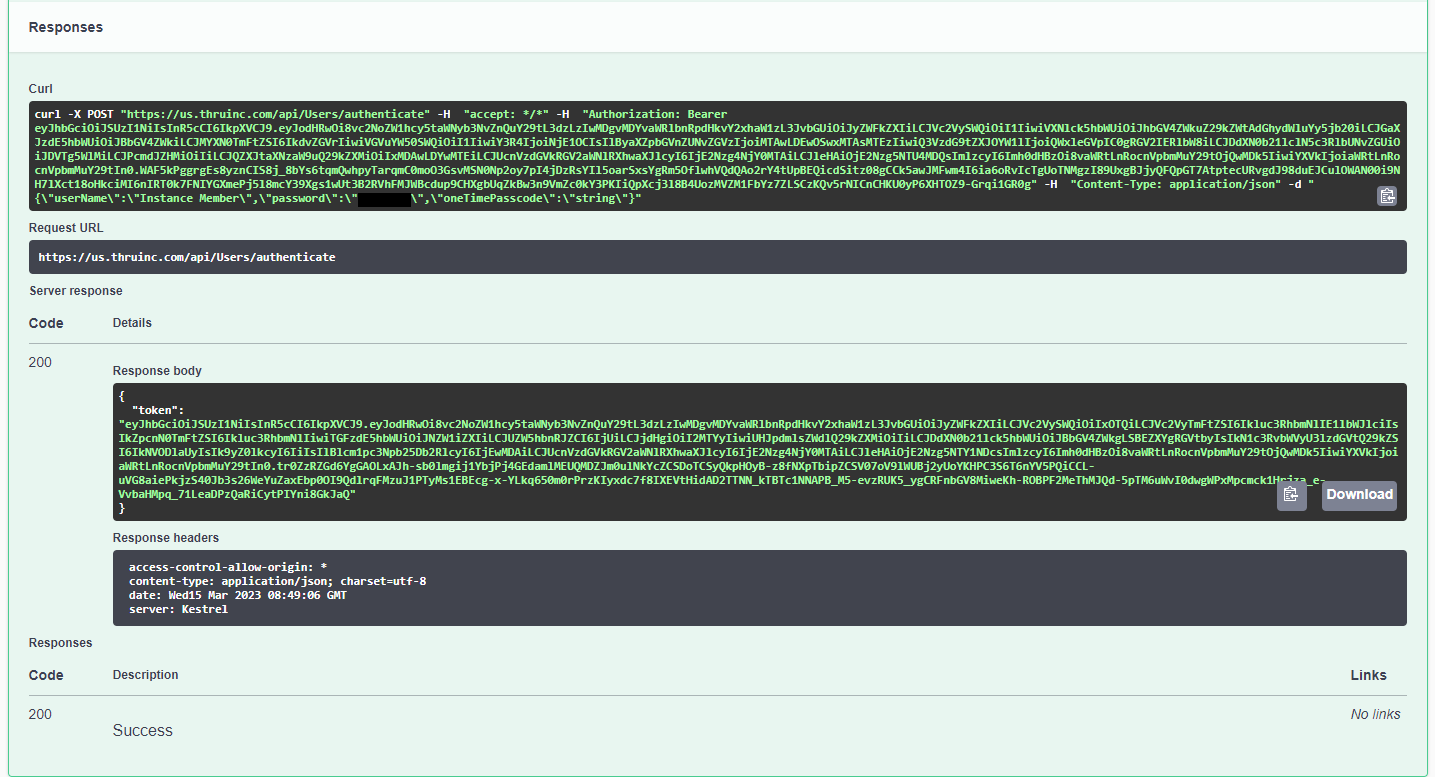
Enter your username, password, and MFA code in the placeholder strings and click the Execute button. If the process is successful, it displays the curl command, the request URL, the response body, and the response header.
-
Information you need from here comes from the response body. You only need the data between the quotation marks after the semicolon.
For example, the response body provided is:
"token": "eyJhbGciOiJSUzI1NiIsInR5cCI6IkpXVCJ9.eyJodHRwOi8vc2NoZW1hcy5taWNyb3NvZnQuY29tL3dzLzIwMDgvMDYvaWRlbnRpdHkvY2xhaW1zL3JvbGUiOiJyZWFkZXIiLCJVc2VySWQiOiIxNDQiLCJVc2VyTmFtZSI6Ik1hdHRoZXdDU1RocnUiLCJGaXJzdE5hbWUiOiJNYXR0aGV3IiwiTGFzdE5hbWUiOiJMb2ZsaW4iLCJUZW5hbnRJZCI6IjY1IiwiY3R4IjoiNTk5NiIsIlByaXZpbGVnZUNvZGVzIjoiMTAwLDEwOSwxMTAsMTEzIiwiQ3VzdG9tZXJOYW1lIjoiQ1MgVGhydSAiLCJDdXN0b21lclN5c3RlbUNvZGUiOiJDVVZORkciLCJPcmdJZHMiOiIiLCJQZXJtaXNzaW9uQ29kZXMiOiIxMDAwLDYwMTEiLCJUcnVzdGVkRGV2aWNlRXhwaXJlcyI6IjE2Nzg4MjM5NDQiLCJleHAiOjE2Nzg5MTAzNDQsImlzcyI6Imh0dHBzOi8vaWRtLnRocnVpbmMuY29tOjQwMDk5IiwiYXVkIjoiaWRtLnRocnVpbmMuY29tIn0.Rdia1AXVhxPu0blIlyctZI0lcNVmPSdRsi6PjY3BjdMIvVDLmDm9SD2kDLUJ3LNGu2Cy5jwrEdIvDc6tsPLEiyWWcMhaeCaN9vwxsY0dsJ1kPWtBMDQMGqpeVA9iuSbxxcMGGuJk7hpmZxzQc5naZ4LB9Xcvb\_bGBqs4XJFaUzrqKj4FecVR6PH-pwlACESkcA9ew5U8uYyaLNNL-Bn265JVsioxIC5btAHkwc2adivkJf4G8GOx4stC\_elC3FseSJ8eo7EgKcLXfe2klKbi0goEm1kpJ2s8DjjmtyG5pE8P9Vsb\_Pj2FmURqnFYyJO\_2wlSMxCTrYZ96l71lu--ww"However, an example of the information you need starts with the e and end with the w, as shown below.
The information you must take from the response body is:
eyJhbGciOiJSUzI1NiIsInR5cCI6IkpXVCJ9.eyJodHRwOi8vc2NoZW1hcy5taWNyb3NvZnQuY29tL3dzLzIwMDgvMDYvaWRlbnRpdHkvY2xhaW1zL3JvbGUiOiJyZWFkZXIiLCJVc2VySWQiOiIxNDQiLCJVc2VyTmFtZSI6Ik1hdHRoZXdDU1RocnUiLCJGaXJzdE5hbWUiOiJNYXR0aGV3IiwiTGFzdE5hbWUiOiJMb2ZsaW4iLCJUZW5hbnRJZCI6IjY1IiwiY3R4IjoiNTk5NiIsIlByaXZpbGVnZUNvZGVzIjoiMTAwLDEwOSwxMTAsMTEzIiwiQ3VzdG9tZXJOYW1lIjoiQ1MgVGhydSAiLCJDdXN0b21lclN5c3RlbUNvZGUiOiJDVVZORkciLCJPcmdJZHMiOiIiLCJQZXJtaXNzaW9uQ29kZXMiOiIxMDAwLDYwMTEiLCJUcnVzdGVkRGV2aWNlRXhwaXJlcyI6IjE2Nzg4MjM5NDQiLCJleHAiOjE2Nzg5MTAzNDQsImlzcyI6Imh0dHBzOi8vaWRtLnRocnVpbmMuY29tOjQwMDk5IiwiYXVkIjoiaWRtLnRocnVpbmMuY29tIn0.Rdia1AXVhxPu0blIlyctZI0lcNVmPSdRsi6PjY3BjdMIvVDLmDm9SD2kDLUJ3LNGu2Cy5jwrEdIvDc6tsPLEiyWWcMhaeCaN9vwxsY0dsJ1kPWtBMDQMGqpeVA9iuSbxxcMGGuJk7hpmZxzQc5naZ4LB9Xcvb\_bGBqs4XJFaUzrqKj4FecVR6PH-pwlACESkcA9ew5U8uYyaLNNL-Bn265JVsioxIC5btAHkwc2adivkJf4G8GOx4stC\_elC3FseSJ8eo7EgKcLXfe2klKbi0goEm1kpJ2s8DjjmtyG5pE8P9Vsb\_Pj2FmURqnFYyJO\_2wlSMxCTrYZ96l71lu--ww -
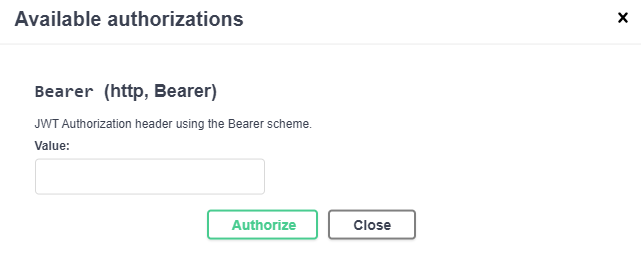
Once you have copied this information, return to the top of the page and click the Authorize button.
-
Paste your data in the the value box and click the Authorize button. If the process is successful, a confirmation message appears.
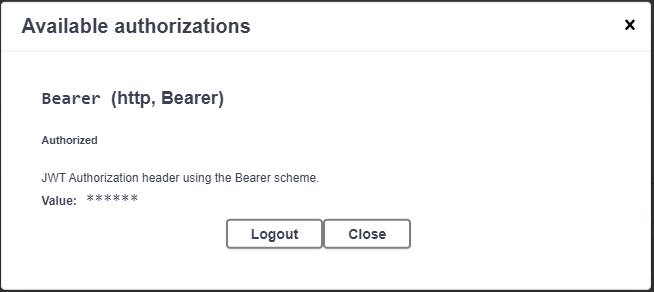
You can now execute example API calls. Note that the bearer token will expire in approximately 10-15 minutes as a security measure.
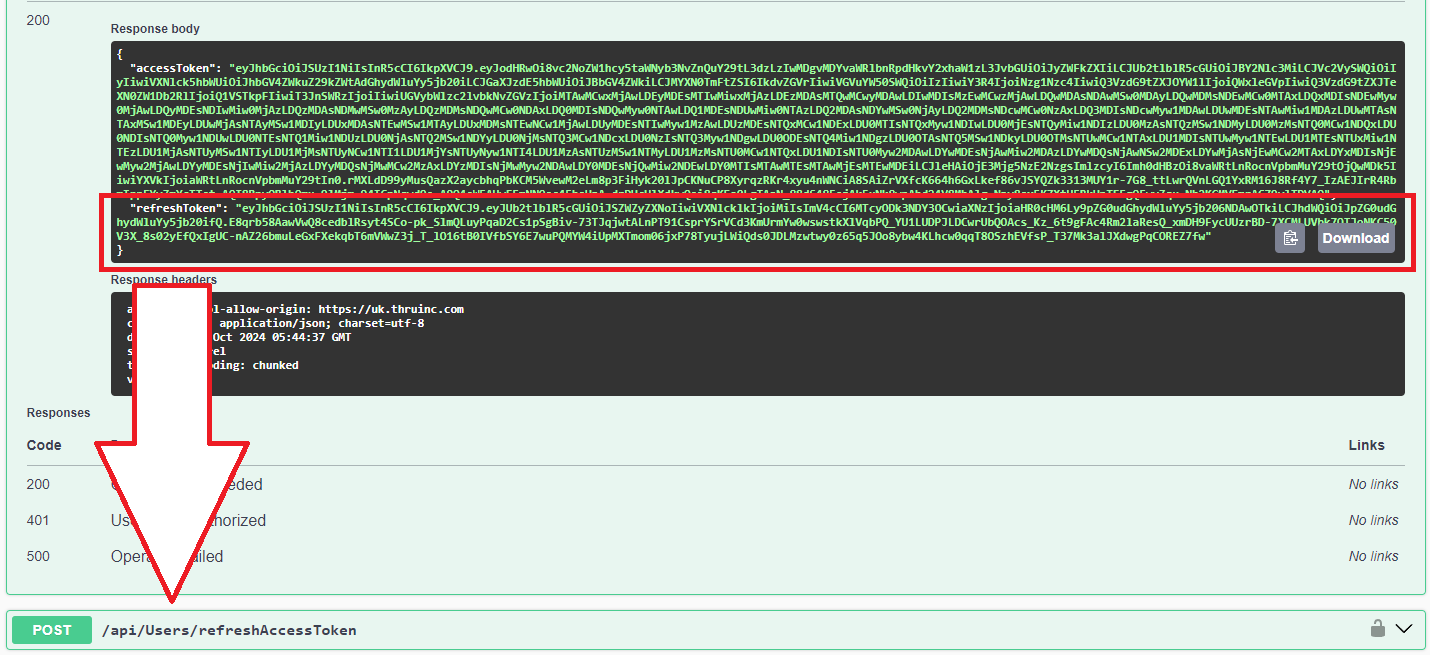
To maintain access, use the refresh token obtained from the authentication request. By providing this refresh token in the refresh access token call, you will reset the expiration timer. If you do not do this, you need to go through the entire authentication process again or use an API key.
Create an API Key to authenticate with the API
You can create API keys under a user profile for API authentication to the MFT service.
To create an API Key:
-
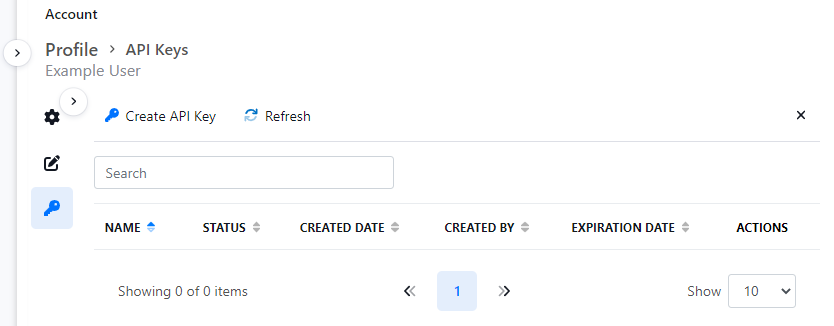
Navigate to the user's profile section.
-
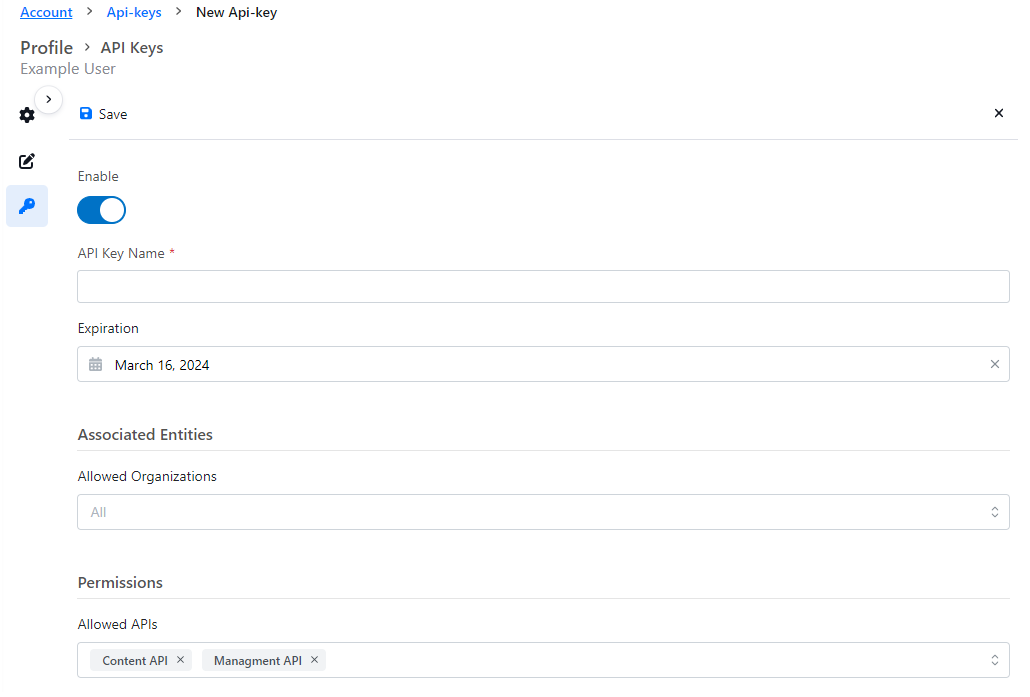
Click Create API Key.
-
Provide the following information:
-
API Key Name: Provide the key a name so it can be identified.
-
Expiration: Keys can have an expiration date. An expired key can cause integrations to fail.
-
Associated Entities: Keys can be associated with Organizations.
-
Permissions: Keys can be given access to different API types.
-
-
Click Save.
Once a key is created, it is listed as shown below.
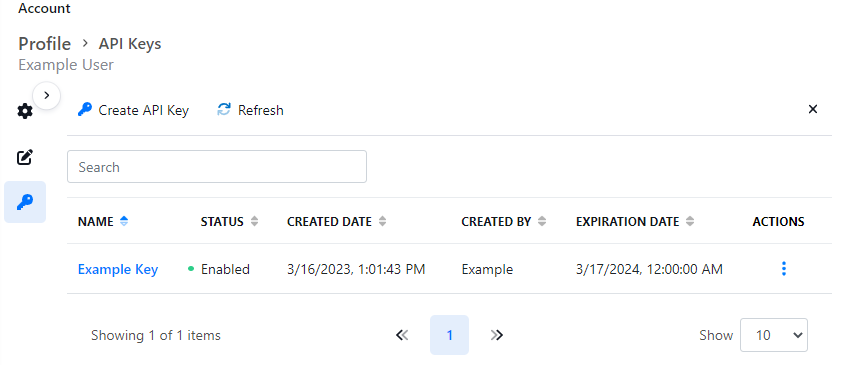
When using the API key from any external application the header should be called ApiKey.