Register a gateway and run the agent
After you create a custom Platform Type, register a gateway for it and run the agent using Docker. The agent container loads your plugin, connects to API Control Plane, and makes your implemented capabilities available.
Prerequisites
- Custom Platform Type created in API Control Plane (refer to Create a custom Platform Type)
- Agent plugin JAR file available on your local filesystem
- Docker installed and running
Register a gateway
- In API Control Plane, select Environments > Register Gateway.
- Select Custom Platforms.
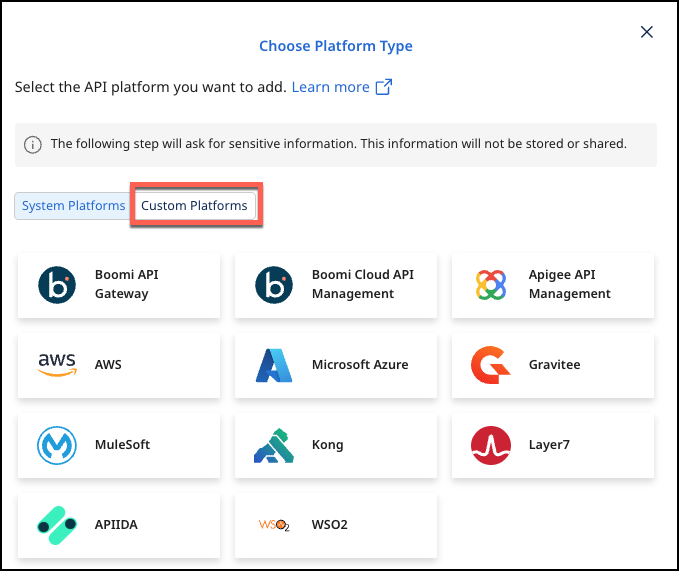
-
Select your custom platform and add the Gateway Information. The fields here are those defined in the JSON file that you previously uploaded. The JAR File Location is the path to the directory that contains the compiled JAR file of your Agent SDK implementation, with no trailing slash. The path can be absolute or relative to the
docker-compose.ymlfile. This directory will be mounted as a volume onto the /plugin path of the agent docker container. -
Select Next.
-
Add Environment Information and select Connect to Gateway.
If your agent is for a multi-environment gateway with environment discovery capability, add the information for any of your environments.
- Select Download and Next to download the docker compose file.
Run the agent
-
Place the downloaded
docker-compose.ymlfile in the same directory as your JAR file, or ensure the plugin directory path in the file is correct. -
From the directory containing the
docker-compose.ymlfile, run:docker compose up -
The agent container starts, loads your plugin from the mounted plugin directory, and connects to API Control Plane. The capabilities you implemented are now available.
-
In Environments, you will see your agent connected. You can now run discovery on your agent to bring in components to API Control Plane.