Installing Boomi Companion on Claude Cowork
Install Boomi Companion through the Claude Cowork plugins marketplace to interact with the Boomi Platform through natural language and configure it to act on your behalf.
Prerequisites
- A Boomi Platform account with an API token
- Access to Claude Cowork (the Claude desktop application with Cowork mode enabled)
Installing Boomi Companion on Claude Cowork
-
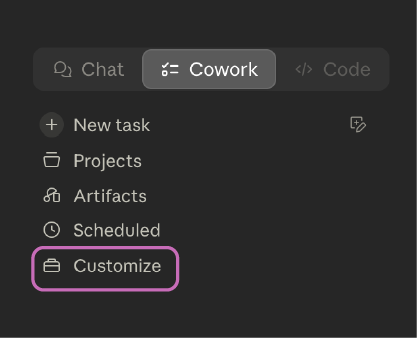
Open Claude Cowork and select the Customize option.
-
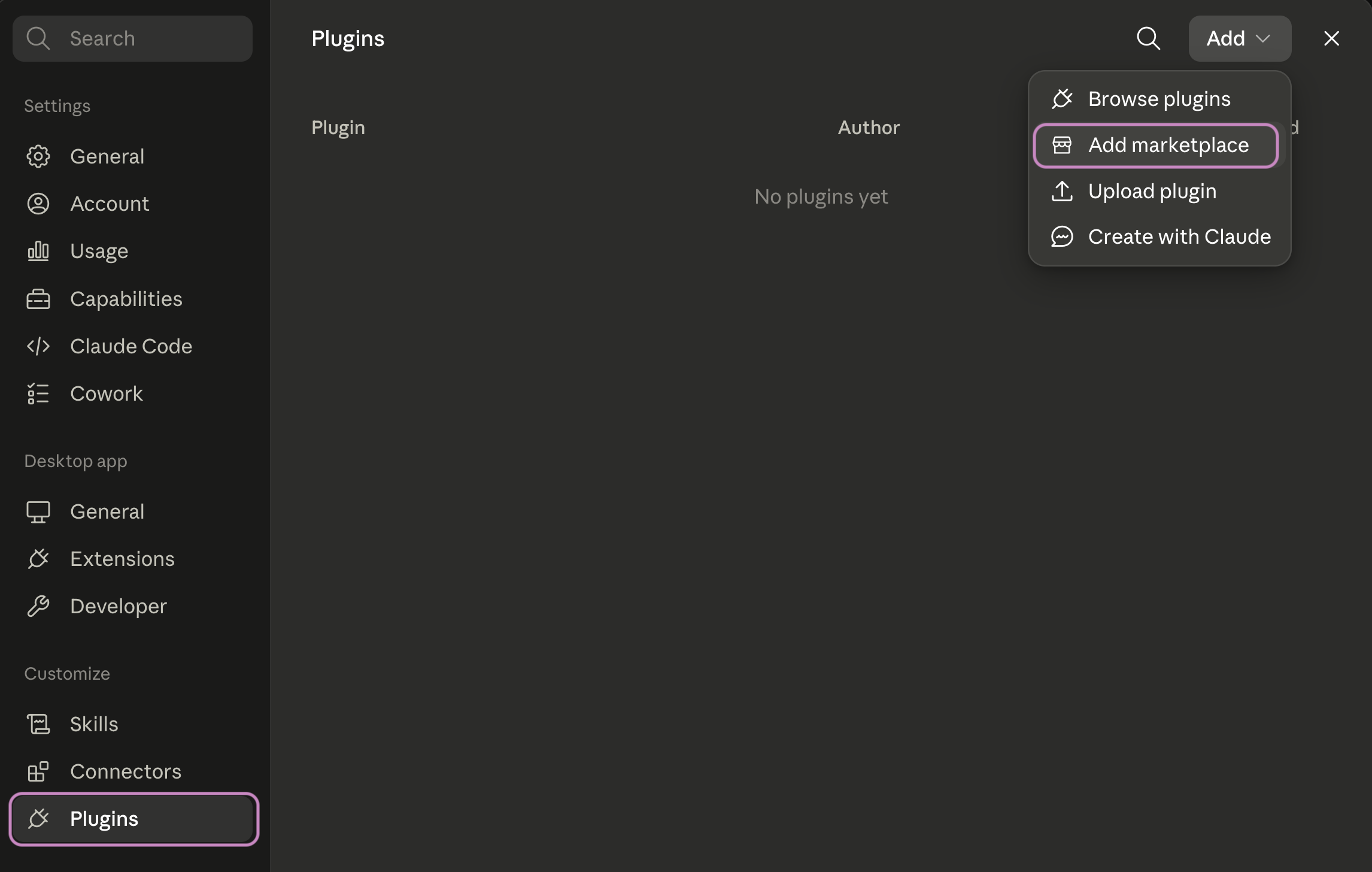
Select Plugins > Add > Add marketplace.
-
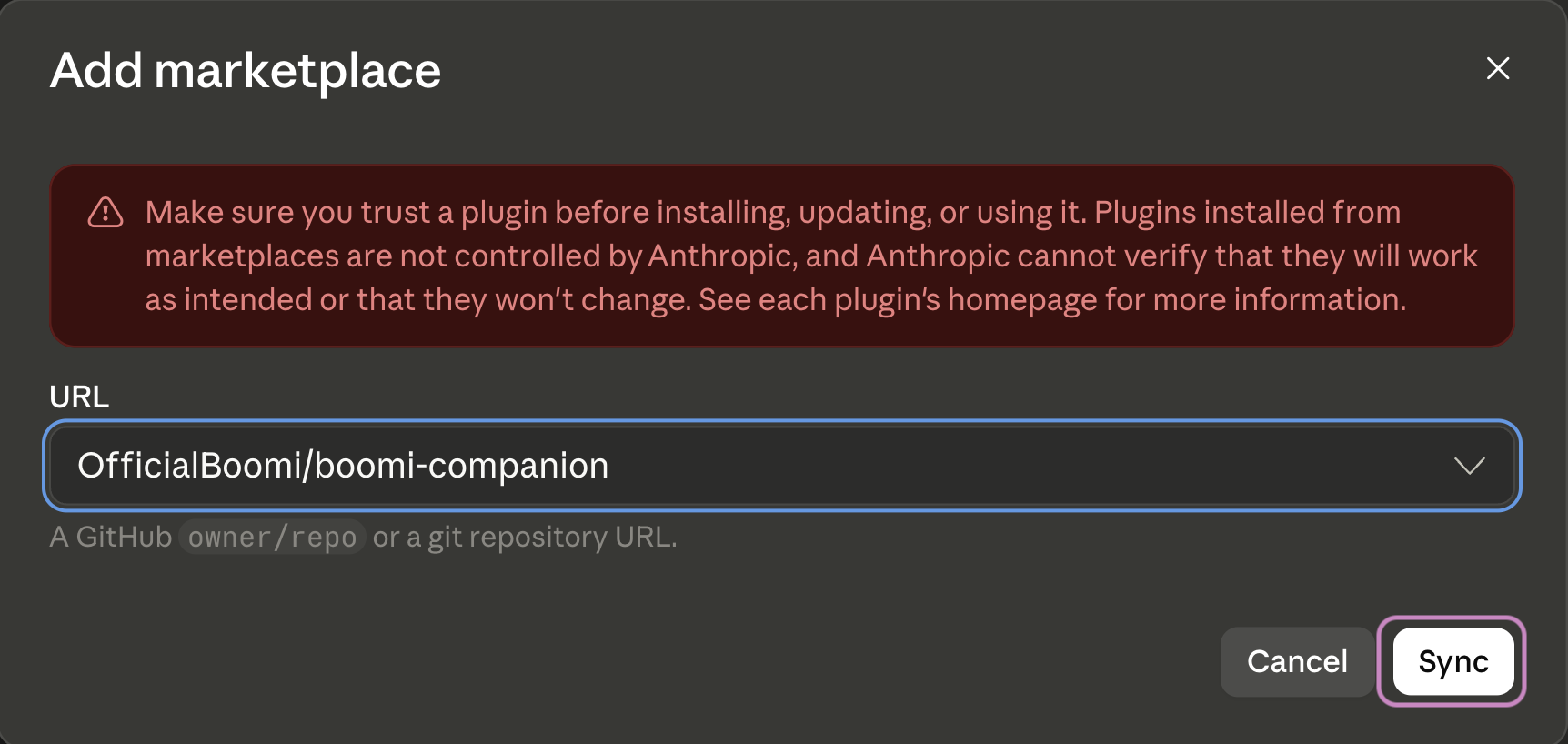
Enter
OfficialBoomi/boomi-companionas the marketplace source and confirm.noteYou do not need to specify a GitHub URL. Enter the value exactly as shown above.
-
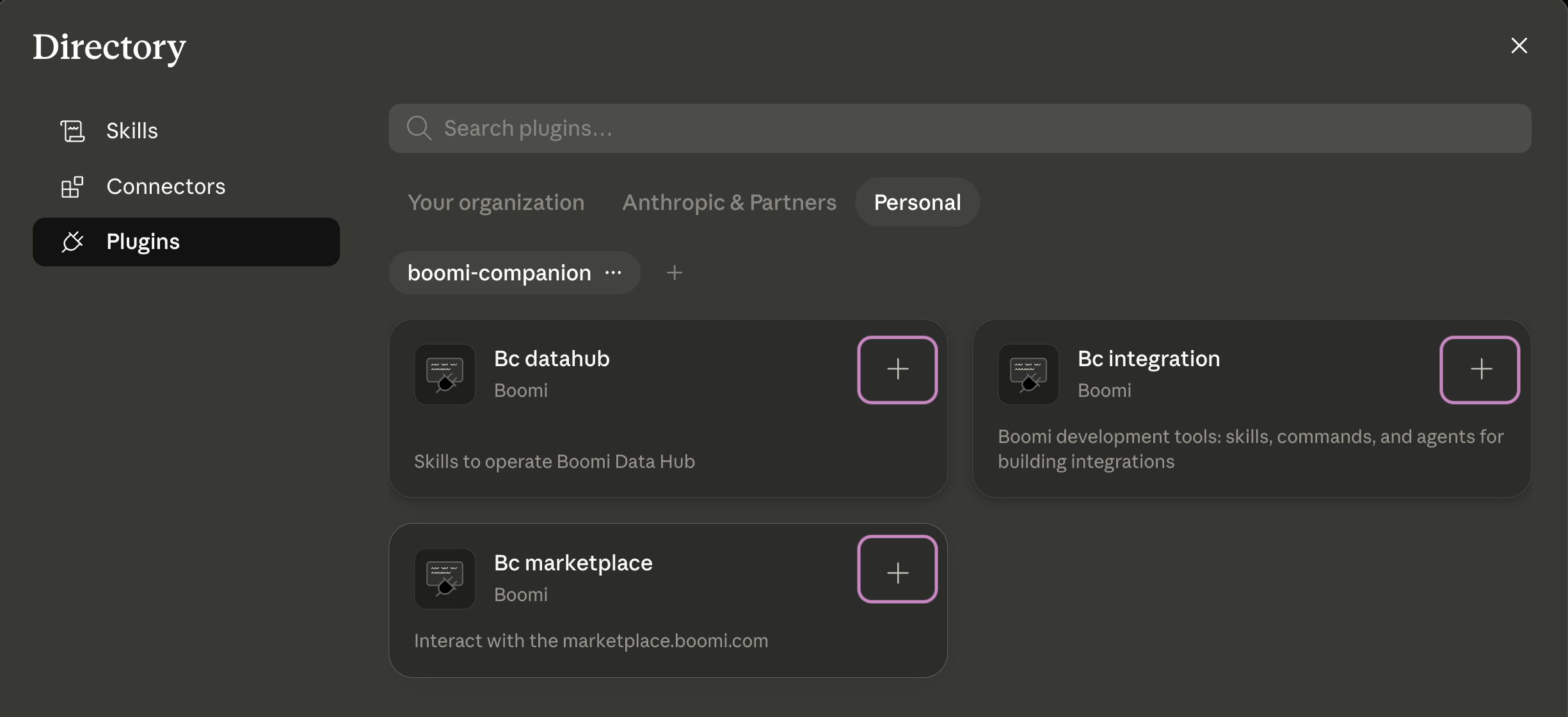
Claude Cowork automatically installs the plugins. If it does not, click the + icon next to any plugin you want to install.
Testing the installation
To verify that Boomi Companion is working, enter the following prompt in Claude Cowork:
Tell me what skills you have available
If the installation was successful, Claude lists the Boomi Companion skills it has access to.
Setting up template workspace
Enter the following prompt in Cowork to set up your template workspace:
Configure my Boomi template workspace and ignore the /freshies command install as it is not needed for Claude Cowork
It asks where you want your template folder to be stored; choose one that fits your needs (for example, Documents).
After the setup completes, configure your Boomi Platform credentials. Refer to Configuring credentials for the full list of required and optional variables.
To extend the workspace with custom instructions, hooks, or reference files, refer to Customizing your template.
Configuring Cowork Settings
Finally, instruct Claude Cowork to use your template workspace whenever working with Boomi. This is where Claude Cowork will find your .env file.
-
Open your Claude desktop application's Settings → Cowork tab.
-
Click Edit next to Global Instructions.
-
Copy and paste the following instructions, replacing the template folder path with the path to your newly-created template workspace folder:
When working in Claude Cowork mode, if you work on Boomi development tasks, you should proactively request to mount the following folder path as the working directory: <ENTER TEMPLATE WORKSPACE FOLDER PATH HERE>.**CRITICAL:** Consider this a template workspace, you may copy the contents of the folder but YOU CAN NEVER MODIFY the contents in that template workspace. -
Click Save.
Building your first process with Boomi Companion
Describe what you want to build in plain language, or provide links to your existing Boomi processes and components for context.
Boomi Companion uses this input to help you create processes, connectors, maps, and profiles, and to deploy them to your environment.
Some examples for you to get started:
Build a process that converts a JSON payload, representing a customer order, into XML.
Build a Boomi integration process that demonstrates splitting and branching logic.
Build a Boomi integration process that demonstrates Try/Catch error handling using only standard shapes.
Build a Boomi integration process that transforms sample employee data from XML to JSON. For every step in the process, including shape names, map functions, and any descriptive notes, provide labels in both English and Thai.
- Mention your source and destination systems
- Mention if it's scheduled, event-driven, or API-triggered
- Mention any data transformation needed (for example, CSV to JSON, field mapping, and so on)
