Installing Boomi Companion plugin on Claude Code
Install Boomi Companion through the Claude Code plugin marketplace to interact with the Boomi Platform directly from your terminal using natural language.
Prerequisites
- A Boomi Platform account with an API token
- Claude Code installed and configured on your machine
Adding the marketplace
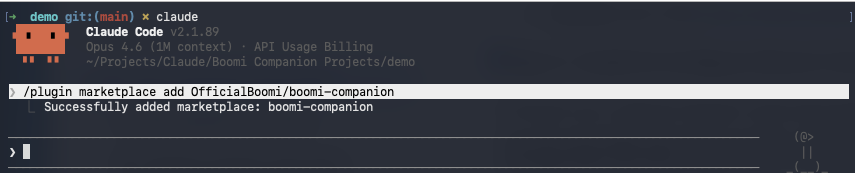
To add the Boomi Companion marketplace to your Claude Code instance, enter:
/plugin marketplace add OfficialBoomi/boomi-companion
Installing plugins
-
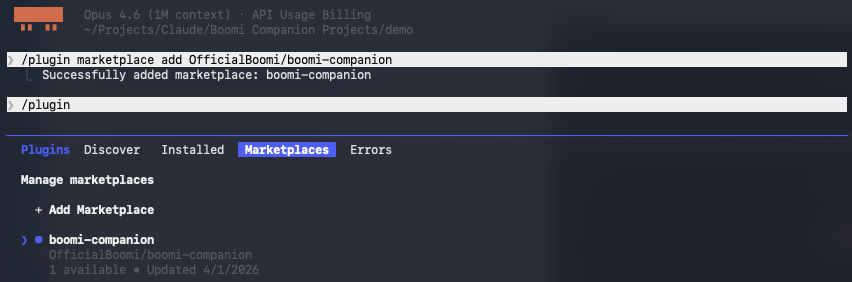
To open the plugin menu, enter:
/plugin -
Use the arrow keys to select Marketplaces, then select boomi-companion, and press Enter.
-
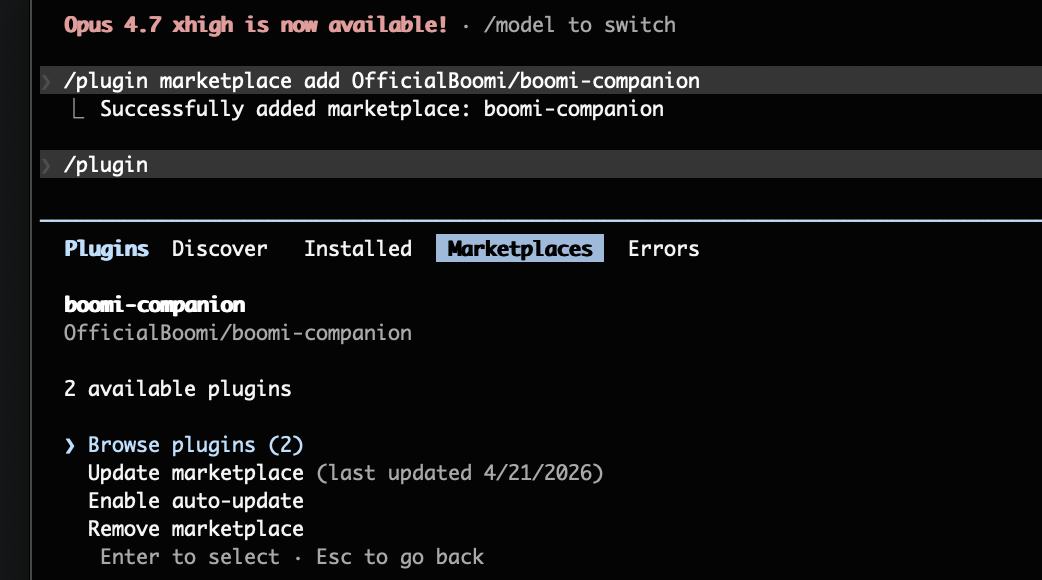
Select Browse plugins and press Enter.
-
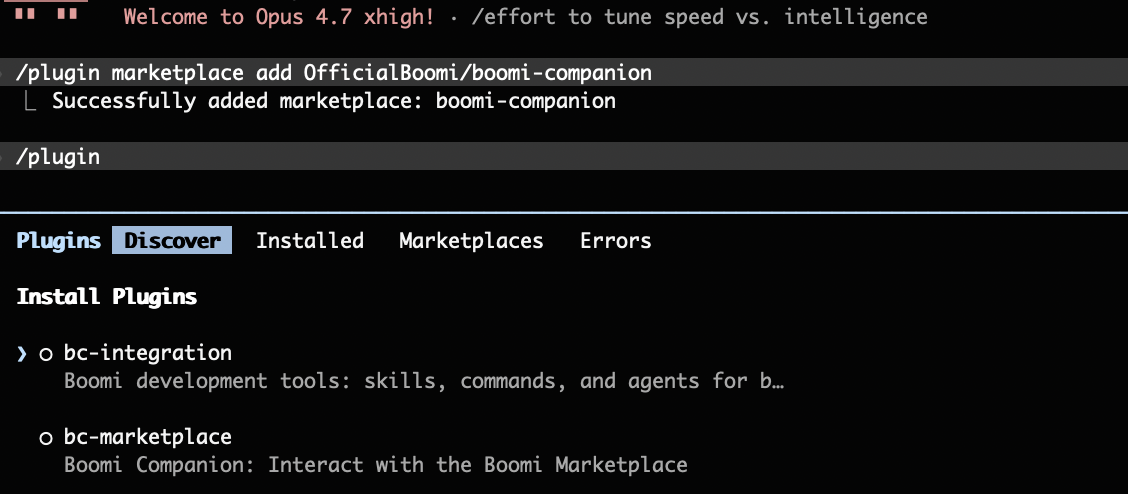
Select the plugin you want to install and press Enter.
-
Select Install for you (user scope) and press Enter.
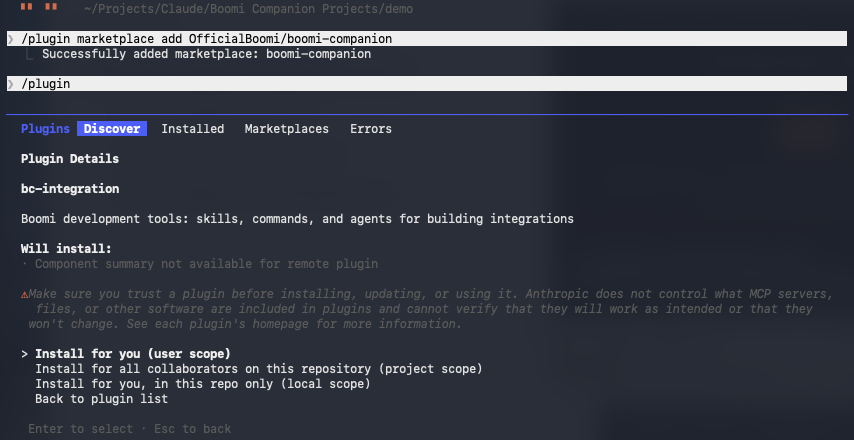
To install additional plugins, repeat steps 1–5.
-
To load the plugin, enter:
/reload-plugins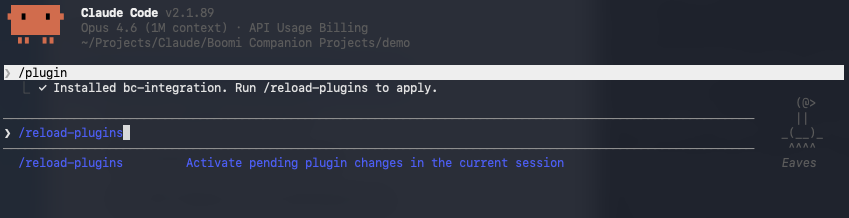
-
To enable automatic plugin updates, go to
/plugin> Marketplaces > boomi-companion, then select Enable auto-update.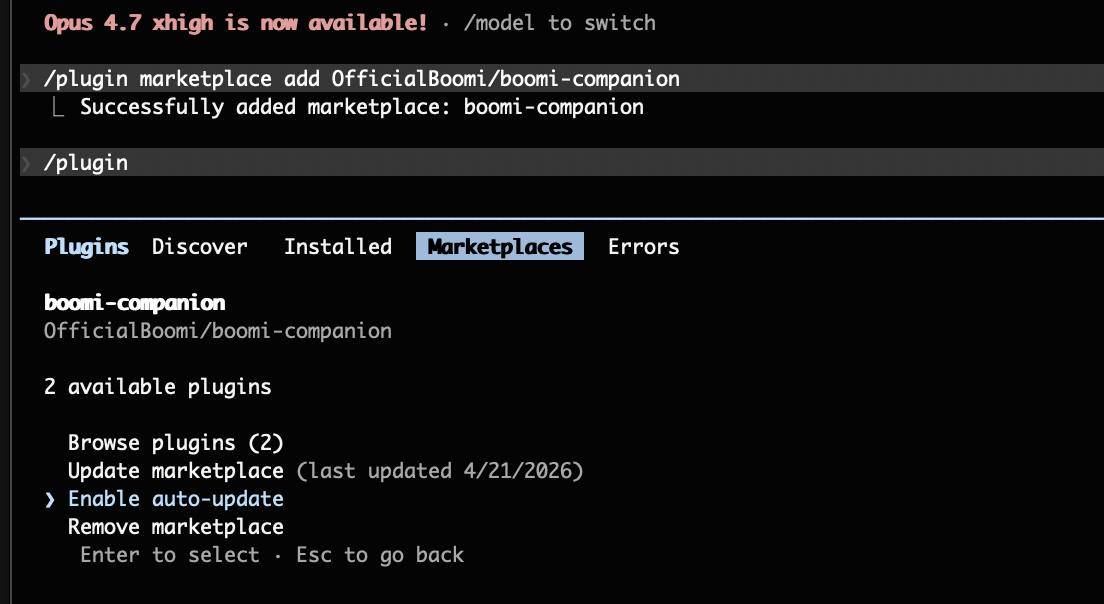
Testing the plugin
To verify that the plugin is working, enter the following prompt in Claude Code:
Tell me what skills you have available.
Next steps
Run /exit to close Claude Code, then continue with Setting up template workspace.
