Investigating and rerunning failed documents using the Platform API
As an integration developer troubleshooting a failing process, or an operations team monitoring integrations at scale, you do not need to manually chase down and rerun failed documents one at a time.
Learn how to use the process execution objects to view and rerun documents from outside the Boomi user interface. Use the ExecutionRecord, ExecutionConnector, GenericConnectorRecord, ConnectorDocument, and RerunDocument APIs together to find, inspect, and resubmit failed documents.
Why use these APIs instead of the Process Reporting page?
Finding and rerunning a failed document used to require opening the Process Reporting page, drilling into an execution, clicking through each connector step, and selecting Re-run documents by hand, one execution at a time. That manual path does not scale for solution builders, customers, and partners who need to display process execution details in custom portals or dashboards, or automate monitoring functions such as rerunning failed documents.
The process execution objects replace this manual work with programmatic access to the same data and actions. Together, they mirror the concepts and workflow you already know from the Process Reporting page:
- ExecutionRecord - Represents the top-level results on the Executions page. Query it to find a specific process execution and obtain its
executionId. - ExecutionConnector - Represents what you see when you click an execution's timestamp. Query it with an
executionIdto list the Connector, Trading Partner, and Return Documents shapes used in that run. - GenericConnectorRecord - Represents the list of documents shown when you click a connector step within an execution. Query it to retrieve document-level status, tracked fields, and error messages.
- ConnectorDocument - Represents the View Document action for a given connector document. Use it to download the raw document data for inspection.
- RerunDocument - Represents the Re-run documents option in the UI. Use it to resubmit all documents for an execution by status, or a specific set of documents, for reprocessing.
Prerequisites
Before using these APIs, make sure you have:
- The API access privilege for your user role
- API authentication credentials and
accountId - The
VIEW_RESULTprivilege to query execution and document data - The View document data privilege, to view document data with ConnectorDocument — Boomi logs this action in the Audit Log, the same as when you view a document through the user interface
- The target runtime must be online, both to view document data with ConnectorDocument and to successfully resubmit documents with RerunDocument
- The documents you want to rerun must come from a process's Start shape or Trading Partner shape — RerunDocument does not support documents from other connector steps
To learn more about Boomi API authentication, refer to the Getting started with Boomi Platform APIs topic.
Workflow
The following workflow shows how to find, inspect, and rerun failed documents, including the ID each step passes to the next:
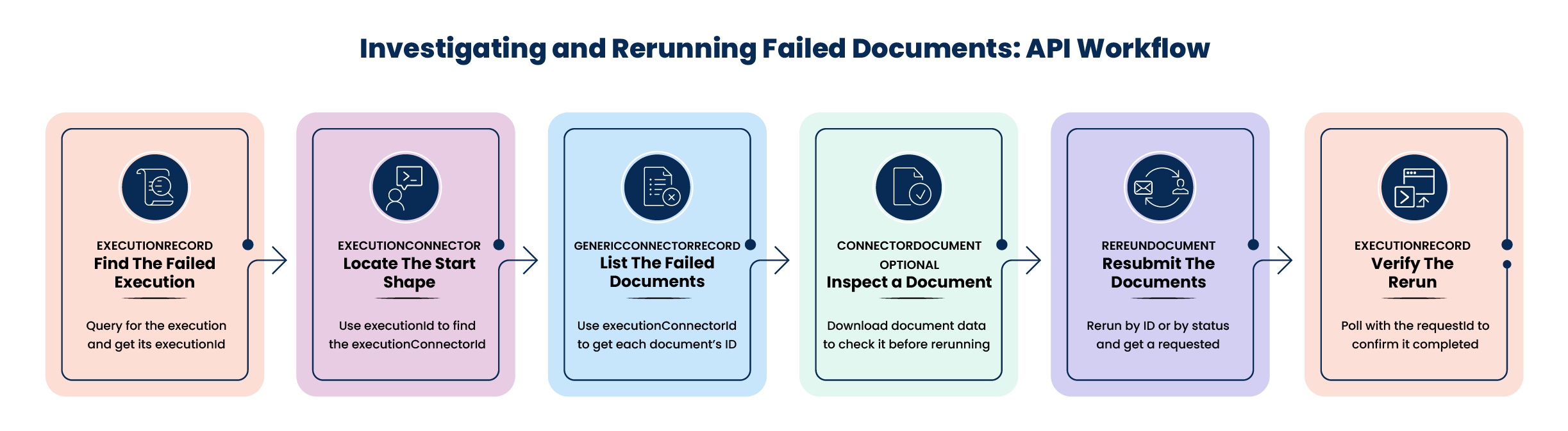
Implementing failed document investigation and rerun
Step 1: Query ExecutionRecord for failed executions
Send a QUERY request to filter and retrieve recent executions. Each result includes an executionId, which you use throughout the subsequent calls.
For example, to find failed executions on a specific runtime over the past week, filter by executionTime (BETWEEN a date range), status (EQUALS ERROR), and atomId (EQUALS the target runtime ID).
Usage considerations
- You can filter by date range, status, execution duration, and specific process IDs.
- Depending on account activity, this query can return many records, so be prepared to handle multiple pages of results.
For complete API details, request and response formats, parameters, and examples, refer to the ExecutionRecord API reference.
Step 2: Query ExecutionConnector for the Start shape
Using the executionId from Step 1, send a QUERY request to ExecutionConnector to return the Connector shapes (including the Start shape), Trading Partner shapes, and Return Documents shapes used in the process. Each result includes an id, which serves as the executionConnectorId for the next call.
For example, filter by executionId and isStartShape (EQUALS true) to retrieve only the Start shape record. Its errorCount field tells you how many documents on that shape failed.
Usage considerations
- ExecutionConnector records are retrieved for a single
executionId. - To find connector steps with failures, filter by
errorCount(GREATER_THAN0). - Filtering by
isStartShape(EQUALStrue) returns a single record, since only the Start and Trading Partner shapes support rerunning documents.
For complete API details, request and response formats, parameters, and examples, refer to the ExecutionConnector API reference.
Step 3: Query GenericConnectorRecord for the failed documents
Using the executionConnectorId from Step 2, send a QUERY request to GenericConnectorRecord to retrieve metadata for the documents captured on that connector step. The response includes status information along with connector and user-defined tracked fields.
For example, filter by executionId, executionConnectorId, and status (EQUALS ERROR) to return the failed documents for that step. Each result's id becomes the genericConnectorRecordId used in the remaining steps.
Usage considerations
- You can search and retrieve documents only within a given execution — you cannot search for documents across all executions.
- You can filter by connector fields or user-defined tracked fields.
- To retrieve only Start shape or Trading Partner documents, you can skip Step 2 and query GenericConnectorRecord directly, filtering by
startShape(EQUALStrue).
For complete API details, request and response formats, parameters, and examples, refer to the GenericConnectorRecord API reference.
Step 4 (optional): Inspect a document with ConnectorDocument
Before resubmitting a document, you can download its raw data to confirm it looks correct. ConnectorDocument is a two-part asynchronous call, because the platform needs to communicate with the runtime.
- Send a
CREATErequest with thegenericConnectorRecordIdfrom Step 3. The response returns aurlfor downloading the document. - Send a
GETrequest to that URL. The API returns an HTTP 202 status until the document is ready, then returns an HTTP 200 status with the document content.
- The runtime must be online to service the request.
- You can retrieve a downloaded document only once with a given URL. Submit a new
CREATErequest to download it again. - Use this operation for individual troubleshooting, not for bulk export or archiving of all documents. Boomi logs each document view in the Audit Log, the same as when you view a document through the user interface.
For complete API details, request and response formats, parameters, and examples, refer to the ConnectorDocument API reference.
Step 5: Resubmit documents with RerunDocument
Send a CREATE request to RerunDocument, specifying the originalExecutionId. You can resubmit documents two ways:
- Selected documents - Pass the list of
genericConnectorRecordIdvalues you retrieved in Step 3. - All documents by status - Pass a
documentStatusofERROR,SUCCESS, orANYto rerun every document on that execution matching the status, without listing individual IDs.
The response returns a requestId and a recordUrl for the new execution.
For complete API details, request and response formats, parameters, and examples, refer to the RerunDocument API reference.
Step 6: Verify the rerun
Use the requestId (or recordUrl) from Step 5 to poll the ExecutionRecord asynchronous GET endpoint until the new ExecutionRecord is available. On the retry execution, the retry populates the originalExecutionId field, confirming it as a rerun of the execution from Step 1.
For complete API details, request and response formats, parameters, and examples, refer to the ExecutionRecord API reference.
Additional considerations
- To interact with these APIs from within a Boomi process, such as building your own automated retry or monitoring process, use the Boomi Platform API connector.