Provisioning and configuring runtimes through the Platform APIs
Provision runtime clouds, set attachment defaults, and manage individual runtime and cloud attachment settings using the Boomi Platform API instead of the Boomi UI. This use case walks through creating a private runtime cloud, installing a cluster, configuring default attachment properties, confirming attachments, and fine-tuning settings for an individual attachment and a runtime.
Overview
Managing a runtime cloud typically involves several manual steps in the Boomi UI: creating the cloud, installing cluster nodes, setting quotas for each attachment, and adjusting individual runtime settings. The Platform API lets you perform each of these steps through scripts, CI/CD pipelines, or integration processes, turning runtime cloud management into a repeatable, auditable workflow.
This use case involves six Platform APIs:
- RuntimeCloud
- AccountCloudAttachmentPropertiesDefault
- Atom
- AccountCloudAttachmentSummary
- RuntimeProperties
- CloudAttachmentProperties
Prerequisites
Before using these APIs, ensure you have the following:
- API authentication credentials and the accountId of the authenticating account.
- CLOUD_MANAGEMENT privilege: Required to use the RuntimeCloud, AccountCloudAttachmentPropertiesDefault, and AccountCloudAttachmentSummary APIs.
- ATOM_MANAGEMENT privilege for write access, or ATOM_MANAGEMENT_READ_ONLY for read access, in the target environment. Required to use the RuntimeProperties and CloudAttachmentProperties APIs.
- The runtime cloud cluster or attachment you are querying must be online. GET requests to RuntimeProperties and CloudAttachmentProperties fail if the target runtime is offline.
To learn more about Boomi API authentication, refer to the Getting started with Boomi Platform APIs topic.
Workflow
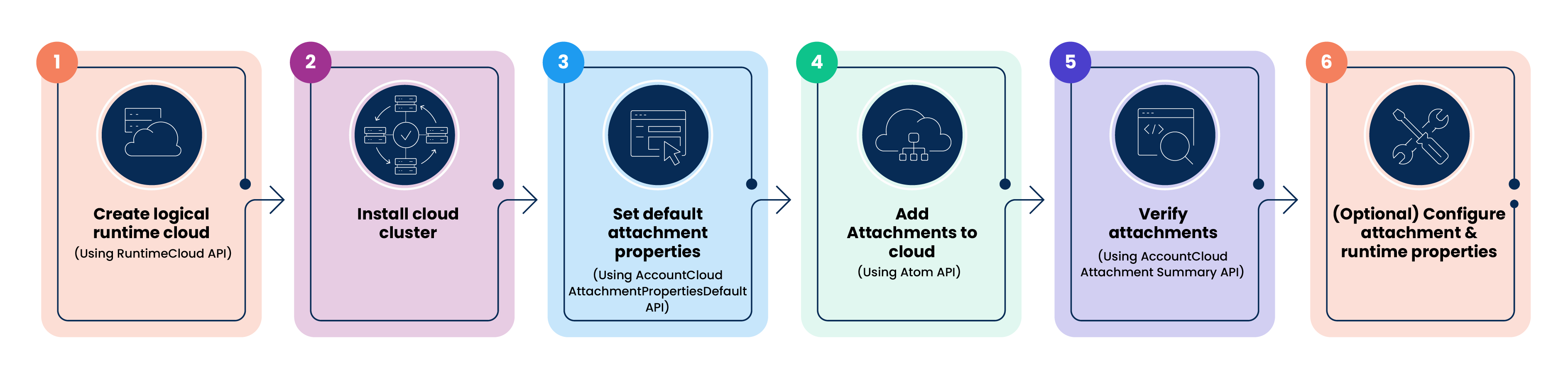
This example provisions a private runtime cloud and then fine-tunes settings for cloud attachment and runtime:
-
Create the logical runtime cloud using the RuntimeCloud API.
-
Install a cloud cluster.
-
Set default attachment properties for that cluster using the AccountCloudAttachmentPropertiesDefault API.
-
Add attachments to the cloud using the Atom API.
-
Verify that the attachments were created using the AccountCloudAttachmentSummary API.
-
(Optional) Configure cloud attachment properties and runtime properties.
Implementation
Step 1: Create the logical runtime cloud
Use the RuntimeCloud API to create a new private runtime cloud. Send an HTTP POST request specifying a name and an environment classification (PROD or TEST). The response returns the system-generated cloudId to use in subsequent calls.
Classification cannot be changed after the cloud is created.
Example:
POST /api/rest/v1/{accountId}/RuntimeCloud
{
  "name": "My Private Cloud 1",
  "allowDeployments": true,
  "allowBrowsing": true,
  "allowTestExecutions": true,
  "maxAttachmentsPerAccount": 1,
  "classification": "PROD"
}
For complete field definitions, response schemas, and query options, refer to the RuntimeCloud API reference.
Step 2: Install a cloud cluster
Follow the instructions for unattended runtime installation to install a cloud cluster using the cloudId returned in Step 1. A runtime cloud can use multiple cloud clusters to distribute workloads. Note the runtimeId of your cluster for use in subsequent steps. To view the runtime ID in the UI, go to Manage > Runtime Management.
Step 3: Set default attachment properties
Use the AccountCloudAttachmentPropertiesDefault API to set default properties such as disk usage limits, execution worker counts, and HTTP request rate for the cloud cluster installed in Step 2. Send the request using the runtimeId of the cluster, not the cloudId. If you have multiple clusters, repeat this step for each one, since defaults are set per cluster.
Example:
POST /api/rest/v1/{accountId}/AccountCloudAttachmentPropertiesDefault/{runtimeId}
{
  "containerId": "1b7a821e-2d32-4fa1-bdba-6b7caeaec33d",
  "accountDiskUsage": 429496729600,
  "httpRequestRate": 31313313,
  "as2Workload": "GENERAL",
  "downloadRunnerlogs": true
}
For the full list of quota and workload properties, refer to the AccountCloudAttachmentPropertiesDefault API reference.
Step 4: Add attachments to the cloud
Use the Atom API to create attachments on the cloud, either from the cloud owner's account or from a child account that the cloud has been shared with through an Account Group.
Example:
POST /api/rest/v1/{accountId}/Atom
{
  "cloudId": "23456789-abcd-ef01-2345-6789abcdef01",
  "name": "My Prod Attachment"
}
Step 5: Verify cloud attachments
Use the AccountCloudAttachmentSummary API to retrieve a list of cloud attachments for runtime clouds, along with their runtimeId, attachmentAccountId, cloudClusterId, and attachmentCreationDate. Without a query filter, this API returns all non-deleted attachments across all cloud clusters in the account. Filter the query by cloudId to limit the results.
Example:
POST /api/rest/v1/{accountId}/AccountCloudAttachmentSummary/query
{
  "QueryFilter": {
    "expression": {
      "operator": "EQUALS",
      "property": "cloudId",
      "argument": ["23456789-abcd-ef01-2345-6789abcdef01"]
    }
  }
}
(Optional) Cloud attachment properties and runtime properties configuration
Configuring cloud attachment properties:
Once attachments exist on the cloud, use CloudAttachmentProperties API to adjust settings for an individual attachment.
-
Retrieve cloud attachment properties
Send a GET request to the endpoint below, where id is the runtimeId. Retrieve the result using the returned token.
GET /api/rest/v1/{accountId}/async/CloudAttachmentProperties/{id}GET /api/rest/v1/{accountId}/async/CloudAttachmentProperties/response/{token} -
Update cloud attachment properties
Send a POST request with the properties to change, for example, containerPurgeDays, defaultTimeZoneForAccountSchedules, or archiveProcessedDocuments.
Example:
POST /api/rest/v1/{accountId}/CloudAttachmentProperties/{id}{"partialUpdate": true,"runtimeId": "7ee105f7-6a9e-4b62-b383-3f6f3121ffc0","containerName": "Cloud_attachment_1","containerPurgeDays": 46,"defaultTimeZoneForAccountSchedules": "Asia/Calcutta"}
Configuring runtime properties:
Use RuntimeProperties API to configure runtime and system properties, including custom properties, across runtimes (basic runtime, runtime cloud, and local cluster).
-
Retrieve runtime properties
Send a GET request to the endpoint below, where id is the runtimeId of the runtime cloud. The runtime cloud must be online. The platform returns an asynchronous response token.
GET /api/rest/v1/{accountId}/async/RuntimeProperties/{id}Send a GET request using that token to retrieve the standard, system, and custom properties configured for the runtime cloud.
GET /api/rest/v1/{accountId}/async/RuntimeProperties/response/{token} -
Update runtime and system properties
Send a POST request with the standardProperties, systemProperties, customRuntimeProperties, and customSystemProperties you want to set.
Example:
POST /api/rest/v1/{accountId}/RuntimeProperties/{id}{"runtimeId": "edfbe7a2-8ffa-4079-84b3-3f469c5ee8e5","partialUpdate": true,"shouldRestartRuntime": true,"standardProperties": {"containerName": "cloud_cluster2","debugLogging": true},"systemProperties": {"heapSize": "514m"},"customRuntimeProperties": {"com.boomi.container.is.orchestrated.container": "true","com.boomi.container.cloudlet.findInitialHostsTimeout": "4","com.boomi.container.enableUI": "false","com.boomi.container.metrics.enabled": "false","com.boomi.container.enableRuntimeRestartOnRuntimePropsUpdate": "true"},"customSystemProperties": {"property": ["-Dcom.sun.management.jmxremote","-Dcom.sun.management.jmxremote.local.only=true","-agentlib:jdwp=transport=dt_socket,server=y,suspend=n,address=*:5005"]}}
| Property | Description |
|---|---|
partialUpdate | Setting true updates only specified properties, leaving others unchanged. Setting false (default) updates specified properties and resets all other standard, system, and custom properties to their defaults. |
shouldRestartRuntime | Setting true restarts the runtime after the update applies the new properties. Setting false (default) updates the properties without restarting. |
Additional considerations
- The first result of an AccountCloudAttachmentSummary query may represent the cloud cluster itself, where runtimeId matches cloudClusterId.
- AccountCloudAttachmentSummary returns metadata from platform records regardless of whether the underlying runtime is currently online or accessible.
- The RuntimeCloud, AccountCloudAttachmentPropertiesDefault, and AccountCloudAttachmentSummary bulk GET operations return up to 100 objects per call.