Auditing component configuration beyond ComponentMetadata filters
As an integration developer or platform administrator, you often need to know which components use a specific configuration value, such as a hardcoded host name in a connector's connection settings, a particular Map function, or a document property default, rather than just which components exist. ComponentMetadata QUERY only supports a fixed set of indexed fields: type, subType, folderId, createdDate, modifiedDate, name, branchName, and a handful of others. Boomi does not index anything stored deeper in a component's own configuration, so you cannot query it directly.
ComponentMetadata returns indexed summary fields for each component. Component returns a component's full definition as XML, including configuration values that ComponentMetadata does not expose.
Learn how to combine ComponentMetadata and Component to close that gap: narrow the candidate set with the metadata filters you have, retrieve the full component XML for that smaller set, then filter on the remaining value yourself. The pattern is the same whether you run it from inside a Boomi process or from an external tool like Postman. Only where the filtering script executes changes.
Why cannot ComponentMetadata filter on configuration values directly?
An administrator planning to decommission a host needs a list of every HTTP Client connection still pointing at it, or every Map component still referencing a profile element scheduled for removal. Component Explorer's filters and the ComponentMetadata query fields cover type, folder, and modification history, but not the values inside a component's configuration. Pulling every component in the account to check by hand does not scale past a few dozen components, and repeating that check manually each time a decommission is proposed is not sustainable.
The same pattern also produces standing documentation instead of a one-time check: a scheduled process that queries all current connector components, pulls their XML, and generates a summary of connection endpoints per environment is a live configuration report rather than a manually maintained spreadsheet.
Prerequisites
Before building either version of this pattern, make sure you have:
- API authentication credentials and
accountId BUILD_READ_ACCESSprivilege (read access to component metadata and definitions)- Familiarity with the
ComponentMetadataandComponentAPIs - The specific element or attribute you are filtering on, and which component type it lives in. Retrieve one representative component with
ComponentGET first and inspect its XML, rather than guessing at the shape - For the process-based approach: the Boomi Platform API connector and a Data Process step in your canvas
- For the external-tool approach: Postman (or an equivalent HTTP client that supports pre-request/test scripting) configured with Basic Auth using your API username and token
To learn more about Boomi API authentication, refer to the Getting started with Boomi Platform APIs topic.
Workflow
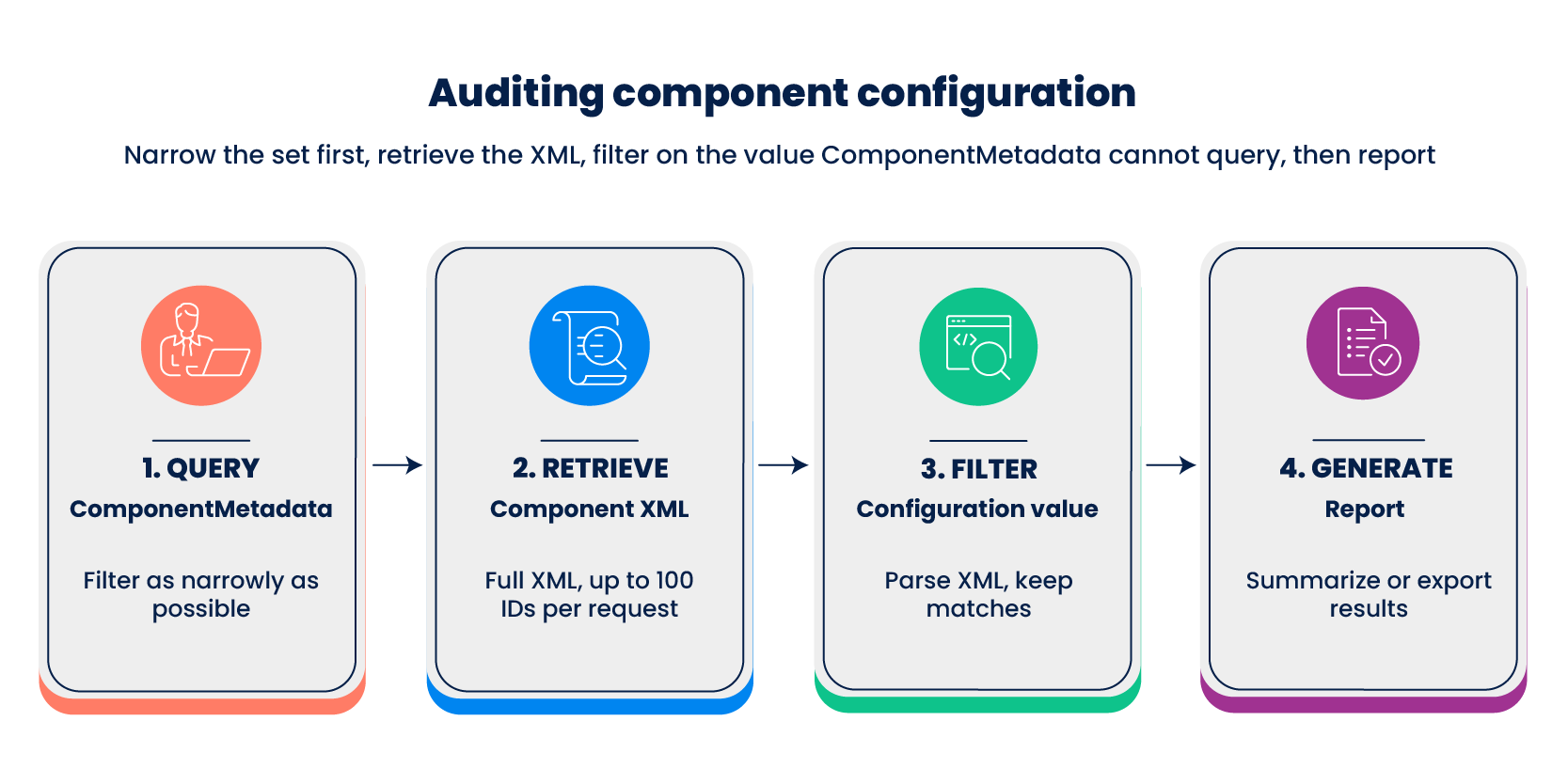
-
Query
ComponentMetadatawith as many indexed filters as apply (type,subType,folderId,modifiedDate, and so on) to reduce the result set to the smallest possible number of candidate component IDs. -
Retrieve the full XML for those candidates with
ComponentGET orComponent/bulk, batching by 100 IDs per request. -
Parse each component's XML and test for the specific element or attribute value that
ComponentMetadatacannot filter on, discarding components that do not match. -
Generate the report: a filtered document set and summary inside a Boomi process, or an exported report from Postman.
Implementation
Steps 1 and 2 are the same whether you run the pattern from a Boomi process or from Postman. Steps 3 and 4 depend on where the filtering script runs.
Step 1: Narrowing the candidate set with ComponentMetadata
Send a QUERY request to ComponentMetadata:
ComponentMetadata QUERY request example
{
  "QueryFilter": {
    "expression": {
      "operator": "and",
      "nestedExpression": [
        { "argument": ["true"], "operator": "EQUALS", "property": "currentVersion" },
        { "argument": ["false"], "operator": "EQUALS", "property": "deleted" },
        { "argument": ["connector-settings"], "operator": "EQUALS", "property": "type" },
        { "argument": ["http"], "operator": "EQUALS", "property": "subType" }
      ]
    }
  }
}
This returns matching componentId values, up to 100 per page.
Filter as narrowly as possible in this step. Every component you exclude here is one fewer XML definition to retrieve, transfer, and parse. Combine every indexed filter that applies to your audit, such as folderId to limit the query to one project folder or modifiedDate to check only recently changed components, before moving to Step 2.
-
In a Boomi process: Send the request using the Boomi Platform API connector.
-
In Postman: Send the request as a
POSTwith Basic Auth set to your API username and token. If you have not set up API authentication in Postman before, refer to Working with Boomi APIs on Postman.POST https://api.boomi.com/api/rest/v1/{accountId}/ComponentMetadata/querySet the
Content-Type: application/jsonandAccept: application/jsonheaders.
ComponentMetadata query usage considerations
- Include
currentVersion(EQUALStrue) anddeleted(EQUALSfalse) in most queries to avoid returning previous or deleted component versions. - The
typeandsubTypevalues in the example (connector-settings,http) identify HTTP Client connections. For other components, refer to the ComponentMetadata API reference for valid values, or retrieve one example component and read itstypeandsubTypeattributes. - Paginate with
queryToken(the token the query response returns for retrieving the next page) if the query returns more than 100 results.
For complete API details, request and response formats, and examples, refer to the ComponentMetadata API reference.
Step 2: Retrieving full XML with Component GET or Component/bulk
Using the componentId values from Step 1, send a Component/bulk request, batching by 100 IDs per call:
Component/bulk GET request example
{
  "type": "GET",
  "request": [
    { "id": "56789abc-def0-1234-5678-9abcdef01234" },
    { "id": "6789abcd-ef01-2345-6780-abcdef012345" }
  ]
}
-
In a Boomi process: Send the request using the Boomi Platform API connector.
-
In Postman: Set the
Content-Type: application/jsonandAccept: application/xmlheaders and send aPOSTrequest to the following endpoint:POST https://api.boomi.com/api/rest/v1/{accountId}/Component/bulkTo chain the call within the same run, collect the returned
componentIdvalues in the Tests tab of the query request, then usepm.sendRequest(). Use the Postman Collection Runner if you are batching multiple pages of IDs.
Component/bulk usage considerations
ComponentGET andComponent/bulkonly returnapplication/xml. There is no JSON representation, because the response body is the component's actual definition XML.- Each result is a
<bns:Component>element (attributes includecomponentId,name,type,subType,folderId,folderFullPath) wrapping a<bns:object>element that holds the component-type-specific configuration you need to inspect in the next step. Component/bulkaccepts a maximum of 100 IDs per request. If yourComponentMetadataquery returns more than 100 candidates, page through the results withqueryTokenand batch the bulk calls accordingly.
For complete API details, request and response formats, and examples, refer to the Component API reference.
Step 3: Filtering further on the configuration value
Choose where to run the filter on the component XML that Step 2 returned.
Filtering from a Boomi process
This path fits an audit that needs to run on a schedule, or where the output should feed directly into another process step, such as a Notify step or a report written to disk.
Use a Data Process step containing a custom scripting step (Groovy shown; JavaScript works the same way) to apply the value-level filter. Loop over the incoming documents from Step 2, each one a Component XML payload, and only call dataContext.storeStream() for the documents that match. The documents you store are the ones passed to the next step. Documents you do not store are not passed on. For more information about the dataContext object and the document loop, refer to Scripting context.
Groovy custom scripting example
// Loop through the Component XML documents from Component/bulk
for (int i = 0; i < dataContext.getDataCount(); i++) {

    InputStream is = dataContext.getStream(i);
    Properties props = dataContext.getProperties(i);

    SAXBuilder builder = new SAXBuilder();
    Document doc = builder.build(is);

    // Adjust this XPath to the element inside <object> that you are filtering on,
    // such as a connection's host or URL setting
    XPath x = XPath.newInstance("//object//MyTargetElement");
    Element match = x.selectSingleNode(doc);

    boolean isMatch = (match != null && match.getText().contains("decommissioned-host.example.com"));

    if (isMatch) {
        XMLOutputter outputter = new XMLOutputter();
        InputStream out = new ByteArrayInputStream(outputter.outputString(doc).getBytes("UTF-8"));
        dataContext.storeStream(out, props);
    }
    // Documents you do not store here are not passed to the next step
}
For the scripting pattern this builds on, refer to XML data parsing. For the other processing step types available alongside custom scripting in a Data Process step, refer to Data Process step.
Filtering from Postman
This path fits a one-off investigation, or an audit where building and deploying a process is not worth the overhead.
In the Tests tab for the Component/bulk response, parse each returned Component XML and filter on the value that ComponentMetadata cannot query for. For example, using an XML-to-JS parser such as xml2js:
Postman Tests script example
const xml2js = require('xml2js');
const results = [];

xml2js.parseString(pm.response.text(), { explicitArray: false }, (err, parsed) => {
    const responses = [].concat(parsed['bns:BulkResult']['bns:response']);

    responses.forEach((r) => {
        const component = r['bns:Result'];
        if (!component) return;

        // Adjust this path to the element you are filtering on inside <bns:object>
        const targetValue = component['bns:object']?.myTargetElement;

        if (targetValue && targetValue.includes('decommissioned-host.example.com')) {
            results.push({
                componentId: component.$.componentId,
                name: component.$.name,
                folderFullPath: component.$.folderFullPath,
                matchedValue: targetValue
            });
        }
    });
});

pm.environment.set('auditResults', JSON.stringify(results));
Step 4: Generating the report
Turn the filtered components from Step 3 into a report you can share.
- In a Boomi process: Add a Combine Documents processing step after the custom scripting step to merge the matching documents into one. Then add a final Message or custom scripting step to shape a summary of component name, ID, folder, and matched value. Write it out with a Disk connector or route it through a Notify step.
- In Postman: Export the accumulated
auditResultsenvironment variable using a Postman Collection Runner export, or run the collection with Newman and a JSON or CSV reporter to produce a report file directly from the command line.
Related APIs
- ComponentMetadata: Indexed, queryable summary fields for narrowing the candidate set
- Component: Full XML definition for a component, including configuration values not exposed by
ComponentMetadata - Query paging: Paging
ComponentMetadataquery results past 100 records