Investigating and auto-remediating a failed data flow using the Data Integration API
As a platform engineer or an AI agent acting on your behalf, you do not need to open the console and click through run history to find out why a data flow stopped moving data. Given nothing more than a data flow's name and a plain-language mission such as "the orders sync pipeline has been failing since yesterday, find out why and fix it if possible," you can use the Data Integration API to locate the flow, pull its recent runs, classify the failure, and, for a known set of safe cases, apply the fix and confirm it worked.
The DataFlows API lets you find, activate, disable, and run a data flow, and manage its CDC (change data capture) configuration. The Activities API lets you retrieve a flow's run history and the details of any individual run, including its error_description. Used together, these two APIs give an agent everything it needs to triage a failure without a human opening the console first.
Why automate failed data flow investigation?
When a data flow starts failing, the first hour of incident response is usually the same repetitive sequence: find the flow in the console, open its run history, read through the error on each failed run, and decide whether the fix is something you can do yourself or something that needs to wait on an infrastructure team. Doing this by hand does not scale once you are responsible for more than a handful of pipelines.
The DataFlows and Activities APIs let you turn that sequence into a reproducible, programmatic routine that an agent can run unattended for the failure patterns that have a known, safe fix.
This approach is useful when you need to:
- Triage failures without a human in the loop first: Search for a data flow by name, pull its last 24 hours of runs, and read the
error_descriptionon each failed run to identify the pattern, such as repeated connection errors, a schema mismatch, or an invalid CDC offset. - Apply known fixes automatically: For failure patterns with a well-understood remediation, such as an invalid CDC offset or a flow that was never activated, call the corresponding DataFlows API operation to apply the fix and rerun the flow, instead of waiting for a person to do it.
- Contain cost during an outage: When a flow has failed repeatedly, disable it so it stops consuming RPUs on every retry until someone resolves the underlying issue.
- Escalate what it cannot fix: For failure patterns that require human judgment or access outside the API, such as an infrastructure-level connection refusal, produce a diagnostic report instead of guessing at a fix.
Prerequisites
Before you or your agent can investigate and remediate a data flow, make sure you have:
- The
account_idandenvironment_idfor the environment the data flow runs in. - The name of the data flow to investigate, or its
river_cross_idif you already have it. - A token with the following scopes:
data flow:listandactivity:listto search for the flow and read its run history, plusdata flow:writeanddata flow:executeif you want the agent to apply a fix and rerun the flow. If you only want investigation and reporting,data flow:listandactivity:listare sufficient.
Authentication
The Data Integration API authenticates with a Bearer token scoped to an account, environment, and set of scopes, as described in Introduction. To obtain one, either:
- Generate a token manually from the Data Integration console, as described in the Data Integration REST API overview on Help Docs, or
- Send a POST request to the Users API (
generate_boomi_token) with a Boomi platform JWT to exchange it for a Data Integration Bearer token scoped to that JWT's account and user. Passenvironment_idin the request body to scope the token to a non-default environment. For the complete request and response format, refer to the Users API reference. This JWT is the same sign-in token used across Boomi platform APIs. If you don't already have a way to obtain one, use the console-generated token above instead.
Workflow
An agent investigating a failed data flow follows the same reasoning a person would, applied consistently every time:
- Find the data flow by name and pull its recent run history.
- Read the
error_descriptionon the failed runs and classify the failure into a known pattern. - For patterns with a safe, known fix, apply the fix. For everything else, produce an incident report instead of guessing.
- Rerun the flow and poll until the run reaches a terminal status, then close out the investigation or escalate with the full diagnostic package.
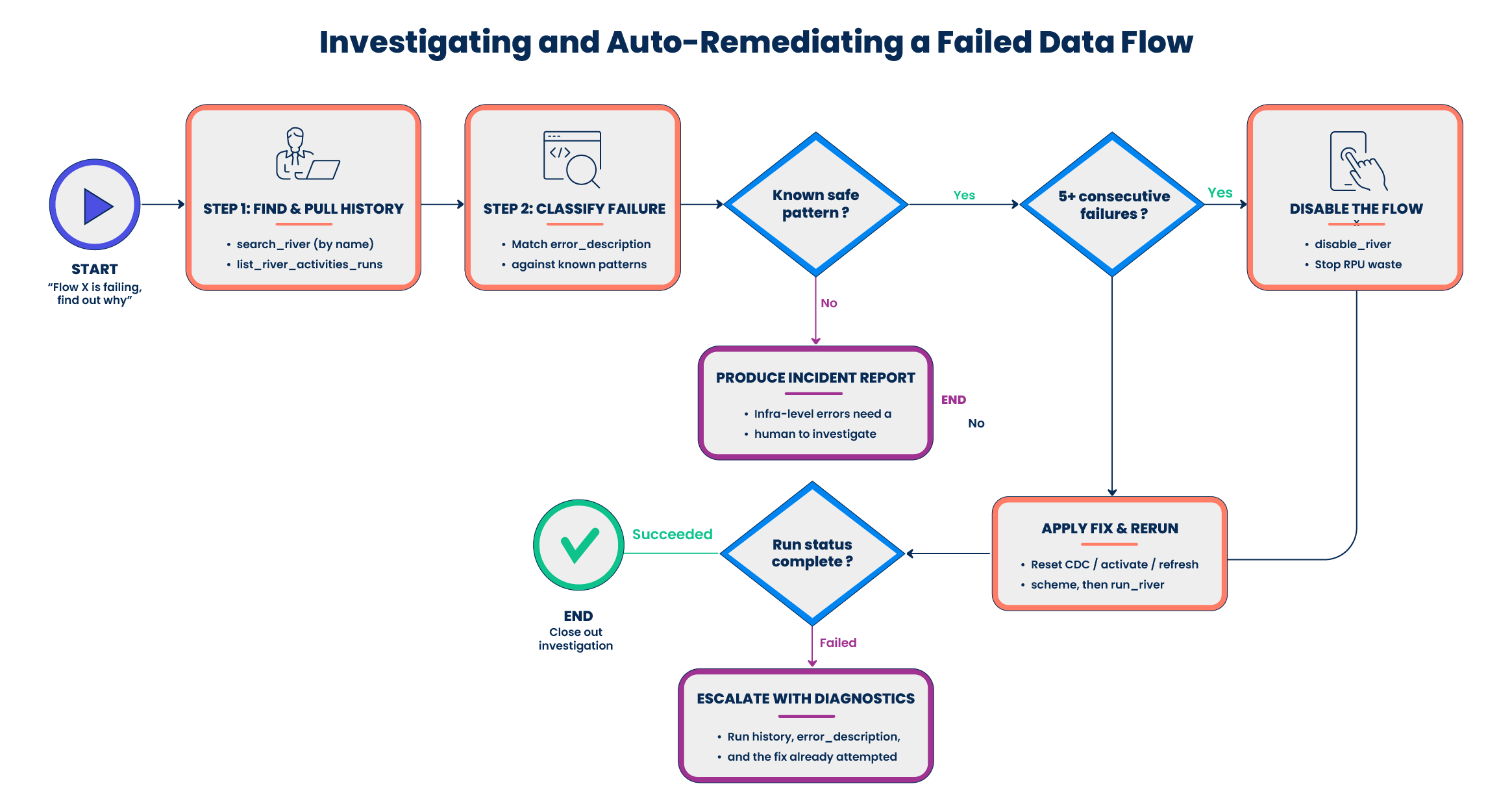
Implementing failure investigation and remediation
Step 1: Find the data flow and pull recent run history
Send a GET request to the DataFlows API to search for the data flow by name. For the complete request and response format, endpoint, parameters, and examples, refer to the DataFlows API reference.
Data flow names aren't guaranteed unique, so a name search can return more than one result. If it does, narrow the search with the river_status or group_id filters, or, if more than one candidate remains, don't guess. Escalate to a human rather than pick one.
Response details
- The search is paginated (
page,items_per_page, up to 500). If your environment has many flows, check for further pages before concluding there's no match. - Once you have a single matching flow, use its
cross_idas theriver_cross_idfor the rest of this workflow.
Send a GET request to the Activities API to list the flow's runs for the time window you care about, sorted with the most recent run first. For the complete request and response format, refer to the Activities API reference.
Response details
- This endpoint is also paginated (default 20 items per page, maximum 200). A frequently-scheduled or multi-table flow can produce more runs than one page in a 24-hour window, so increase
items_per_pageor loop through pages rather than assuming the first page is complete. - Each run includes a
statusand, for failed runs, anerror_description.
Step 2: Classify the failure and choose a remediation path
Match the error_description from the failed runs against a small set of known patterns to decide whether the failure is safe to auto-remediate:
| Failure pattern | Remediation |
|---|---|
| Connection refused or timeout | Infrastructure issue. Do not attempt a fix; produce an incident report instead. |
| Schema drift or column error | Update the data flow's source table configuration to refresh the schema mapping. |
| Invalid CDC offset | Delete the CDC configuration to reset the offset, then trigger a full reload. |
| Flow not activated | Activate the data flow, then rerun it. |
Regardless of the pattern above, if a flow has 5 or more consecutive failures, disable it first to stop it from consuming RPUs on every retry. Re-enable it only after the underlying issue is resolved.
Step 3: Apply the fix and verify (CDC offset example)
Send a DELETE request to the DataFlows API to reset the CDC configuration for an invalid-offset failure. For the complete request and response format, refer to the DataFlows API reference.
For the "flow not activated" pattern, check the flow's river_status before calling activate. The spec doesn't document what happens if you activate a flow that's already active, so don't call it on an assumption.
Send a POST request to the DataFlows API to rerun the flow so the next run performs a full reload. For the complete request and response format, refer to the DataFlows API reference.
Use a GET request to poll the Activities API repeatedly with the run's run_group_id, passed as the run_id path parameter, until the run reaches a terminal status. For the complete request and response format, refer to the Activities API reference.
Response details
succeededmeans the fix worked. Close out the investigation.partially succeededmeans some tables synced but at least one didn't. Treat it the same asfailedfor this workflow: escalate with the full diagnostic package.failedorcanceledmean the fix didn't resolve the issue. Escalate with the full diagnostic package: run history,error_description, and the fix already attempted.- Boomi's spec doesn't publish a recommended polling interval or timeout for run status. As a starting point, poll every 10 seconds for the first 2 minutes, then back off to every 30 seconds, and treat a
503response as a signal to back off further rather than poll harder.
Additional considerations
- Not every failure is auto-fixable. Infrastructure-level errors, such as a connection refusal or timeout, need a human to investigate the target system. Produce a complete diagnostic package rather than guessing at a fix.
- A run is asynchronous. After you call the run operation, poll the run's status instead of assuming success, since the run has not necessarily completed by the time the API call returns.
- Log every automated action an agent takes, such as deleting a CDC configuration or disabling a flow, so a person can audit what changed and why during the incident review.
- The disable-on-repeated-failure rule is a cost and safety net, not a fix. Treat a disabled flow as still needing root-cause resolution before you re-enable it.