
 LinkedIn

 X
How Boomi Companion can be added to Agent Control Tower


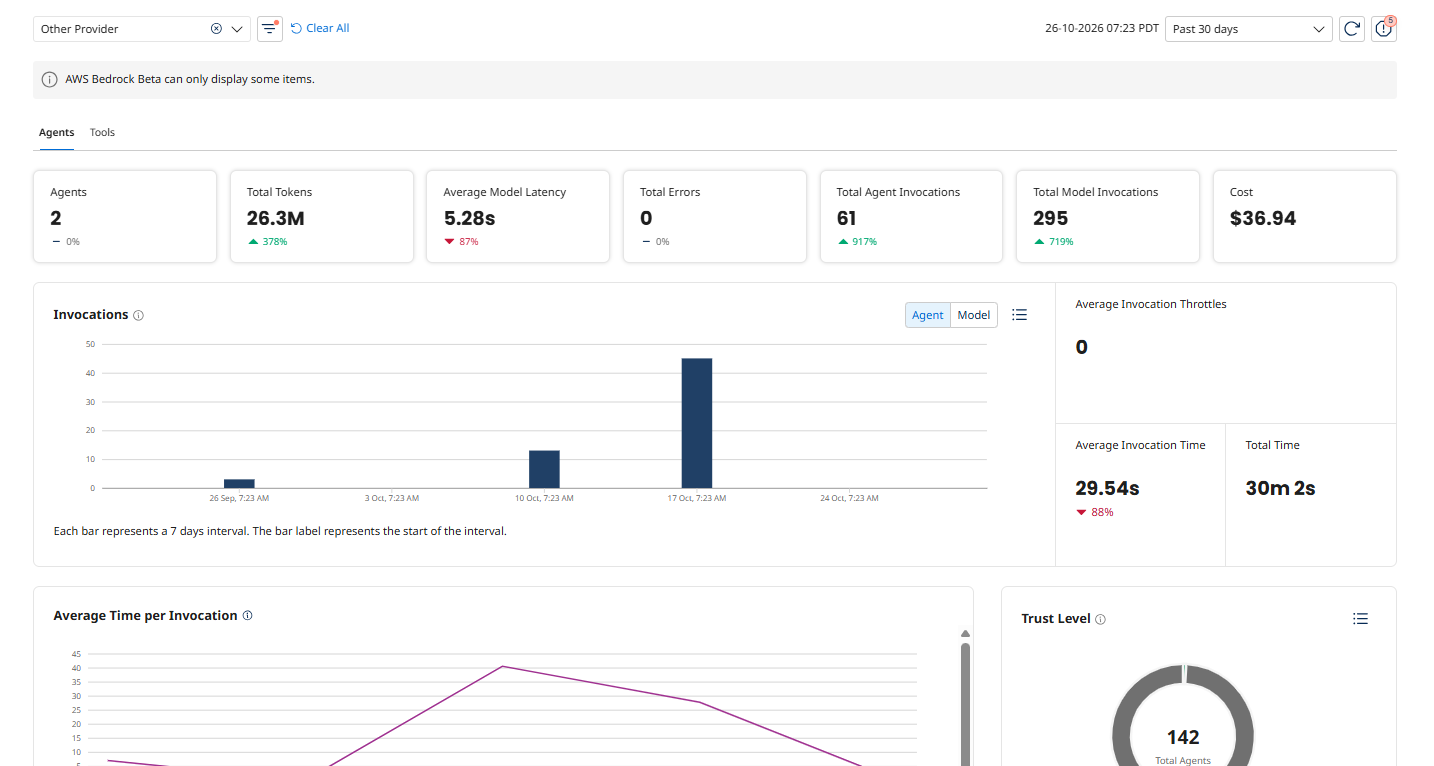
Boomi Companion was already building processes in our accounts, and it was working well. What we couldn’t see was what it did, or what it cost, every time we used it in Claude Code. So the two of us, Elena Princi (Instructional Designer and Agent Control Tower Content Lead) and Mark Dawson (Technical Training Lead, Agentstudio and Integration), teamed up to test Agent Control Tower’s (ACT) External Provider features, and added Boomi Companion to ACT in our accounts.
This result is visibility into Boomi Companion token usage and cost, broken out by the time frame you select. This post walks you through how we set it up in Claude Code.
The idea
To see what Boomi Companion does every time we use it in Claude Code, we added it to ACT as its own provider. ACT cannot see inside a custom agent, so the setup has two parts:
-
An agent for ACT to track.
-
A ‘hook’ (or instructions) that sends metrics after each Claude Code reply.
Before we started, Boomi Companion skills were already installed in Claude Code (the skills work with the LLM of your choice, but this setup uses Claude Code), and Boomi Companion was working properly and building processes in our accounts.
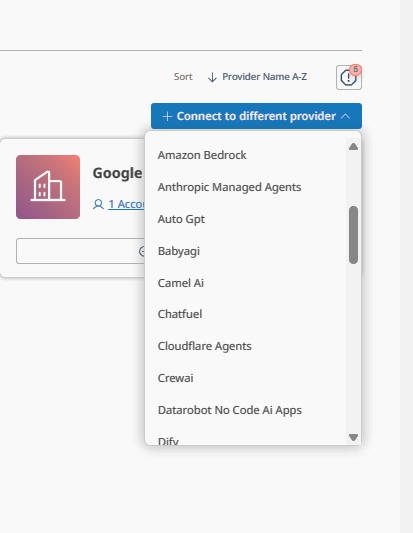
To monitor Boomi Companion usage, we went to ACT and created a provider.
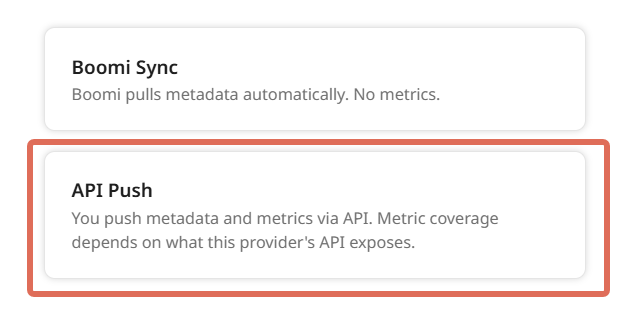
One thing to note is that if you are given the option between Boomi Sync and API Push, you need to make sure API Push is selected so that metrics are included. If you don’t see the option, it defaults to API Push.
When you add Boomi Companion to ACT in your own instance, you need to create the agent in the provider account you added. One thing to note here is that Boomi Companion isn’t exactly an ‘agent.’ It is a set of skills that you use within the LLM of your choice. However, to monitor it, you do need to represent it as an agent. When creating the agent, don’t get too concerned about entering every piece of information that is available. What we are building is more of a representation of our agent (Boomi Companion) that we can recognize in ACT. The real work happens on the agent side, which pushes the information to ACT using the Monitoring Spec that gets created.
Set up the provider
We set up a provider account in ACT, then created a draft agent and deployed it. The deployed agent contains a Monitoring Spec. We downloaded the Monitoring Spec and saved it in the folder we pointed Boomi Companion to. Boomi Companion uses the spec as instructions for sending metrics to ACT through OpenTelemetry.
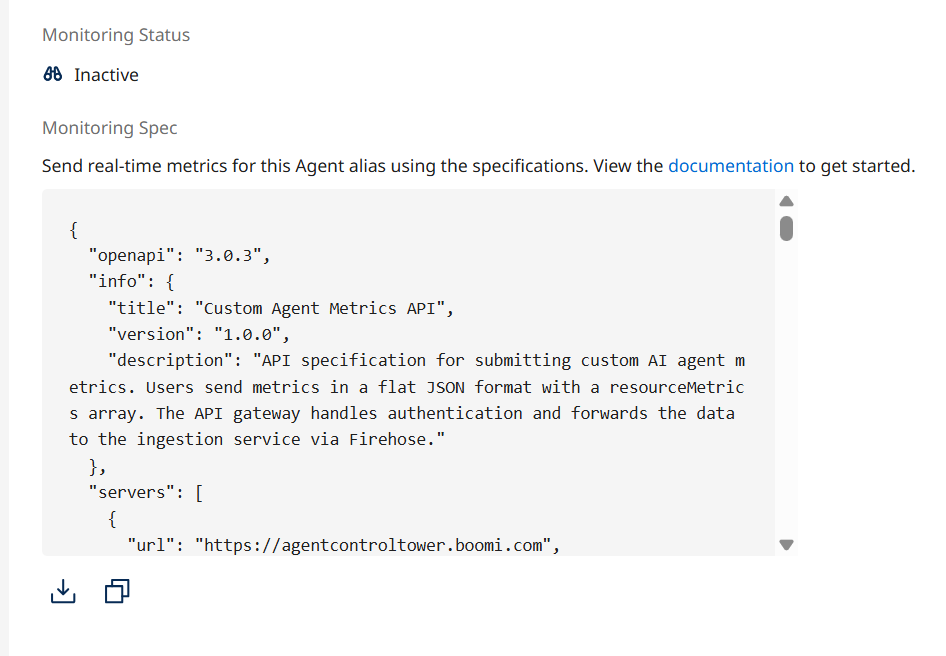
Once we had the Monitoring Spec from ACT, we put it in our Boomi Companion ‘workspace folder’ in Claude Code. At that point, we also had to modify the Monitoring Spec to carry credentials. In a production setting, we would use a secrets manager instead of storing credentials in the spec.
As a best practice, do not pass a document that has your credentials in it directly into a chat with any LLM at any time.
Next, we opened the Boomi Companion integration skill and told Boomi Companion what we intended to do: push metrics to ACT whenever it was invoked. We pointed Boomi Companion at the file location, and Boomi Companion sent a metrics test to ACT. One thing Boomi Companion alerted us to was that you can either invoke Boomi Companion only when working in the workspace folder (and then Boomi Companion can send from there) or have metrics sent every time you use Claude Code, which made the most sense for our use case. We strongly recommend that when you set this up, you ask Boomi Companion for options and feedback on how and when it will push the information to ACT, because Boomi Companion can set up ‘hooks’ or instructions particular to your use case.
Keep the metrics limited to Boomi Companion (if applicable)
The hook or instructions fire after every reply, whether or not the turn involves Boomi work. Where you place the Monitoring Spec decides what gets reported:
-
User settings (
~/.claude/settings.json) report every Claude Code session, in any folder. -
Project settings (
.claude/settings.jsonin the Boomi Companion workspace) report only sessions started in that workspace.
To report only Boomi Companion metrics, make sure you:
-
Use an agent ID (found in the
extAccountAliasIdfield) from a published version, not the draft. -
Place the hook in the workspace’s
.claude/settings.json. -
Keep the hook out of
~/.claude/settings.json. -
Start Claude Code from the Boomi Companion workspace folder. Sessions started anywhere else are not reported.
-
Send a test prompt and confirm it shows up in ACT before you rely on the data.
Known limits
Keep these limits in mind:
-
Non-Boomi questions asked inside the workspace are reported as Boomi Companion.
-
Sessions started from a subfolder of the workspace may not be reported. Test this before you tell anyone it works.
-
Turns already reported keep the Boomi Companion label. Changing the scope only affects new turns.
-
If the workspace is in git, the hook goes to everyone who clones it. For a personal setup, use
.claude/settings.local.json, which is usually not committed.
Keep learning
Ready to go further? Two Boomi courses pick up where this post leaves off. The External Agents in Agent Control Tower course walks through provider types, connection methods, and terminology step by step. The Boomi Companion course covers the broader tooling that many of these workflows depend on.
Want to see how to connect a different provider in ACT? Email us at developer-offerings@boomi.com and tell us which one.
